Connecting in OpenCode
-
Install OpenCode
-
Create the file
opencode.jsonin the project root and fill it with the contents belowopencode.json{
"$schema": "https://opencode.ai/config.json",
"provider": {
"explyt": {
"npm": "@ai-sdk/openai-compatible",
"name": "explyt",
"options": {
"baseURL": "https://api.explyt.ai/openai/api"
},
"models": {
"auto": {
"limit": {
"context": 372000,
"output": 32768
}
},
"Anthropic/opus-5": {
"limit": {
"context": 465536,
"output": 65536
}
},
"Anthropic/sonnet-5": {
"limit": {
"context": 465536,
"output": 65536
}
},
"OpenAI/gpt-5.6-sol": {
"limit": {
"context": 372000,
"output": 32768
}
}
}
}
}
}- The
baseURLfield already contains the OpenAI-compatible URLhttps://api.explyt.ai/openai/api - The
modelsblock lists the main recommended models. Full list of models:https://api.explyt.ai/openai/api/models - To use another model, add it to the
modelsblock following the same pattern
- The
-
Start OpenCode:
opencode -
Type
/connect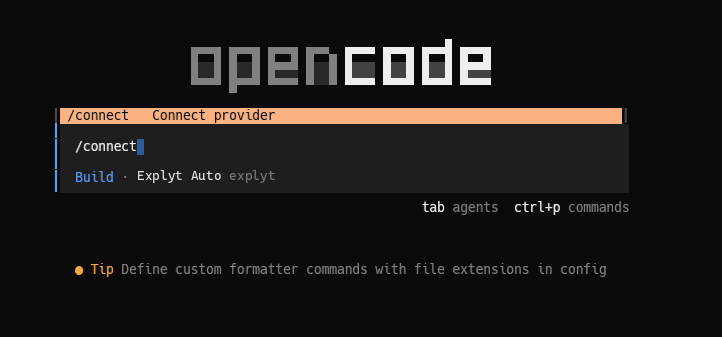
-
Choose
explyt(or another name you specified in the config)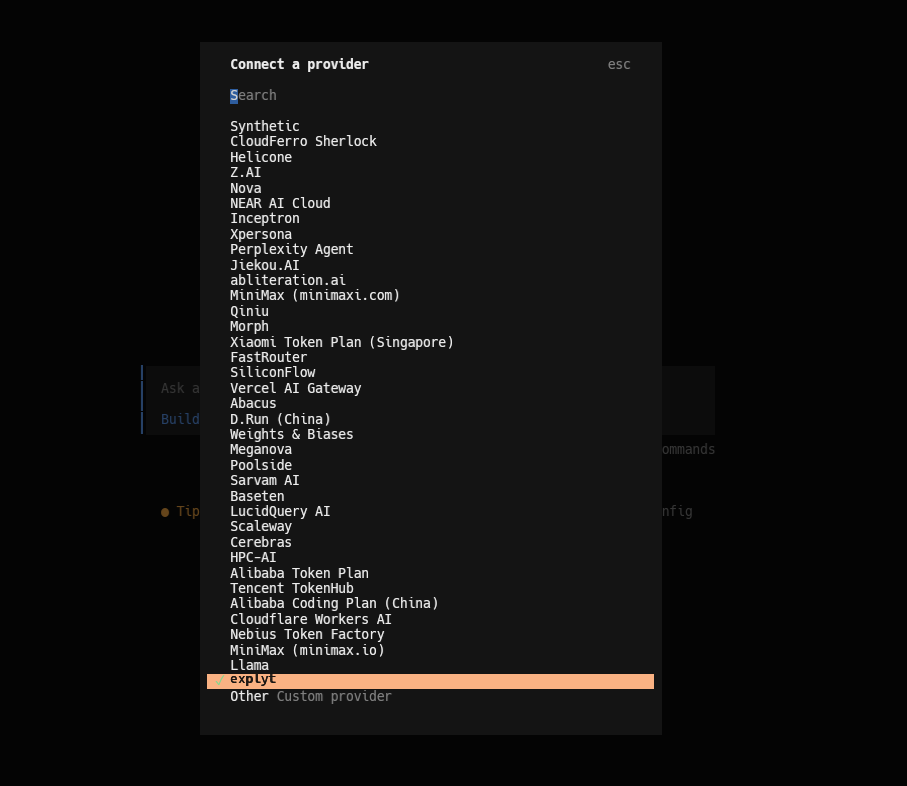
-
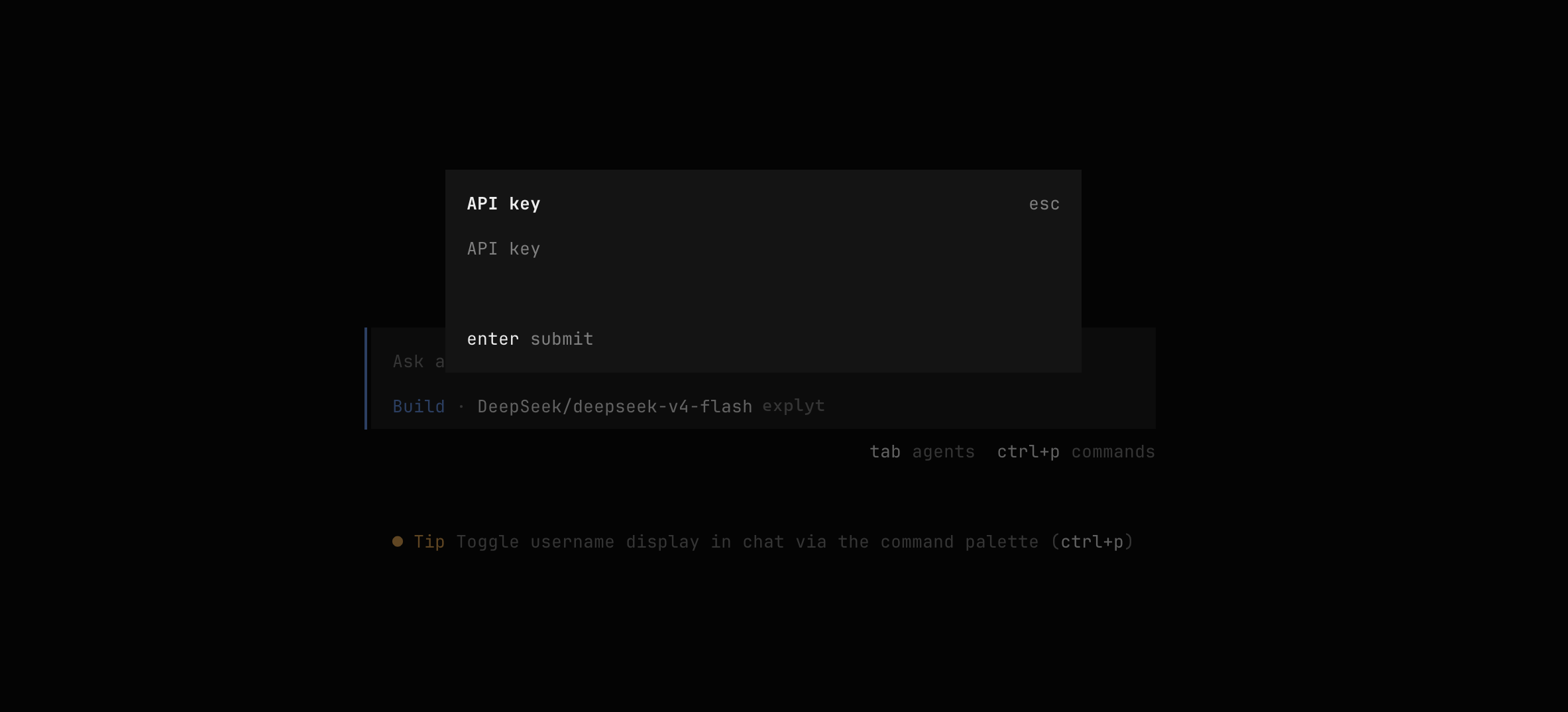
Enter the API key from your personal account. The key is in the Connect to Explyt block of your personal account, the Copy key button. Details: where to get the URL and key
Requests from OpenCode spend Explyt subscription minutes the same way as requests from the plugin. The balance is shown in your personal account.
For errors, see Error messages.