Context, chats, and memory
Explyt uses several sources of context. Some apply only to the current message or chat, others apply across the whole project and persist between sessions. Choose a mechanism based on how long the information should stay relevant.
What the agent receives in a chat
You can attach a selected code fragment, a file, a directory, an image, a log, or a long text to your message. The attachment gives the agent the raw material for the current task, and the request text explains what to do with it.
Selected code and other attachments appear right inside the input field.
The agent can extend the initial context on its own: read related files, find declarations and usages, check linked dependencies, and get information from IDE tools. The available actions depend on the agent mode, the IDE, and your tool settings.
You can attach images to a message too, but their content is only available to models that support images. For details, see Images and attachments.
What persists within the current chat
The chat history links consecutive messages and the agent's results. It suits follow-ups on a single task: the agent sees the previous agreements, answers, and tool calls within the available context.
While the agent is busy, you can put new messages in a queue. They will be processed one after another. Force-sending a message from the queue stops the current processing, so use it when the new instruction really should replace the work in progress.
Start a new chat if you are moving to an unrelated task or the old agreements should no longer affect the answer. The exact isolation boundary for all internal data between chats is not described in the current documentation; persistent project context and the Memory Bank may apply in a new chat as well.
How to manage chats
Continue the conversation from a selected message
Branch chat creates a separate chat with the context up to the selected message. The original conversation stays unchanged.
Use Branch chat when you need to:
- try a different wording of the task while keeping the original version;
- check an alternative implementation from the same starting history;
- return to a good point in a long conversation without deleting the later messages;
- compare the results of two continuations of the same dialogue.
To create a branch, you need an existing chat with the message you want to continue from.
- In the chat history, find the message that should become the last one in the shared context of the two conversations.
- Hover over the message to open the action panel.
- Click Branch chat.
- Continue working in the chat that opens: send a different wording of the task or ask for another solution.

Explyt opens a separate conversation with the context up to the chosen point. The original chat and its later messages stay unchanged, so you can return to the first version and compare the results.
For a full copy of an existing conversation, use Duplicate Chat. For an unrelated task, open a new chat. For more on history length, see "What happens to a long chat".
Click History in the Explyt window header. In the history you can search chats by name and open a saved chat by clicking its card.
Use the Agent filter when you need to find conversations from a particular mode, for example all Review chats. Open History, select an agent in the filter, and open the card you need.
Use the Project filter to separate the chats of one repository from conversations in other projects. Open History and select a project in the filter.
The history can be grouped By Status or By Date. Choose By Status to gather active, pinned, and saved chats together; By Date is handy when you need to find a recently closed or an older conversation. Click Sort Chats and choose the option you want.
The card menu contains the chat management operations:
- Use Pin Chat for a long task or a conversation you return to often. Open the card menu and select Pin Chat.
- Unpin Chat removes the pin when the chat is no longer a priority. Open the menu of a pinned card and select Unpin Chat.
- Rename Chat helps you replace an automatically generated title with a clear task name. Select Rename Chat, enter the new name, and confirm the change.
- Duplicate Chat creates an independent copy with the messages and context of the original chat. Use it to try a different approach without changing the original conversation: select Duplicate Chat, name the copy, and continue working in it.
- Move to History removes a finished chat from the open tabs but keeps it searchable. Select the action in the card menu; you can open the chat later from History.
- Open In Panel opens the whole history in a separate panel. Use it when you want to keep the history next to the editor or switch between several chats: click Open In Panel in the History window.
- Delete Chat deletes the chat permanently.
Before deleting, Explyt shows a confirmation: Delete this chat permanently? This action cannot be undone. A deleted chat cannot be restored.
After a normal IDE restart, Explyt reopens the saved chat tabs and restores their order and the selected tab. An empty new-chat tab is not saved. If the saved chat you need did not open automatically, find it in History and open it manually. If the history is missing, use the performance and stability diagnostics and do not clear the IDE data before you collect the log.
What happens to a long chat
The model has a limited context window. As the history grows, the time and cost of the work increase and quality may drop.
Automatic compression shortens the history. First, Explyt applies its built-in rules without an extra request to the model. If that is not enough, the history is summarized through an LLM: a short summary replaces the older conversation, while the latest user message stays unchanged.
You can configure when automatic compression happens, and you can also trigger compression manually. The documentation does not guarantee that every detail is preserved verbatim after summarization. It is better to repeat critical requirements in the current request or to fix them with a suitable persistent mechanism.
How the sources of persistent context differ
| Mechanism | What it stores | Where it applies | When to use it |
|---|---|---|---|
| Attachment | Code, a file, an image, a log, or other material for the task | The current message and the chat history | Give the agent concrete raw material |
| Chat history | The messages and results of the current work | The current chat, as long as it fits the context or its summary | Continue one connected task |
| AGENTS.md | A description of the product, modules, commands, and general project rules | The project | Context needed in most tasks |
| Rules | Instructions for a global or project scope with a glob pattern | Per the rule's scope and pattern | Set behavior for specific projects or files |
| Skills | An instruction for one repeatable task | When the skill is invoked automatically or manually | Fix a reproducible workflow |
| Memory Bank | Durable knowledge, preferences, and non-obvious agreements | Between chats and sessions | Avoid repeating a useful fact in every conversation |
These mechanisms complement each other, but you should not store one instruction in all of them at once. Keep information that goes stale quickly in the chat, general project context in AGENTS.md, a repeatable process in a Skill, and durable non-obvious knowledge in the Memory Bank.
How the Memory Bank works
The Memory Bank stores entries in Markdown files inside .explyt/memory/. A compact memory index is always part of the context, while the full content is opened only for the entries the agent considers relevant to your request.
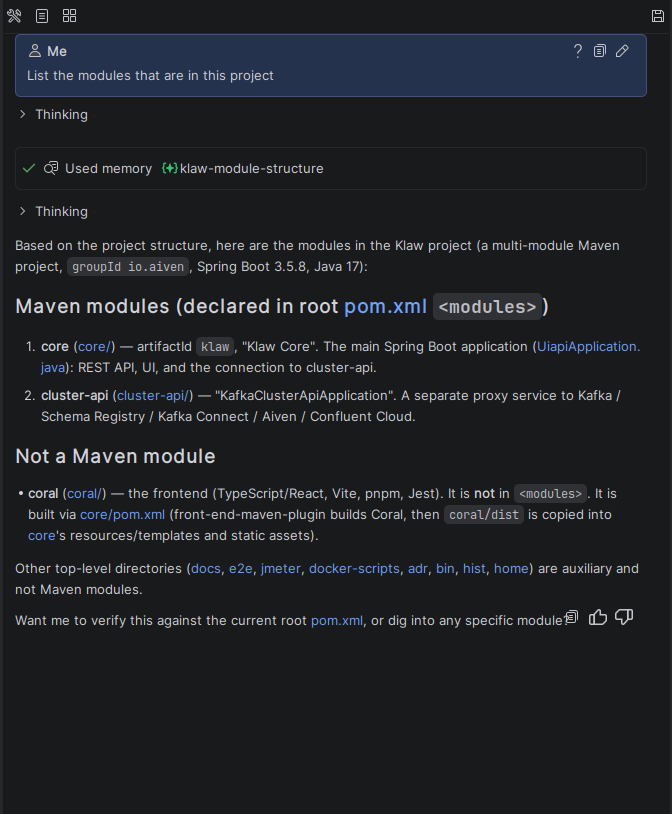
Memory can be filled automatically or with the commands "Remember", "Update the entry", and "Forget". It is not meant for secrets, personal data, the current state of a task, or facts that are easy to recover from the code.
You can disable the Memory Bank in the settings or ask the agent not to use memory for a specific request. For details on storage, consolidation, and manual management, see the Memory Bank page.
How to choose a mechanism
- Attach the material if it is needed only for the current task.
- Continue the current chat while the messages serve one goal.
- Open a new chat for an independent task.
- Write general project context into
AGENTS.md. - Use a Rule for an instruction with a specific file scope.
- Create a Skill for a repeatable process.
- Save a durable fact to the Memory Bank if it will be useful in future chats.
Related pages: