Skills
The open SKILLs standard is supported. A Skill solves a single narrow task, and the agent picks it up automatically when needed.
How to add a Skill
Add a new Skill through the new chat menu, as shown in the video. Describe the scenario you want to capture: the agent will ask for details and prepare the necessary Markdown files in the right folder.
A project Skill is saved to .explyt/skills/<skill-name>/SKILL.md. Choose this option for a procedure tied to a specific repository: for example, the migration review process your team has agreed on. To add such a Skill:
- Create the Skill from the new chat menu in the project you need.
- Make sure the file appeared in
.explyt/skills/<skill-name>/SKILL.md. - Add the Skill directory to VCS if the whole team should use it.
Global Skills live in ~/.explyt/skills. They suit personal procedures you need across projects: for example, your usual format for stack trace analysis. To create a global Skill, select the global scope when adding it and check the file in ~/.explyt/skills/<skill-name>/SKILL.md.
The YAML front matter requires name and description, and the Markdown body holds the instruction for the agent. The full contract, including the allowed fields, the resolution order for identical names and loading errors, is described in the SKILL.md schema reference.
Writing Skills manually gives a noticeable quality boost (roughly 15–20% in internal measurements) compared to generating them automatically.
Skills from other tools' dot directories
Explyt searches for Skills not only in .explyt/skills/*/SKILL.md, but also in recognized dot directories of other tools, such as .claude/skills/*/SKILL.md.
This lets you reuse Skills and instructions that are already stored in the configuration folders of other AI tools, without copying them to .explyt. If names collide, a project Skill takes precedence over a global one, and .explyt takes precedence over another dot directory in the same scope.
Recognized dot directories are highlighted in the project tree, so you can see which configuration roots Explyt uses. This is useful when a team works with different AI assistants and does not want to duplicate Skills for each tool.
Automatic Skill selection
The agent sees the description of the Skills available to it and uses it to decide which Skill to attach to the current task. Automatic selection helps when the user states a goal in ordinary words and does not remember the Skill name. For example, the request "check the PR against the team checklist" may pick up the matching Skill without a / command.
To make automatic selection work predictably:
- In
description, name the task and the situation the Skill applies to. - Phrase your request using the same domain words.
- If the Skill should be available to specific agents, configure
used-by.
Detailed field formats are described in the SKILL.md schema.
Choosing an agent for a Skill
The agent field defines the agent used when the Skill is launched manually from the catalog or through a / command. You need it when the current mode does not suit the procedure. For example, a multi-step Skill with research, implementation, tests and review is worth running through Orchestrator.
To pin an agent:
- Open
SKILL.md. - Specify the agent name in the
agentfield. - Launch the Skill from the catalog or through
/skill-name.
The used-by field controls automatic selection. Use it when not every agent should see the Skill: for example, a test generation Skill can be allowed for Test and General. List the agents you need in used-by. If automatic invocation must be forbidden entirely while manual invocation stays available, set an empty list. The exact semantics of a missing and an empty value are described in the SKILL.md schema.
Manual Skill invocation via / commands
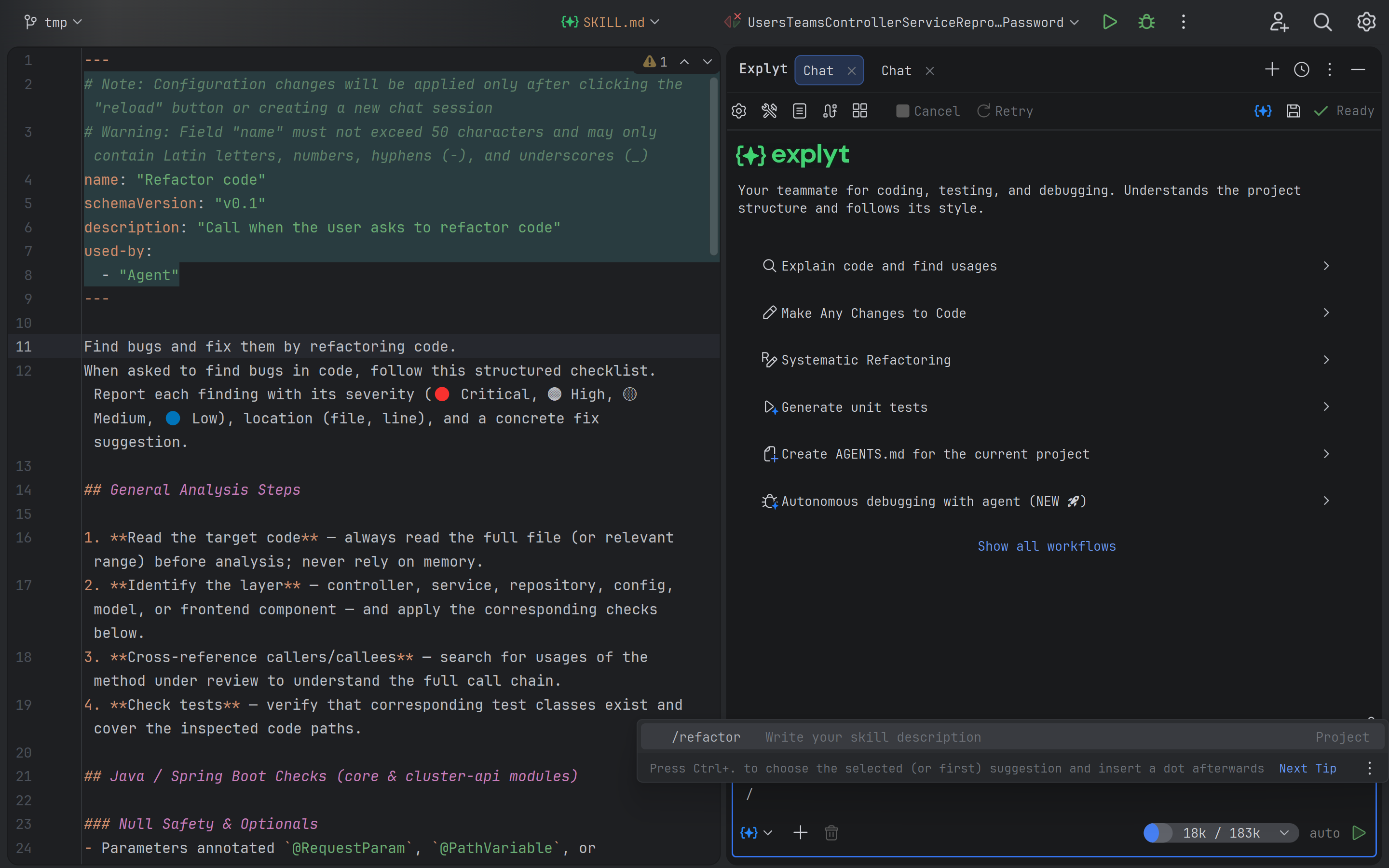
Skills can be invoked manually via / commands directly in the chat.
By default, Skills are triggered automatically when the agent decides they are needed. However, you can explicitly invoke a specific Skill, for example /refactor, to guarantee the desired scenario is executed.
This is useful when you know exactly which Skill you want to apply and don't want to rely on the agent's automatic selection, for example when launching a PR review or generating tests from a specific template.