Memory Bank
0. Before you start
What is Memory Bank?
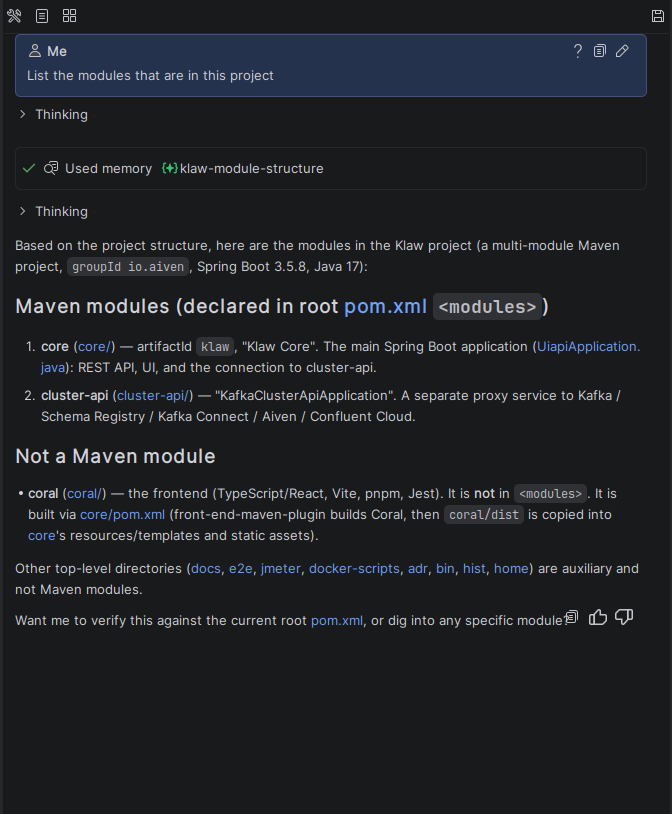
Memory Bank is the agent's long-term memory that persists across chats and sessions. Normally, each new chat starts from scratch: the agent doesn't remember your preferences, project agreements, or earlier conclusions. Memory Bank fixes this — the agent records an important fact once and reuses it in any future conversation.
For example, you say once: "our integration tests always hit the real database, don't mock it." The agent saves this rule, and in later chats it follows it automatically, no reminders needed.
No need to re-explain the project structure, libraries, code style, or team agreements every time. On complex projects this saves a noticeable amount of time.
Memory lives right inside your project, in the .explyt/memory/ folder. These are plain Markdown files, readable and editable by hand.
What does the agent remember?
Only durable, non-obvious knowledge that will be useful later. Each entry has one of four types:
- User — who you are and how you work: your role, area of expertise, knowledge level. Helps the agent tailor the level of its explanations.
- Feedback — how to work with you: your corrections and confirmed preferences on style and approach.
- Project — non-obvious knowledge about the project: pitfalls, why architectural decisions were made, current agreements and deadlines.
- Reference — pointers to external sources: the issue tracker, dashboards, channels where particular information lives.
The agent deliberately skips things that are easy to reconstruct from the code or git history: class locations, method signatures, directory structure. It also does not store secrets, passwords, or personal data.
1. How to enable
Memory Bank is controlled from the settings:
Settings → Tools → Explyt → Memory Bank
The page has four toggles:
Enable Memory Bank
Enable Memory Bank if decisions, constraints or preferences should persist across chats. For example, the agent will then honor the agreement about using a real database in integration tests without you explaining it again in every new conversation.
- Enable Enable Memory Bank.
- Click Apply.
The toggle turns on the memory policy, the index of saved knowledge in the agent's context, and the memory tools. Without it, the other options are inactive. Turn Memory Bank off entirely if the project contains sensitive data or does not need saved context.
Auto-extract memories after each turn
Enable auto-extraction for long working conversations where agreements and corrections come up along the way and are inconvenient to save with a "Remember this" command each time. Turn it off if you want to decide yourself which facts end up in memory.
- Enable Enable Memory Bank.
- Enable Auto-extract memories after each turn.
- Click Apply.
After a completed turn, the plugin checks whether enough new meaningful context has accumulated for a background save.
Run periodic consolidation (dream)
Enable periodic consolidation if you have been using Memory Bank for a long time and it is accumulating duplicates, scattered entries and index changes. For a small bank that you maintain by hand, background consolidation can be turned off.
- Enable Enable Memory Bank.
- Enable Run periodic consolidation (dream).
- Click Apply.
The plugin periodically fixes the index, removes near-exact duplicates and merges related entries.
Memory notifications
Enable notifications if you want to see the results of automatic extraction and its errors. This is useful when you start out with Memory Bank and need to check which facts are saved in the background. Turn notifications off once you are done checking, if the background messages distract you.
- Enable Enable Memory Bank.
- Enable Memory notifications.
- Click Apply.
The setting controls notifications from automatic extraction. The result of a manual consolidation is shown separately after you run it.
2. How it works
You barely need to do anything manually — memory works in the background. Three processes run under the hood.
Recall
At the start of each response, the agent sees a compact index of everything saved (title + one-line hint). If something in the index relates to your request, the agent opens that entry in full and takes it into account. The agent decides on its own when to look into memory — no keywords needed.
Extraction
If Auto-extract is enabled, the plugin checks after a completed turn whether enough new meaningful context has accumulated. Extraction runs in batches: it can be skipped for a cancelled, failed or corrupted turn, and also when the main agent has already written to memory. If there are not enough new messages for a regular run, the plugin may process them after an idle period; a separate check also runs when you close a chat. This happens in the background; with notifications enabled you see a message about the save.
Consolidation (dream)
If Run periodic consolidation is enabled, a background scheduler checks memory from time to time. Consolidation starts when memory is not empty, the minimum interval since the previous successful run has passed, and enough changed entries have accumulated. First an algorithmic phase fixes the index and removes near-exact duplicates, then an LLM phase may merge related entries. Reading entries does not count as a change.
Freeing space when the bank is full
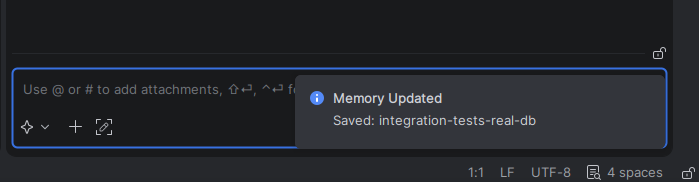
Memory Bank stores up to 200 entries. When it reaches the limit and needs to save a new entry, Explyt automatically looks for memories it can remove to make room.
Entries that have not been used for more than 30 days are removed first. If that is not enough, Explyt moves to a second tier and may remove Project, Reference, and Feedback entries that have not been used for more than 7 days. User entries and the entry that was just saved are protected from automatic removal.
This second tier keeps an active bank from rejecting new knowledge simply because all existing entries were used relatively recently. Useful information can still be evicted after 7 days without use, however. Do not save temporary task state or facts that are easy to reconstruct from the repository: they take up limited space and cause more valuable entries to be removed sooner.
3. Manual memory management
You do not have to rely on automation alone — you can use natural language commands directly in the chat:
- "Remember that..." — the agent creates a new entry.
- "Update the entry about..." — the agent modifies an existing entry.
- "Forget about..." — the agent removes the matching entry (or just the specified detail, leaving other facts intact).
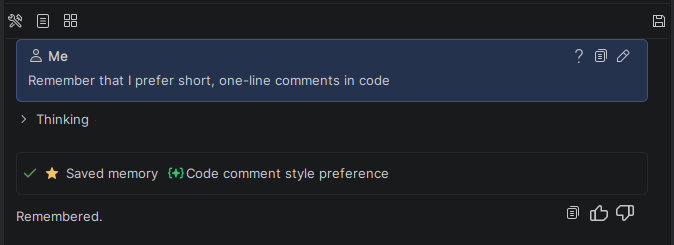
If you ask to forget one detail from an entry that also contains other useful facts, the agent removes just that detail and keeps the rest.
Manual consolidation
Run consolidation manually after a bulk import or after editing files directly, when you need to fix the index, remove duplicates and merge related entries right away instead of waiting for the background check.
- In the Project window, open
.explyt/memory/. - Right-click the memory folder or a nested folder.
- Select Explyt: Run Memory Consolidation.
- Wait for the operation to finish.
A manual run skips the background schedule limits, but it will not start a second consolidation if one is already running.
Editing files directly
Edit files directly when you need to change the text or metadata of several entries precisely and a chat command might be ambiguous. For ordinary creation, updating and deletion of a single entry, the memory commands are safer: they change the file and MEMORY.md consistently.
- Open
.explyt/memory/in the Project window. - Change the Markdown file you need and save it.
- Check that the link and description of the entry in
MEMORY.mdmatch the file. - After bulk changes, run a manual consolidation.
Memory files are plain Markdown. The main MEMORY.md file serves as a table of contents with links to all entries. The plugin tracks changes in the directory through the IDE file system and resets its internal cache, so manually saved changes become available to the next memory lookups without restarting the IDE.
4. Where the data lives
<project root>/
└── .explyt/
    └── memory/
        ├── MEMORY.md                     ← table of contents (index of all entries)
        ├── user-prefers-pdf-export-….md  ← individual entry
        ├── authfilter-x-token-….md       ← individual entry
        └── …
Each entry is a Markdown file with a small YAML header (name, short description, type) and a body holding the knowledge itself.
5. Recommendations
A few tips to get the most out of memory:
- Enable auto-extraction and consolidation. Memory then fills up and maintains itself without your involvement.
- Confirm good decisions. Memory records not only corrections ("don't do that") but also confirmations ("yes, exactly"). A short "great, keep it" helps the agent lock in the right approach.
- Write durable rules. Facts that stay true for a long time are remembered best: project conventions, incidents and their causes, team agreements.
- Don't store temporary things. Current task state, interim notes and drafts are not worth saving — plans and task lists exist for that.
6. Frequently asked questions
Does memory send my data somewhere to a server?
Memory files stay locally in your project (.explyt/memory/), but local storage does not mean the model never processes their contents. In a regular chat, the model may receive the memory index and the entries the agent opened for your request. If automatic extraction is enabled, the model may also receive the conversation contents so it can extract new entries in the background. With consolidation enabled, the model may receive existing entries that the background operation reviews and merges.
Will my secrets end up in memory?
The agent's rules say it must not save secrets, credentials or personal data, but that rule is not an absolute technical guarantee. Do not pass sensitive information into the chat, and check .explyt/memory/MEMORY.md and the entry files from time to time. If such an entry appears, delete it and make sure it did not get into VCS or a backup.
To reduce the risk of an automatic save, turn off automatic memory extraction in Settings → Tools → Explyt → Memory Bank. For projects with sensitive data, you can turn Memory Bank off entirely.
How do I turn memory off completely?
Uncheck Enable Memory Bank in the settings. After that, memory no longer enters the agent's context and the memory tools become unavailable. Files already created stay in .explyt/memory/: review them and delete them manually if you no longer need them.
Can I stop the agent from using memory for one specific request? Yes. Just ask the agent to ignore memory for that request — it will not access it or reference saved facts.
Does memory take up much context space? No. Only the compact table of contents (title + hint line per entry) is permanently in context. Full contents load only for the entries relevant to the current task.