Connecting in Claude Desktop
The initial setup and gateway connection in Claude Desktop require an active VPN. Once the setup is complete, the VPN is no longer needed — requests to the models go directly through the Explyt gateway. The VPN requirement at the start comes from the Claude Desktop app itself, not from Explyt.
Before you start, open your personal account: the Connect to Explyt block contains the OpenAI-compatible URL and the API key; the Copy key button copies the key to the clipboard. Details: where to get the URL and key.
-
Open the Claude Desktop settings: Help → Troubleshooting → Enable developer settings
-
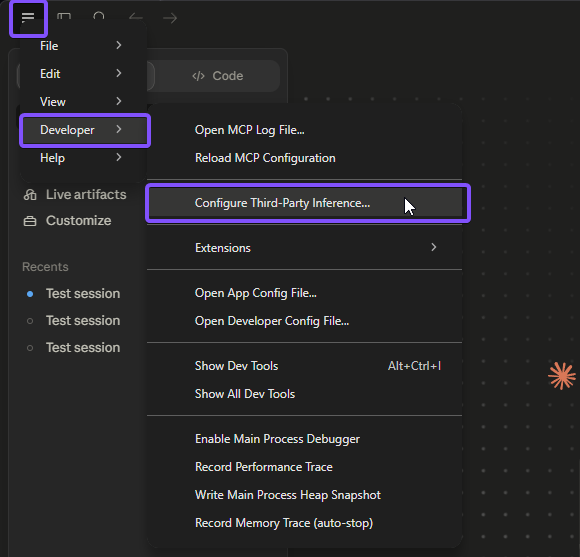
Restart Claude Desktop, then open: Burger Menu → Developer → Configure Third Party Inference
-
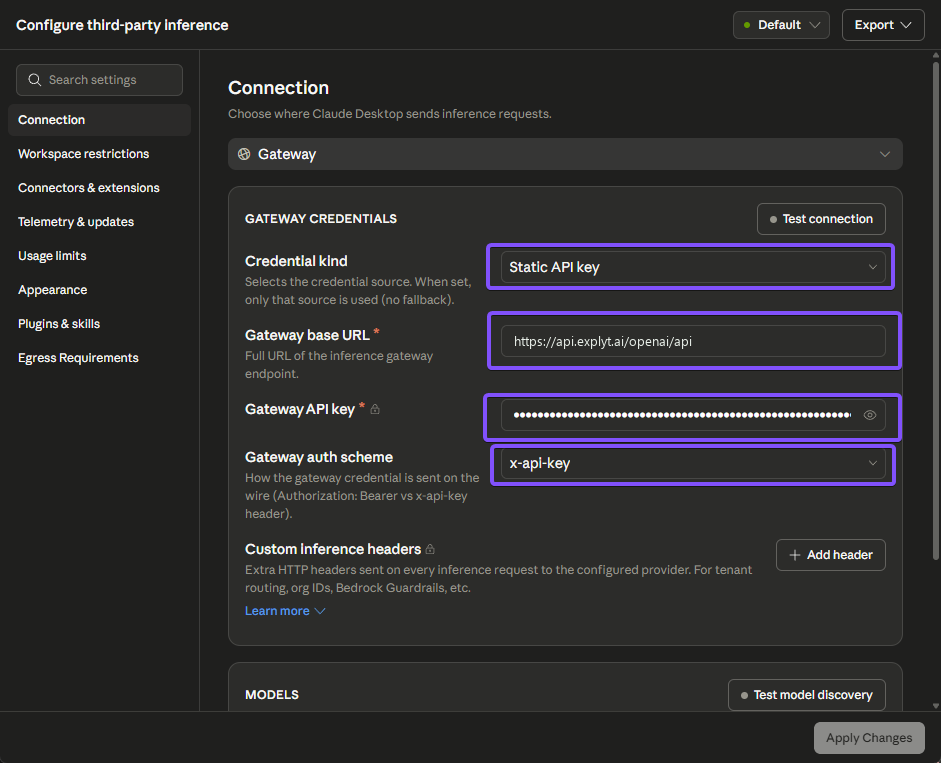
In the window that opens, fill in the connection settings:
- In the Connection block, choose Gateway in the drop-down list
- In the Credential kind field, choose
Static API key - In the Gateway base URL field, paste the OpenAI-compatible URL
https://api.explyt.ai/openai/api - In the Gateway API key field, paste the API key from your personal account
- In the Gateway auth scheme field, choose
x-api-key
-
Click Test connection — the connection should succeed
-
In the Models block, click Test model discovery — the list of available models appears
-
Click Apply Changes
Requests from Claude Desktop spend Explyt subscription minutes the same way as requests from the plugin. The balance is shown in your personal account.
For errors, see Error messages.