Connecting in Cursor
Cursor proxies requests through its own servers, so an active VPN is required for it to work. This comes from Cursor itself, not from Explyt.
Connecting an external LLM gateway requires a Pro subscription or higher. Custom API keys are not available on the free plan.
Before you start, open your personal account: the Connect to Explyt block contains the OpenAI-compatible URL and the API key; the Copy key button copies the key to the clipboard. Details: where to get the URL and key.
-
Open the Cursor settings:
Cmd/Ctrl + Shift + J→ theModelssection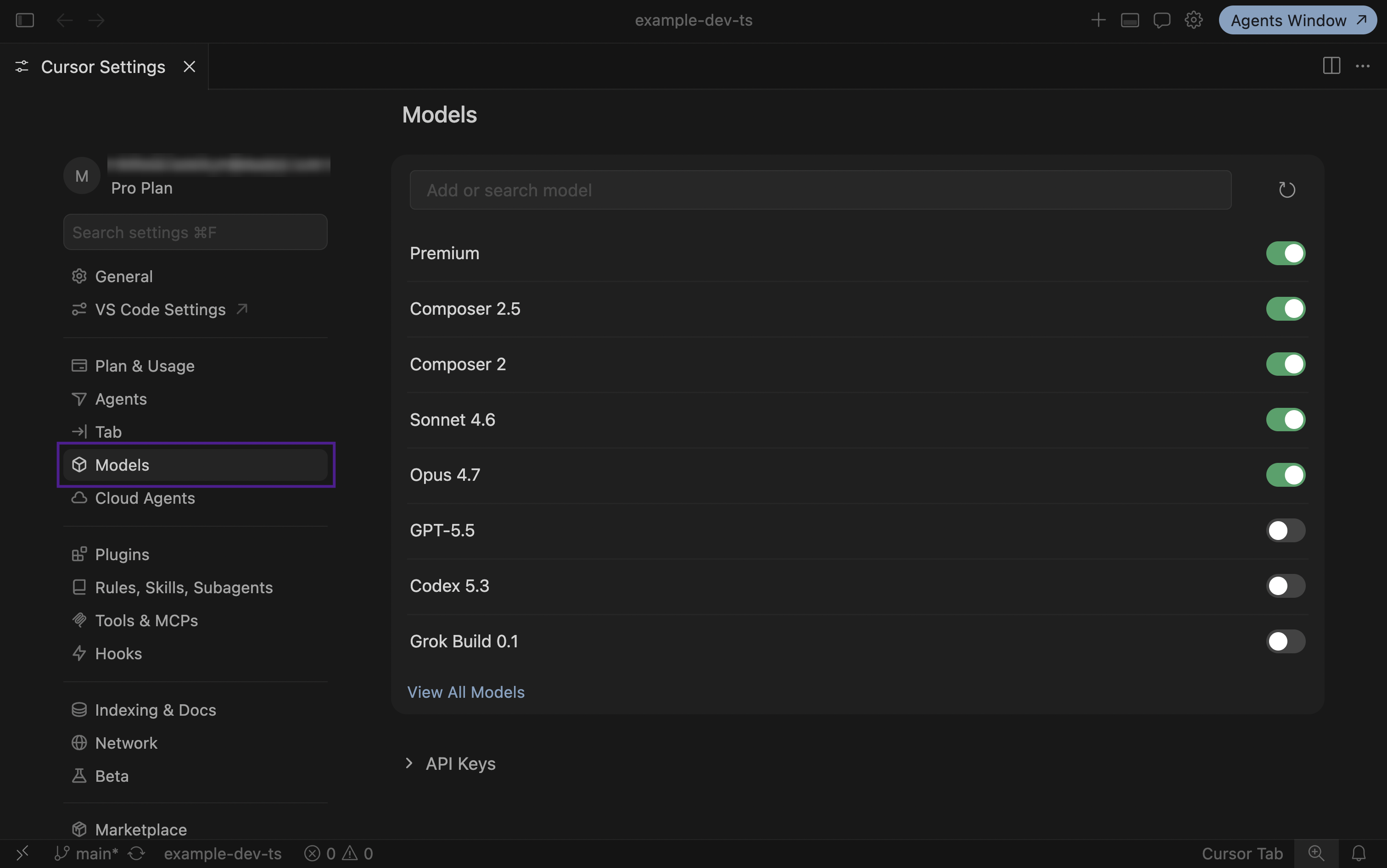
-
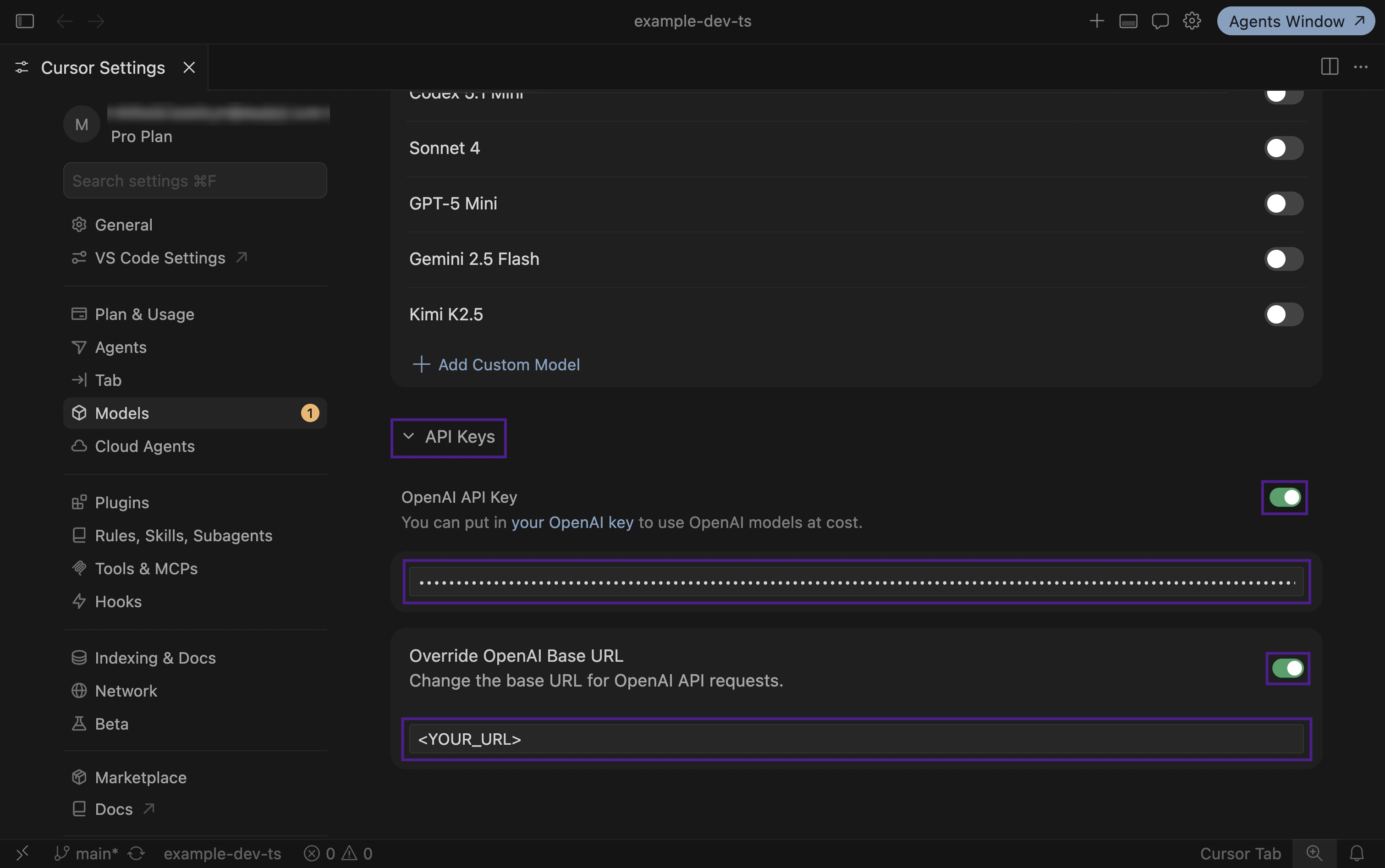
Expand the
API Keysblock:- Turn on the
OpenAI API Keytoggle- The
Enable OpenAI API Keywindow appears- Click the
Enable OpenAI API Keybutton
- Click the
- Paste the API key from your personal account into the API key field
- The
- Turn on the
Override OpenAI Base URLtoggle and paste the OpenAI-compatible URLhttps://api.explyt.ai/openai/api
- Turn on the
-
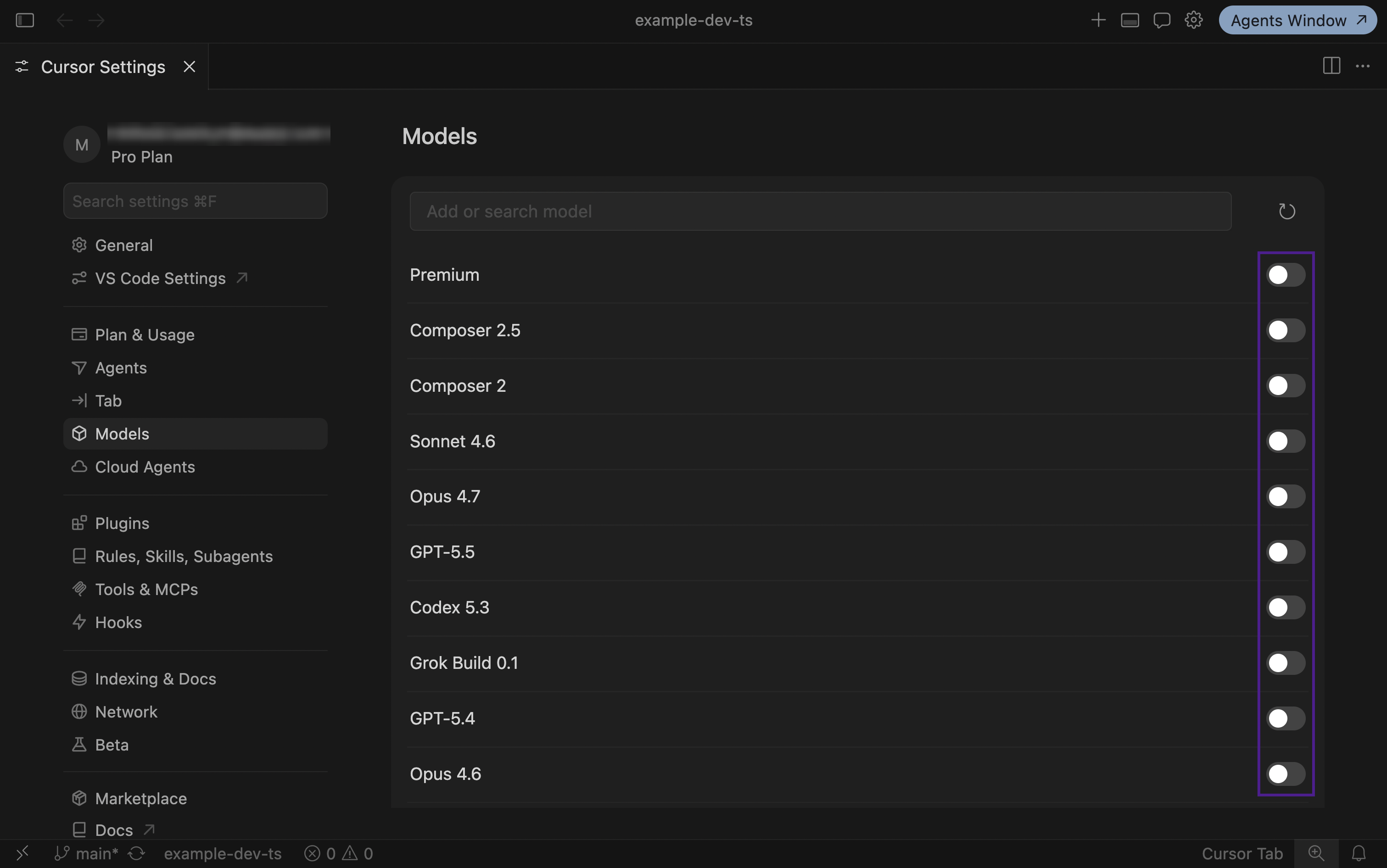
In the model list at the top, turn off all built-in Cursor models (switch the toggles off)
-
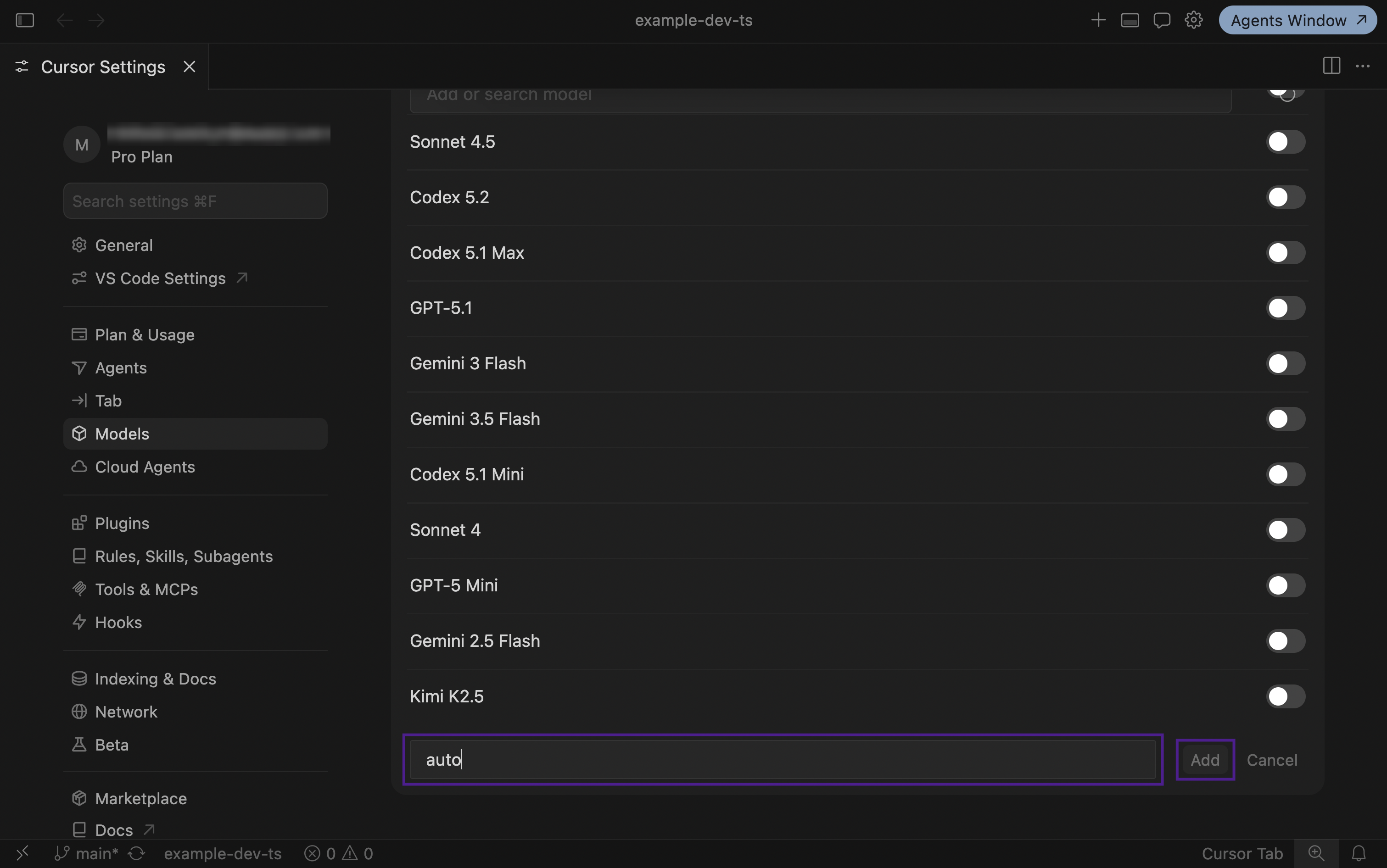
Scroll the model list down, then click the
+ Add Custom Modelbutton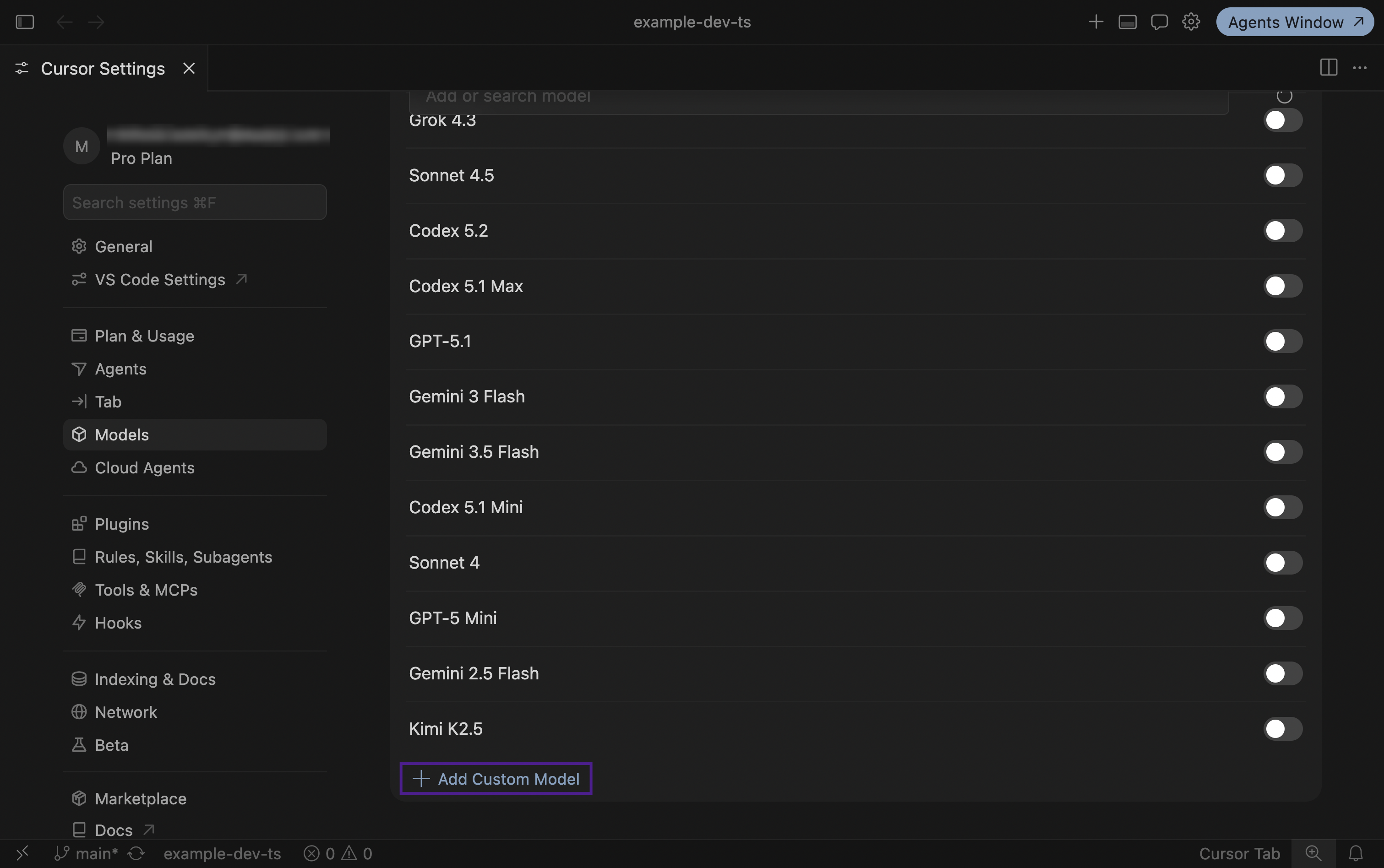
-
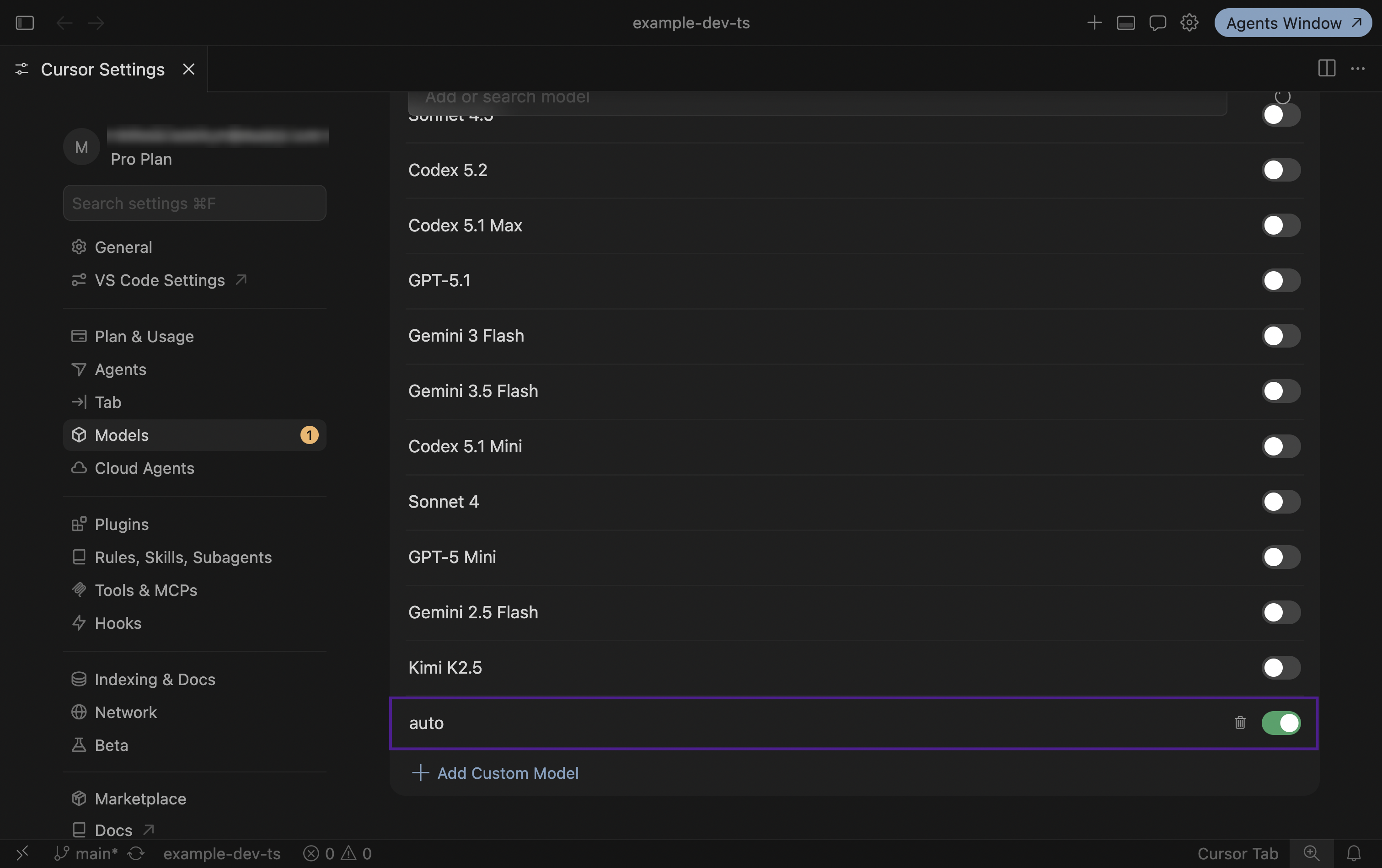
Add the models supported by Explyt by name (shown with
autoas an example)- Full list of models:
https://api.explyt.ai/openai/api/models - Main recommended models:
auto– automatic model selection: high quality with maximum availabilityAnthropic/opus-5– Anthropic model with high-quality answersAnthropic/sonnet-5– balance of quality and speed among Anthropic modelsOpenAI/gpt-5.6-sol– general-purpose OpenAI model
- Full list of models:
-
In the chat window, expand the model list
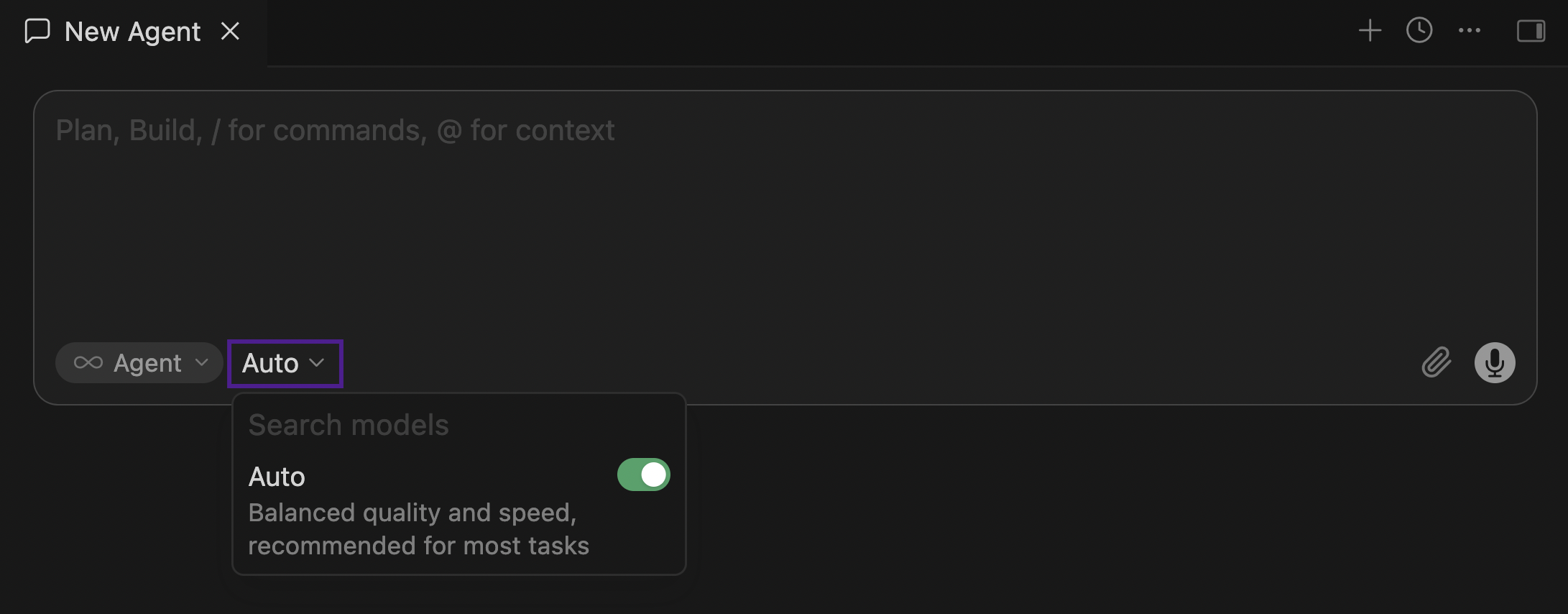
-
Turn off the
Autotoggle (this is the mode in which Cursor picks a model on its own), then choose the added model (autoor another one)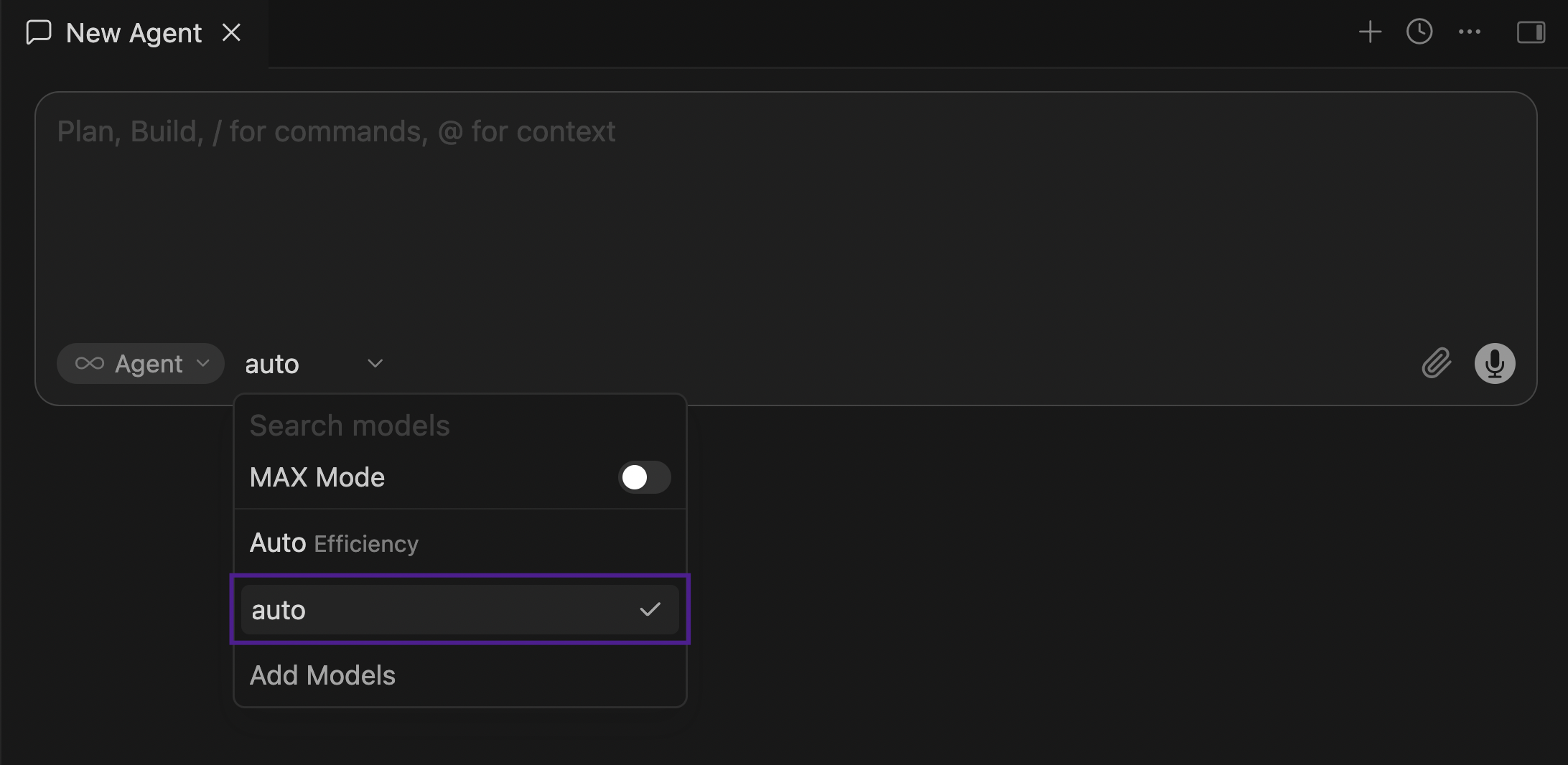
Requests from Cursor spend Explyt subscription minutes the same way as requests from the plugin. The balance is shown in your personal account.
For errors, see Error messages.