Agent mode
This is unique functionality that sets Explyt apart from other AI assistants.
The agent can perform an arbitrary task upon request in the chat.
Attachments in the input field
To discuss a specific piece of code, select it in the editor and switch to the chat. Explyt adds the selection to your message as context.
Attachments appear right inside the input field. You can remove them, and you can type the prompt before or after an attachment. This makes it easier to build a clear request: attach a file or a code fragment and write next to it what you want done.
Explyt automatically turns large blocks of text into attachments with a short preview of the first line. This helps you send logs, reports, long code snippets, and documents without taking over the whole input field. The agent receives the complete text, and clicking the attachment opens a viewer with a line-wrapping toggle.
You can change the conversion threshold in the agent settings. Lower it if you often paste long logs and want to keep the input field compact. Raise it if smaller fragments are easier to read and edit right inside the request. Very large pastes are saved to a temporary file, and Explyt passes the model a reference to it.
Remove an attachment before sending if you added the wrong file, the context is already out of date, or the data should not reach the model. To do that, remove the attachment card from the input field and make sure only the context you need is left in the request.
The agent reads the existing code, templates, and tests and adds the required functionality:
- the agent adds new code to services
- the agent adds a template for the email that will be sent to the user
- the agent adds the necessary strings to the resource files
- the agent adds an integration test for the new functionality
The agent writes a new service from scratch according to a specification
The agent adds:
- the required DTOs for favorites
- a service for managing favorite courses and its implementation
- a repository for managing favorite courses
- a controller for managing favorite courses
The agent adds comments to code
The agent reads the repository code and adds a docstring comment to each method of the requested service.
The agent writes documentation for code
The agent reads the repository code and adds documentation for the requested service:
- its key responsibilities
- a description of the main methods
- how data validation and error handling are performed
- how interaction with the database works
- how caching works
- what regularly scheduled tasks exist
- how logging is arranged
- what the service is responsible for in terms of security
- what dependencies the service has
Agent tools
The agent can explore the project, edit files, run commands, and get static analysis errors from the IDE.
Allow the exploration tools when you do not know which files relate to the task: the agent can then study the project structure, find declarations and usages, and read the relevant sections. If the context is already known, attach the specific files and leave only the tools you need.
Allow editing when you expect ready-made changes in the project. For a consultation or a preliminary analysis, use a mode without write access. After the edits, check the result in Agent Changes.
The terminal is needed for commands that have no suitable IDE run configuration. Builds, tests, and running the application are better done through run configurations: they use the project's configured SDK, classpath, and environment variables.
IDE static analysis is useful after a code change: it finds errors and warnings without running the application. Ask the agent to check the modified files before finishing the task; for runtime failures, use the debugger.
The agent works only with files available in the current mode and within the technical limits. Read and write access can be restricted by Edit Scope, the .readignore and .writeignore files, IDE and operating system permissions, and the rules of the selected mode. If a file it needs is unavailable, the agent should report the restriction rather than try to work around it.
Restrict which files can be changed
Use Edit Scope when the agent may change only a preselected part of the project. For example, allow edits in the implementation but not in tests, configuration, and neighboring modules.
- Open Edit Scope next to the input field.
- Add the allowed files or directories. For a directory, the restriction covers its contents.
- Check the list before sending: outside of it, the editing tools cannot change files.
For more about managing the list and how it differs from permanent restrictions, see Edit Scope.
Restrict tools
Turn off an individual tool when the way a task is done matters more than the result. For example, forbid the terminal in a sensitive project, or forbid file writes during exploration.
-
Open the Tools menu next to the input field.
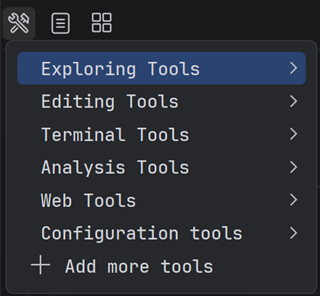
-
For the tool you do not need, choose the forbidden mode or the mode with confirmation.
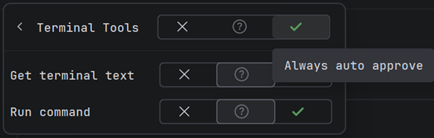
-
Before sending, make sure the agent still has the tools the task requires.
Even when all tools are approved automatically, Explyt uses the model to perform an additional safety assessment for each operation. If the model identifies a potential risk, the agent pauses and asks for explicit confirmation. This mode significantly reduces the number of prompts, but the decision about whether an operation is safe then depends on the model's assessment.
Details on access modes and tool categories are collected on the Tools menu page.
A quick question while the agent is busy
The btw mode lets you clarify something in the context of the current conversation without interrupting the main task. For example, you can ask why the agent chose this approach, what an error means, or whether a specific file is needed.
Type /btw and your question. The answer appears in a separate panel below the chat history, and the main agent keeps working. You can copy or close the answer. The question and the answer are not saved in the conversation history.
btw works without tools and attachments.
Hotkey to switch between the editor and chat
The keyboard shortcut Ctrl+Shift+X, Tab moves focus to the Explyt chat; pressing it again returns focus to the editor. This lets you ask the agent, edit code, and ask again without reaching for the mouse.