Test generation from execution
0. Before you start
What is Test Generation from Execution?
The Test Generation from Execution feature lets developers capture application runs and automatically create unit tests that reproduce the behavior of the system exactly. Complex scenarios no longer have to be reconstructed by hand — just record and replay.
For example, you can start a Spring Boot application (locally or remotely), interact with its web UI (submit a form or click a button), and then generate unit tests that reproduce the same service calls that were captured during your session.
During execution, the following is captured:
- inputs, outputs, and exceptions;
- the call hierarchy and the state of objects;
- mocks for external dependencies.
The recorded trace is automatically turned into a standalone, ready-to-run unit test.
The feature is designed primarily for Spring projects, but you can use it with any Java or Kotlin code.
How does it work?
The feature works like a debugger — it observes your program as it runs:
-
Execution tracing
You start your application, test, or method through a standard run configuration, and we attach to the running process through the Java Debug Interface (JDI) and track method calls, arguments, return values, and exceptions. -
Execution trace
While the program runs, we record the behavior of the method under test — inputs, control flow, and internal state.- First, we inspect the
thisobject: its fields and construction context. - Next, we analyze all method arguments — primitives, collections, and custom objects.
- Finally, we trace the method itself: nested calls, exceptions, and returned results.
- First, we inspect the
-
Heuristic-based object reconstruction
To make the test realistic and readable, we apply heuristics similar to the ones a developer would use:- Simple objects (for example, a POJO or a data class) are recreated through constructors or builders.
- Complex or external objects (for example, services, sockets, databases) are mocked with the framework you selected.
- If an object is serializable, it is serialized to JSON and restored from it, which improves readability and reproducibility.
-
Test generation
Once execution is complete, the collected data is used to create a unit test that reproduces the original behavior.
The test creates the necessary objects, sets up mocks, calls the method, and asserts the results. -
AI-powered refinement
The code is refactored and polished with modern LLMs.
The result is a readable, idiomatic test that matches the style of your project.
✔ You get a ready-to-run unit test based on a real execution, written the way a developer would have written it.
What languages are supported?
The following languages are currently supported:
- Java
- Kotlin
1. How to start?
From the stack trace
Click the Explyt: Reproduce button next to any method in the stack trace of a failed test.
Starting from a method
Click the Explyt gutter icon next to the method you want to generate a test for, or right-click inside the method body. Choose "Generate Tests From Execution" from the context menu.
2. Configuration window
Once you trigger the action, the configuration window opens.
General settings
-
Output to Choose how the tests are saved.
-
New test class – create a new class with the tests. The file is saved to the directory specified in the Location And Frameworks section.
-
Existing test class – add the tests to a test class that already exists. If tests were previously generated for this class with Generate Tests From Execution, this option is selected automatically.
For now, only unit test generation is supported. You can only add tests to a class that contains unit tests. Other test types will come later.
-
-
Use example test class (available with Output to: New test class)
Use the selected test class as a template (imports, structure, style, and so on).- Example tests – the selected class (for example,
SchemaRegistryControllerServiceTest). Click the pencil icon to change it.
- Example tests – the selected class (for example,
-
Class to expand (available with Output to: Existing test class)
The class the tests will be added to. Click the pencil icon to change it. -
Generate tests for successful executions
Create tests for calls that completed successfully. -
Generate tests for exceptional executions
Create tests for calls that ended with an exception. -
Generate tests only for executions that hit the breakpoint
Tests are generated only for the execution traces that passed through the specified breakpoint. You can use standard IntelliJ IDEA breakpoints, including conditional breakpoints.
Location And Frameworks
-
Test source root (available with Output to: New test class)
The directory where the test class is saved, usuallysrc/test/java. -
Test package (available with Output to: New test class)
The package name of the new test class. -
Test framework All frameworks found in the project. Choose which one to use:
- JUnit 5 — recommended for modern Java and Kotlin projects.
- JUnit 4 — for legacy or mixed codebases.
-
Mock framework The available mocking frameworks:
- Mockito — the default choice for Java.
- MockK — recommended for Kotlin.
- kotlin-mockito — supported as a fallback.
Execution Source
Choose how the program is started.
▶ Run Configuration
Use one of the existing Run Configurations in IntelliJ IDEA.
- The tree shows all previously executed configurations (JUnit tests,
mainmethods, Maven and Gradle configurations). - Expand the group you need and select a configuration.
✔ The recommended option: quick and simple.
▶ Local Process
Attach to a locally running JVM (for example, a microservice, a background job, or a CLI application).
Requirements:
-agentlib:jdwp=transport=dt_socket,server=y,suspend=n,address=*:PORT
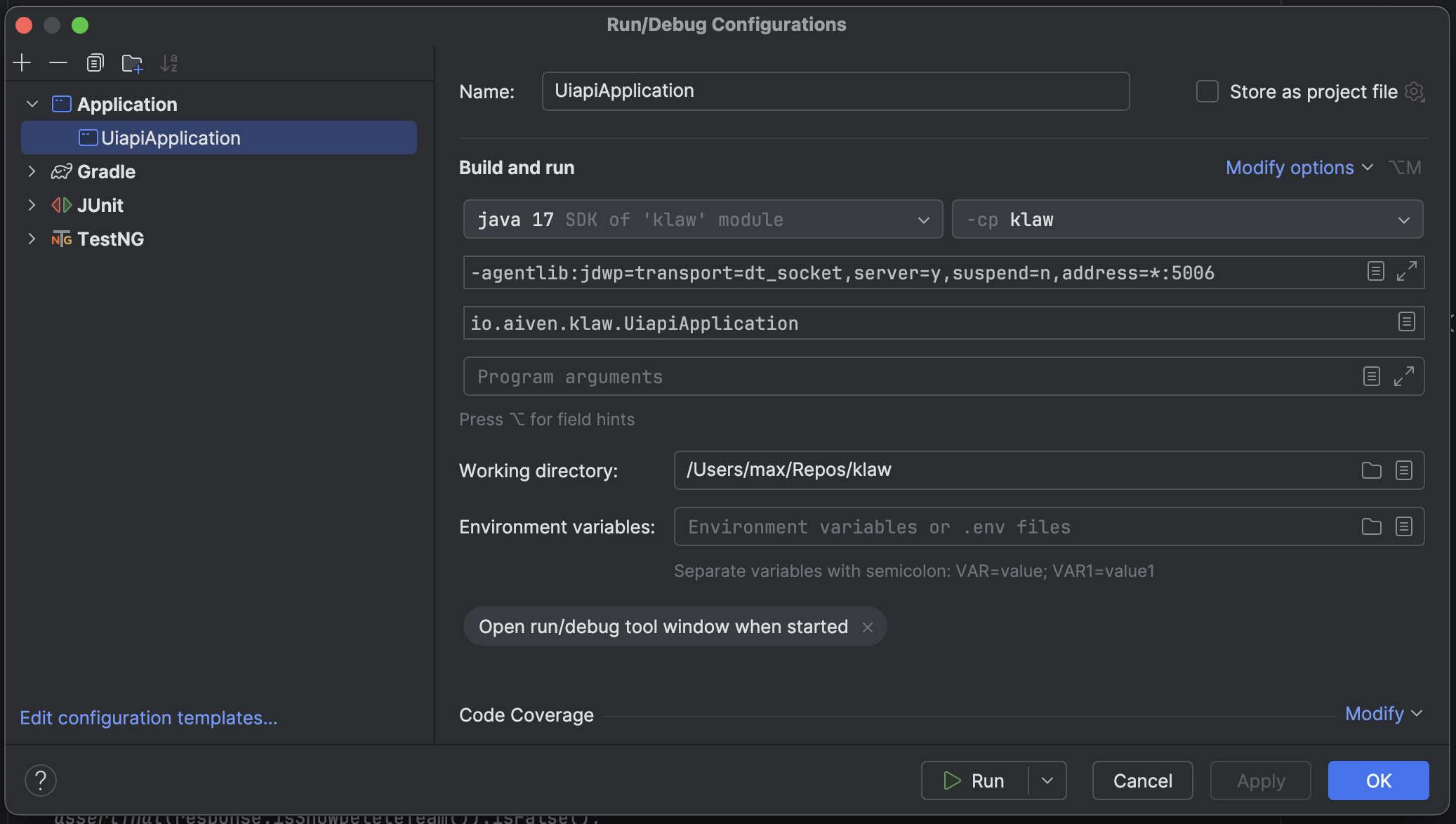
⚠ On Java 8, drop the "*:" and leave only the port number:
address=5005.
- Running processes with JDWP enabled appear in the list:
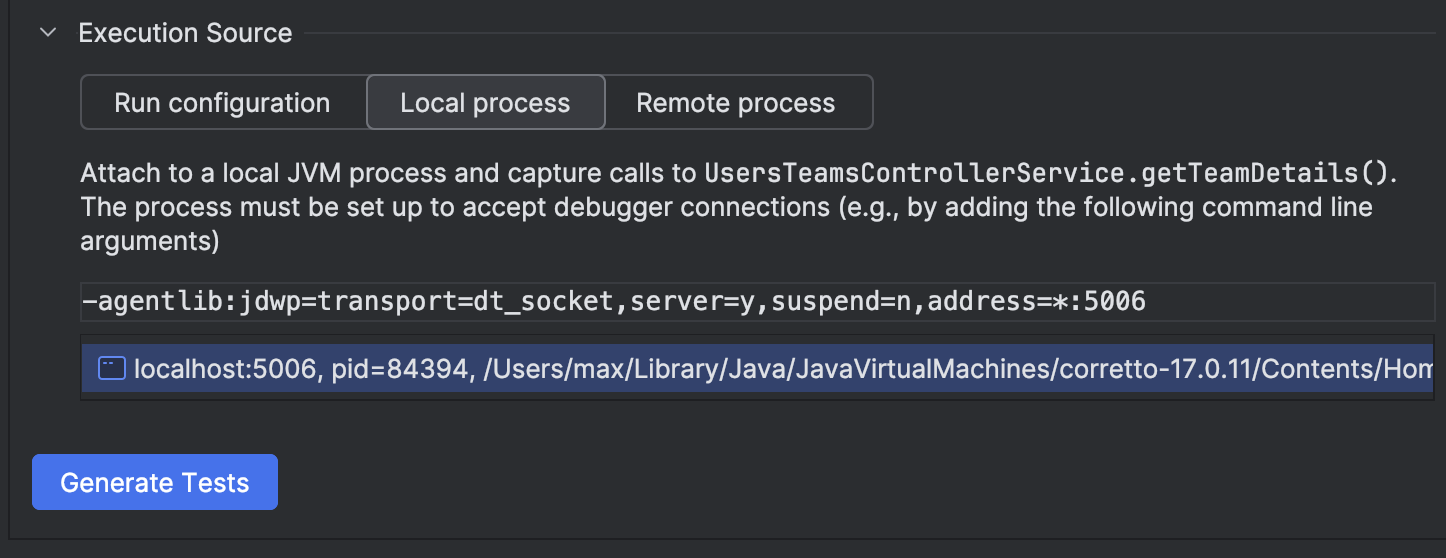
- Select a process and click Generate Tests.
▶ Remote Process
Attach to a JVM on another host (a different machine, a container, or a staging server).
Requirements:
- The remote JVM must be started with JDWP enabled:
-agentlib:jdwp=transport=dt_socket,server=y,suspend=n,address=*:PORT
- You need to provide:
- Host – the IP or hostname of the target machine (for example, 127.0.0.1 or staging.myapp.com)
- Port – the port that JDWP is listening on (for example, 8000)
⚠ Make sure firewall rules and network policies allow this connection.
The Generate Tests button
Click this button to start generating tests.
3. Progress
Once the program starts, you see a progress window.
- Capturing calls to
UsersTeamsControllerService.getTeamDetails()– shows which method is being traced.
⏳ Tracing may take longer than a normal execution, because we record all arguments and return values.
-
Calls captured: N – a counter of the captured calls.
-
Stop Listening And Generate Tests – ends tracing and starts test generation. All captured calls are turned into test methods.
If the target method is called several times, all the calls are captured.
4. The program has finished
Once generation is complete, the tests are saved to the specified directory or added to the existing test class.
- The tests are automatically refactored with IntelliJ IDEA and an LLM.
- Formatting, imports, names, and structure are adjusted to the style of your project.
⚠ Some edge cases — such as native resources, deep mocks, or external dependencies — may require a little manual tweaking.
You are still in control — we just take the routine off your hands.