What's New in Explyt 5.6
Commit Message Generation
The agent can now generate commit messages directly from the commit window in your favourite IDE. The generation button appears next to the message input field: the agent analyzes the diff of changes and suggests a meaningful commit description. Useful when you're committing a large set of changes and don't want to spend time writing the message manually, or when you need to maintain a consistent commit message style across the team.
Ask/Copy for Selected Text in Chat
When you select a fragment of text in the agent's response, a panel with buttons appears: "Ask" and "Copy". "Copy" copies the selected text to the clipboard. "Ask" inserts the selected fragment as a quote into the user input field, so you can immediately ask a follow-up question about a specific part of the response. Useful when the agent gives a long response and you need to clarify or discuss a specific fragment of code or explanation without copying it manually.
Onboarding for New Users
Onboarding is a system of interactive lessons on Explyt functionality. It helps you get the most out of the product's features. The system will be expanded with new lessons. You can manage completed lessons in the plugin settings: retake a lesson or reset all progress.
Manual Skill Invocation via Slash Commands
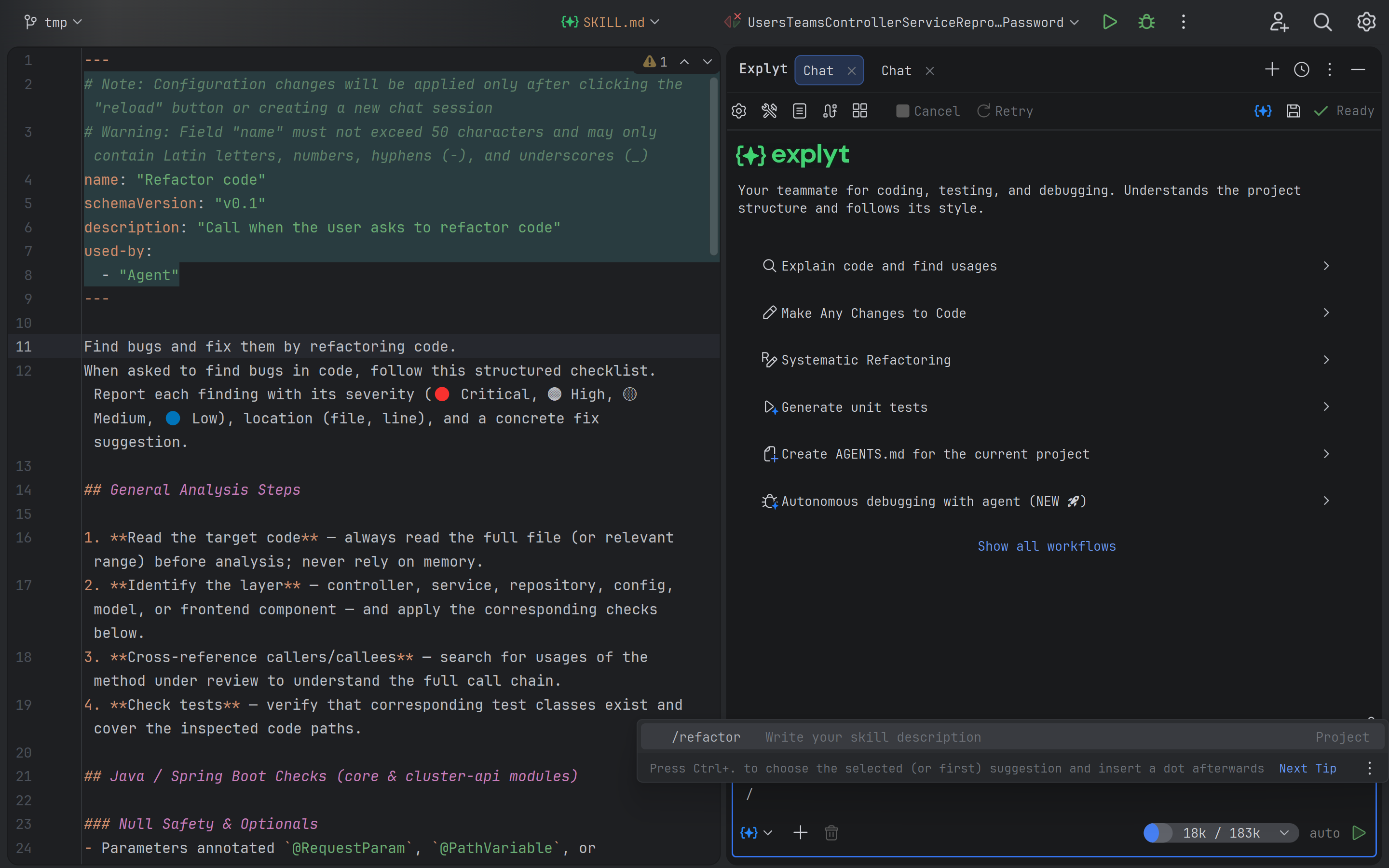
Skills can now be invoked manually via / commands directly in the chat.
Previously, Skills were triggered only automatically when the agent decided they were needed. Now you can explicitly invoke a specific Skill, for example /refactor, to guarantee the desired scenario is executed.
Useful when you know exactly which Skill you want to apply and don't want to rely on the agent's automatic selection — for example, when launching a PR review or generating tests from a specific template.
Transparent Technical Context of the Prompt
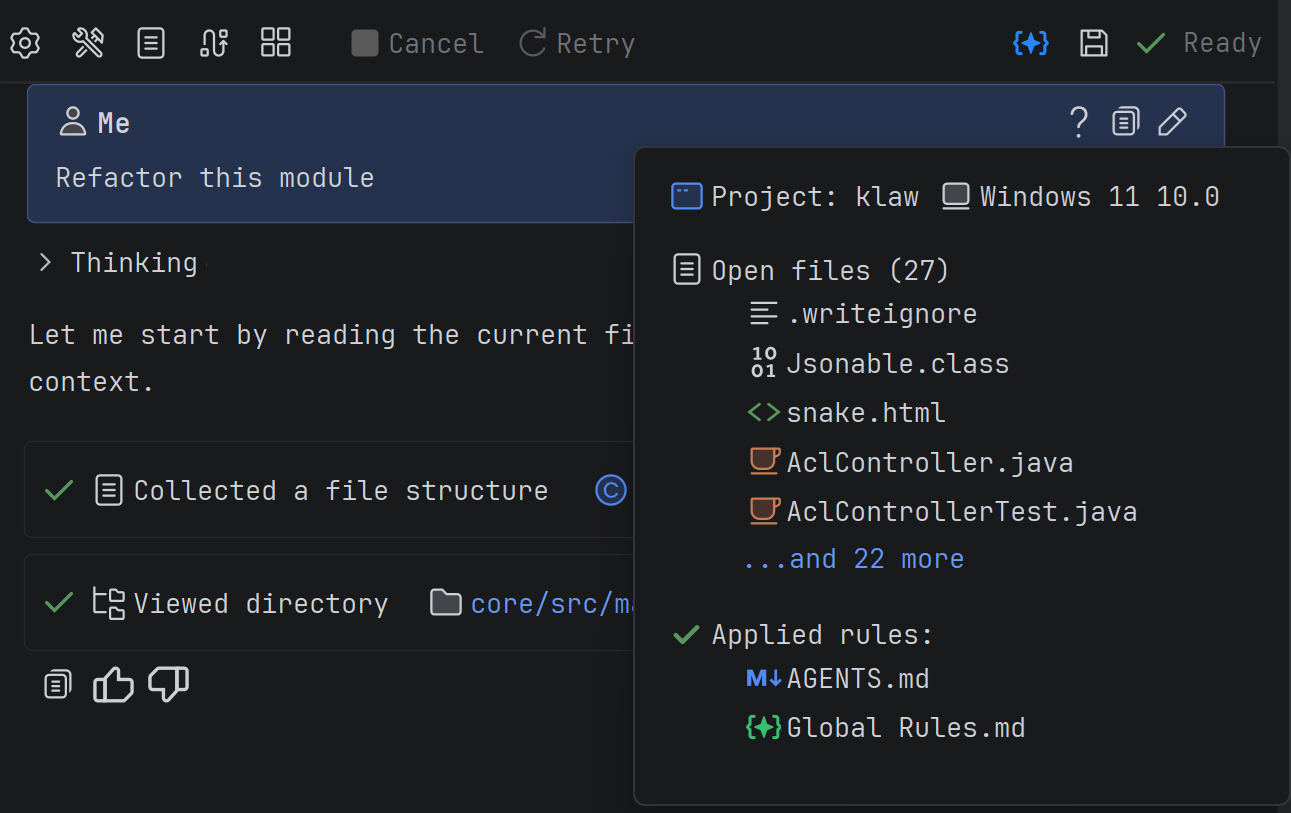
The chat now explicitly shows what context the agent attaches to the request: open files, applied Rules, active Skills, MCP tool descriptions, and AGENTS.md. Previously, this information was passed to the model silently, and the user couldn't see what data was influencing the response. Useful when the agent's responses seem unexpected, and you need to understand which rules or files affected the result.
Pasting Images via Ctrl+V and Drag-and-Drop
Images and files can now be added to the chat via Ctrl+V (paste from clipboard) and drag-and-drop. Previously, attaching images required using a separate button in the chat. Now you can simply take a screenshot and press Ctrl+V directly in the chat input field. If the selected model doesn't support images, the plugin will show a warning on paste or block drag-and-drop. Useful when you need to quickly show the agent an error on screen, a UI mockup, or program execution results — without extra steps to save and attach the file.
Additionally, images attached to the chat are now automatically compressed before being sent to the model. Screenshots from 2K/4K monitors contain many pixels but often little information — compression reduces token consumption without noticeable quality loss for the model. The compression level setting is available in the plugin settings. Useful if you frequently attach screenshots of interfaces or errors and want to reduce token consumption, especially on high-resolution monitors.
Contact us at support@explyt.com to share feedback or ask questions.