Prepare Explyt to work with your project
Go through this scenario before your first large task in a new project. Explyt learns the specifics of the project and proposes settings it can take into account in later chats.
What to prepare
Before you start, decide on:
- the purpose of the project and its main technologies;
- the commands or configurations for the build and the tests;
- the code conventions your team follows;
- the files and data the agent must not read or change;
- the external services you need in your work, such as a browser or Figma.
Do not include passwords, API keys, or other secrets in your answers.
Go through onboarding
-
Start onboarding the first time you open Explyt, or from an empty chat.
-
Answer the questions about the project and your workflow. Write down only what should apply to future tasks.
-
Review the proposed rules, skills, and connections to external services.
A Skill stores the instructions for a repeatable task and helps you reuse them in later chats.
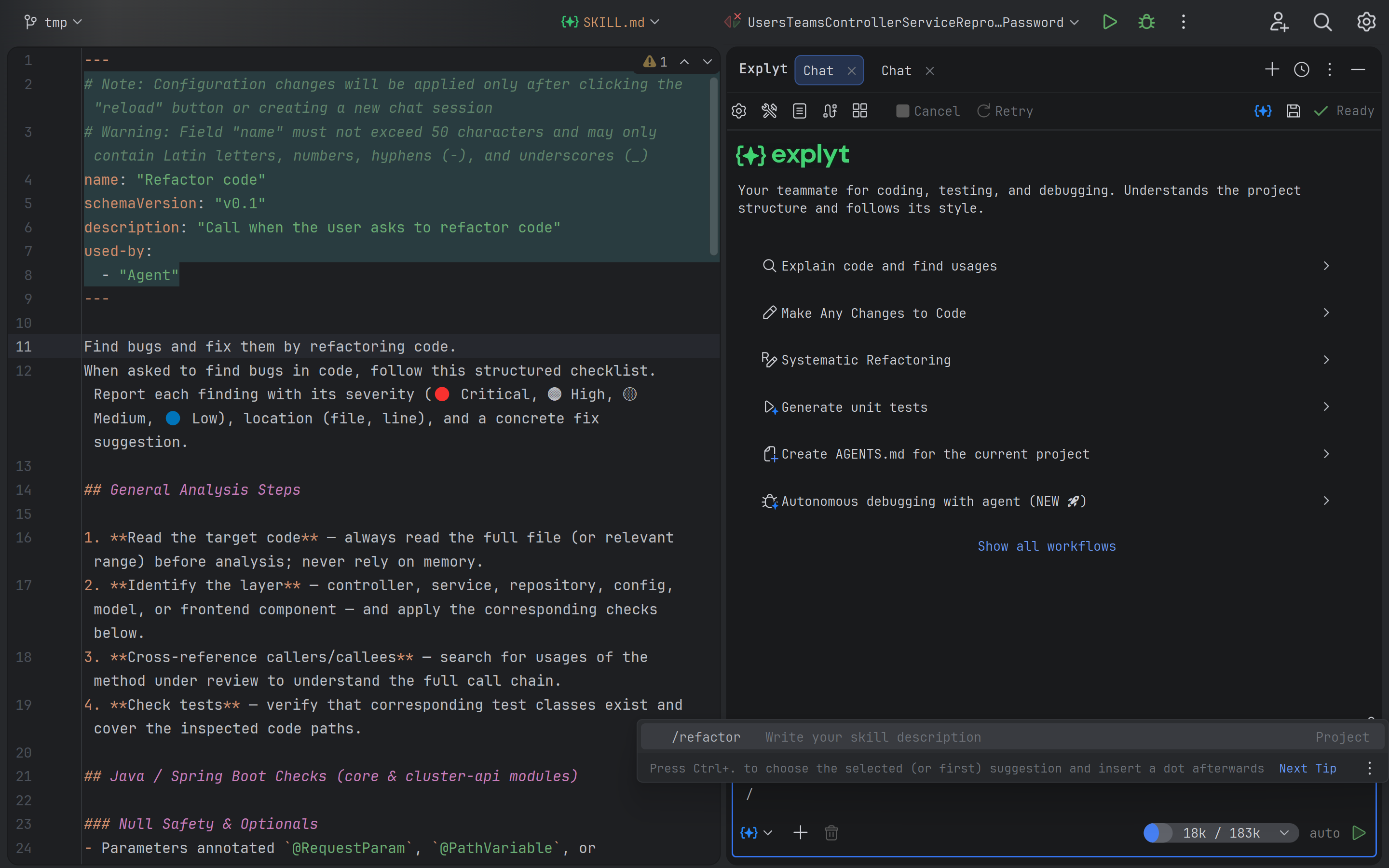
A skill you created can also be run manually with a slash command.
-
Delete instructions that are unnecessary or too general. Do not store the same requirement in several places.
-
Shield secrets with
.readignore, and set permanent write bans with.writeignore.
Verify the result
Open a new chat and give the agent a small read-only task, for example:
Explain the purpose of the project, its main modules, and how to run the tests.
For every conclusion, name the file you rely on. Do not change anything.
Compare the answer with the project. Check that the agent takes the right conventions into account, does not refer to commands that do not exist, and did not gain access to restricted files.
Definition of done
The preparation is complete when:
- the agent describes the project and its main commands correctly;
- the persistent context contains no secrets and no information that goes stale quickly;
- the rules and skills do not duplicate one another;
- unnecessary external connections are disabled;
- the read and write restrictions have been verified on a small task.
The feature in detail
The interface and the results of automatic onboarding are described on the Onboarding the agent into a project page.
Related pages: