Connect an external tool to the agent
Connect an MCP server when the agent needs access to an external service or data: a browser, a knowledge base, an issue tracker, or another work tool. The connection extends what the agent can do, so decide in advance which actions it really needs.
What to prepare
- choose an MCP server for the service you need;
- check the server's source and documentation;
- determine the minimum permissions for the account or token;
- decide whether the setup should apply to all projects or only the current one;
- prepare a safe test request that does not change important data.
Do not store tokens in Markdown, in AGENTS.md, or in chat messages. Use environment variables or another secret storage method your team has agreed on.
Connect and check the server
-
Add the MCP server in the Explyt settings and specify the connection parameters it needs.
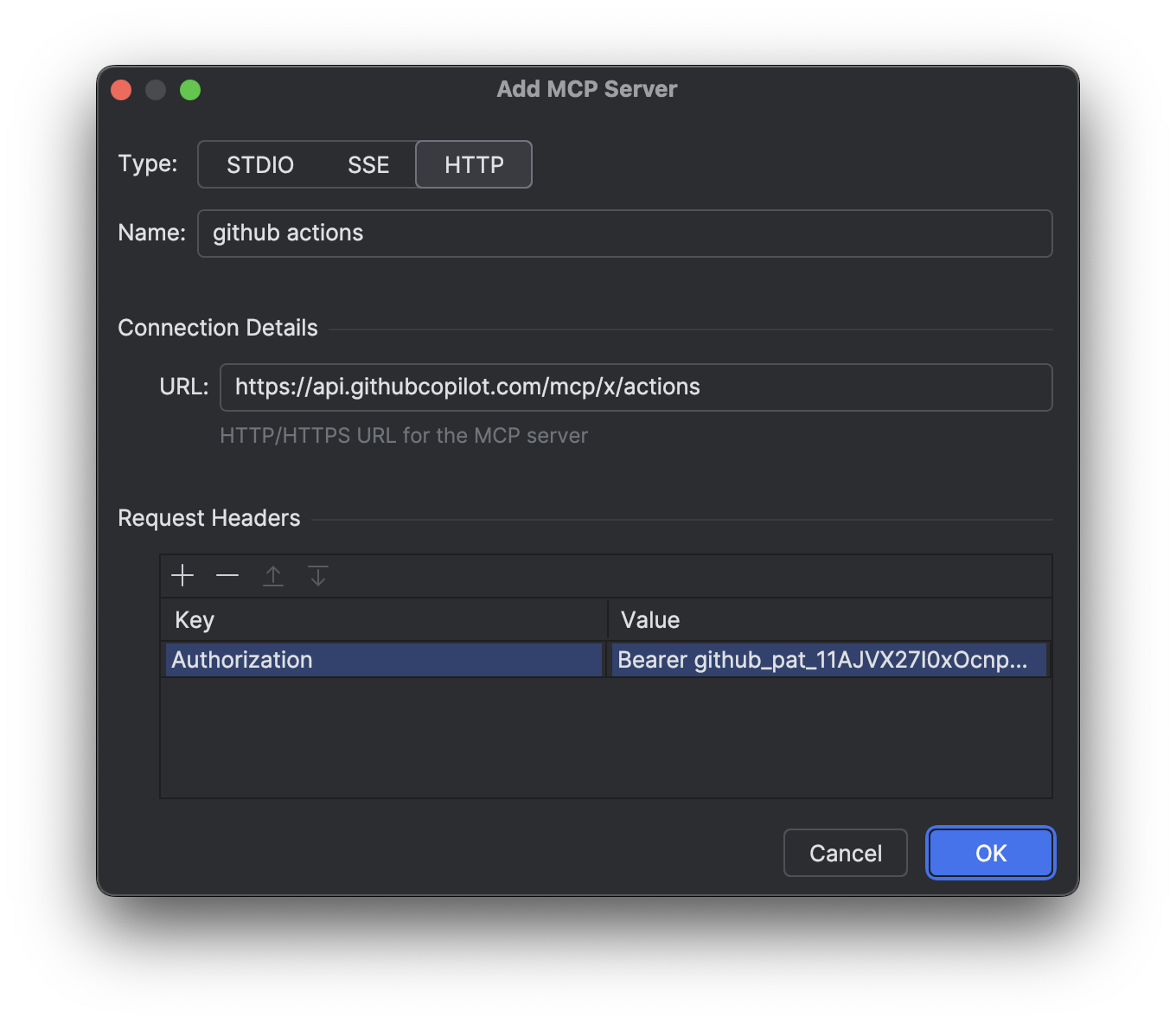
Specify the address and parameters of a networked MCP server.
-
Connect the server and make sure it reaches the
Connectedstate. -
Open the Tools menu and check the list of tools the server provides.
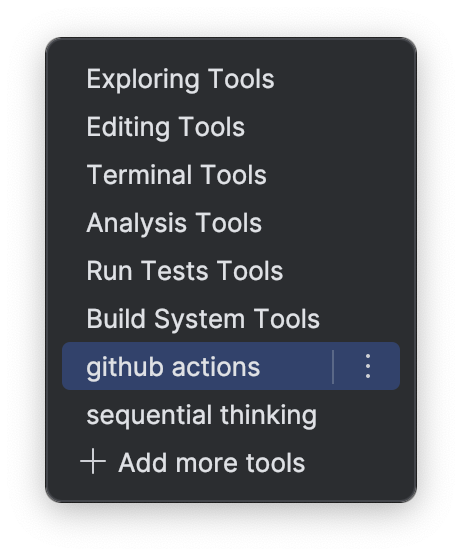
Once connected, the server's tools appear in the Tools menu.
-
Disable the tools you do not need. For actions that can change external data, keep the confirmation prompt on.
-
Run a safe read-only request, for example ask it to fetch a single test record or open a known page.
Verify the result
Make sure the agent:
- reaches the right server and gets the data you expect;
- does not see more data or actions than the task requires;
- asks for confirmation before sensitive operations, if confirmation is enabled;
- does not print keys or other secrets into the chat or the tool cards.
Before allowing a write, a message send, or an issue update, check the call parameters in the tool card.
Definition of done
The connection is ready for work when the server connects reliably, a minimal read request passes, the tool set and confirmations are configured, and no secrets are stored in the project in plain text.
The feature in detail
Connection types, server setup, and how MCP tools work are described on the MCP page.
Related pages: