Models and modes
Under the prompt field are the model, reasoning level and mode selectors. The agent sends the lists in them, so they differ between agents.
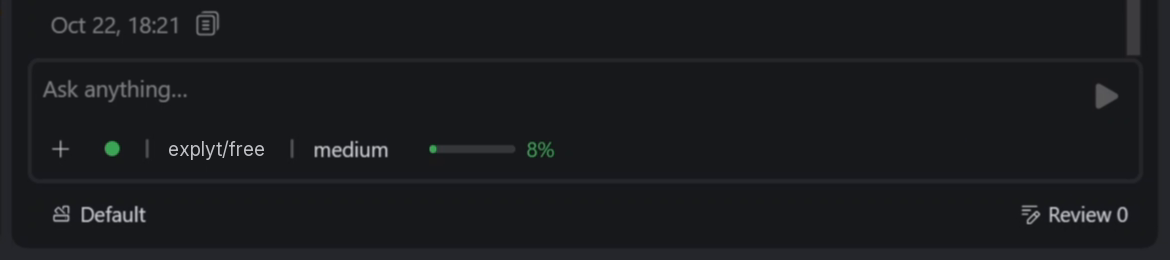
Model
Click the model name and choose the model you need. The Filter models… field helps you find a model in a long list.
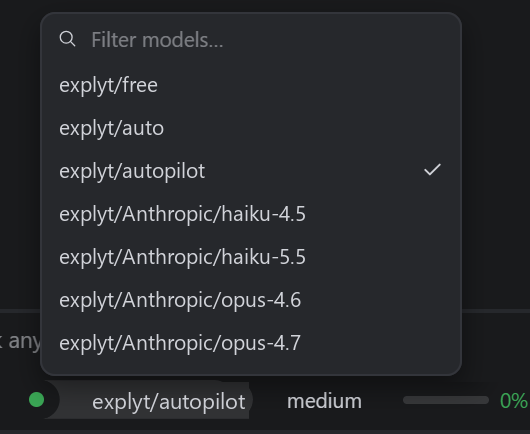
For the Explyt agent, the list depends on your plan. The picker shows the Explyt models with the explyt/ prefix, for example explyt/autofrontier; the text on these pages uses the bare ids, such as autofrontier.
- on
Personal,Pro, andUltrawe recommendautofrontier, onCommunityandLiteautobalanced. OnFree, chooseautofree, which is free on every plan, up to 300 requests a day per device and 500 per IP address.autobalancedalso works onFreewhile you have trial or Flex credits. Both routers pick a model for the task; - if your own key is connected to the account, you see the models of your provider.
See Models and automatic selection for more about models, and Plans and balance for plans. For Claude Code, Codex and other agents, the list comes from their subscription.
Reasoning level
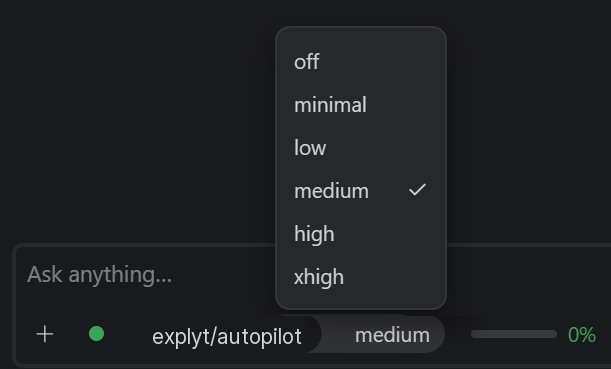
The Choose reasoning selector sets how much the model thinks before answering. It appears only if the agent and the model report reasoning levels. The higher the level, the slower and more expensive the reply, but the better the result on hard tasks.
Agent mode
The Choose mode selector shows the modes the agent offers. Default is selected by default. For the Explyt agent these are the permission modes Default, Paranoid, Bypass permissions and Away (afk): they define how often the agent asks for your approval. What each mode does and which one to choose is described in Permissions and safety. Each chat remembers its own mode.
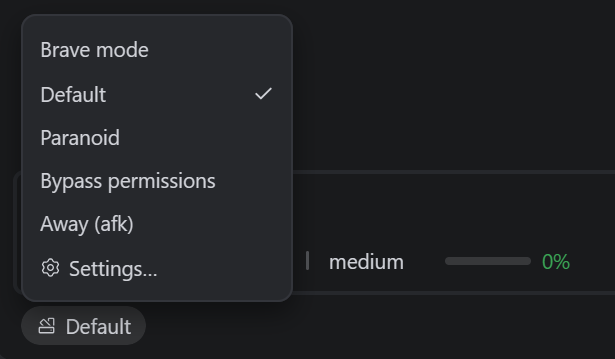
The mode for new chats is set with the permissions.defaultMode key, only in the global ~/.explyt/settings.json file: the allowed values are default, paranoid and bypassPermissions. The same key in a project file is ignored.
{ "permissions": { "defaultMode": "paranoid" } }
Claude Code and Codex have their own modes, for example planning or a mode without edit confirmations.
Brave mode
The same menu has a Brave mode toggle — "Run tools and edit files without asking for approval". It is not an agent mode but a plugin setting: it works with any agent, and the plugin approves every permission request itself, including the agent's safety checks. How it differs from Bypass permissions is described in Permissions and safety.
To start new chats in Brave mode, turn on Brave mode for new chats in Settings | Tools | Explyt AI Agent. The Settings… item in the mode menu opens this page. Turn on Brave mode only where changes are easy to roll back, for example with Git.
Context indicator
Next to the prompt field, the plugin shows the percentage of the model's context window in use. The tooltip shows how much is used out of the available amount.
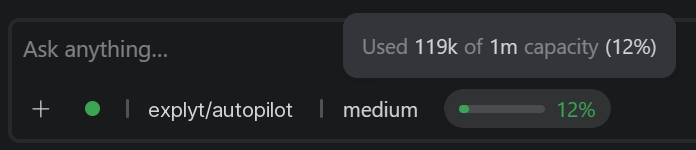
When the context is almost full, compress the chat or start a new one.