Chats in a Git worktree
A Git worktree is one more working directory of the same repository with its own branch checked out. Files in different worktrees are independent, so two agents can work on different tasks at the same time without overwriting each other's edits.
The Explyt JetBrains Plugin lets you choose the worktree a chat starts in and create a new worktree without leaving the chat. All chats, whatever worktree they run in, stay in the same project window.
When you need it:
- you want to give agents two independent tasks on different branches in parallel;
- you want the agent to try risky edits outside your working branch;
- you are looking at someone else's branch and do not want to switch the branch in the main directory.
Requirements
- There is a Git repository at the root of the open project. Without it, there is no worktree selector.
- The Git plugin is enabled in the IDE (it is bundled with the IDE).
- If the project has several Git repositories, the list shows worktrees only for the repository at the project root.
Choosing a worktree for a new chat
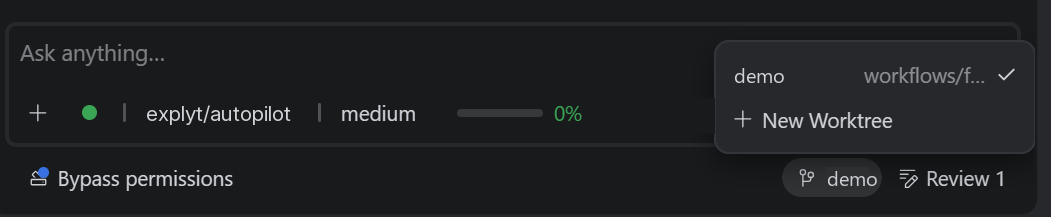
The worktree selector is in the bottom row under the prompt field: a button with a branch icon and the name of the worktree directory. When you open a project, the project itself (the main worktree) is selected.
- Click the selector. A list of all the repository's worktrees opens. Each one shows its branch on the right in a faint color. If HEAD is not on a branch, it says
detached. The current choice is checked. - Choose the worktree you need.
- Write the first message. The chat starts in the selected worktree: the agent starts with its directory as the working directory and reads and edits files only there.
What to keep in mind:
- The choice affects only where the next chat starts. Chats that are already open do not change.
- The selected worktree is the same everywhere in the project's chat: in the chat window and in editor tabs.
- After the first message, the worktree is fixed for the chat. The selector of such a chat shows its worktree and does not open. You cannot change the worktree of a started chat: open a new chat in another worktree.
- The list is read every time it opens. Worktrees added or removed outside the plugin (for example, with
git worktree add) appear the next time you open the list. If the selected worktree is gone, the project is selected.
Choosing a worktree does not switch the IDE environment itself. @ mentions, code navigation, IDE tools and the editor keep working with the project open in the window. The agent works in the selected worktree; to view and edit its files in the editor, open that worktree in the IDE as a project.
Creating a new worktree
- Open the worktree list and click the last row,
New Worktree. A panel opens at the bottom of the chat window. - Fill in the fields:
Branch— the name of a new branch or an existing local branch. The list suggests the current local branches;From— the branch or commit the new branch is created from. The default isHEAD. The field is shown only for a new branch: if you chose an existing one, it is hidden;Directory— the directory of the new worktree. Until you change it, the plugin suggests a directory next to the project using the<project name>-<branch>pattern; a slash in the branch name is replaced with a hyphen.
- Click
Createor pressEnterin any field. While it is being created,Creating worktree…is shown.
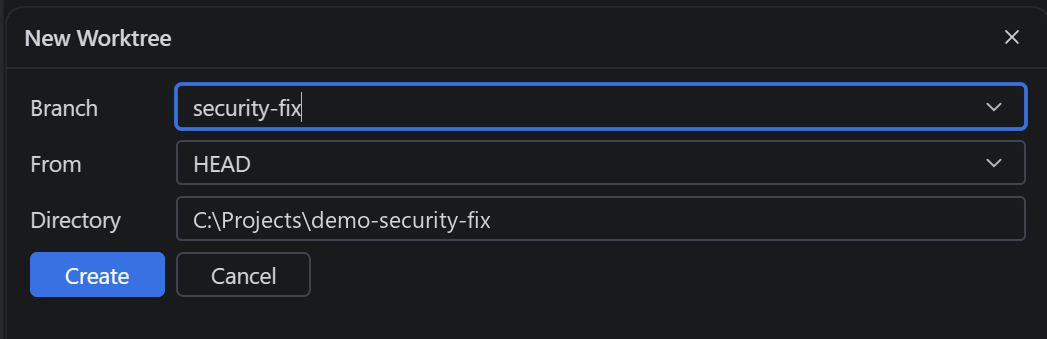
After it is created, the new worktree is selected in the selector, the panel closes, and the project window stays the same.
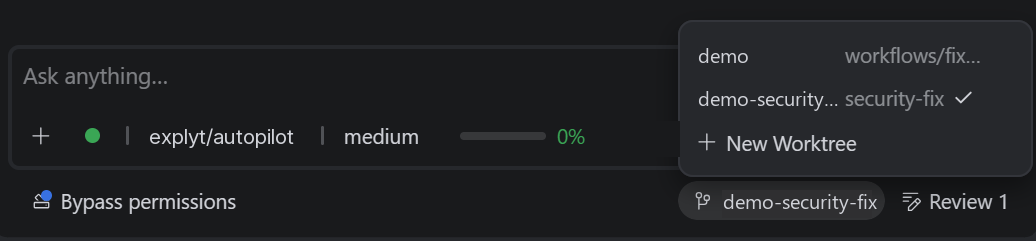
The new worktree appears in the IDE worktree list right away, without a restart, and the IDE does not ask about trust when you open it as a project.
When it does not work:
- The directory must be empty or not exist. If it is a file or has something in it, the plugin does not create the worktree and says
The destination is a fileorThe destination directory is not empty. - If the branch or directory is empty, the plugin asks you to fill it in:
Enter a branch name,Enter a directory. - If Git returns an error (for example, the branch is already checked out in another worktree), the panel shows the Git output, and the previous worktree stays selected.
- The plugin saves unsaved documents before creating the worktree: the branch starts from the content on disk.
Cancel closes the panel without changes.
Telling chats of another worktree apart
If a chat runs outside the main worktree, its title is followed by the worktree directory name in square brackets, for example Fix login [feature-x]. The editor tab is labeled the same way. Chats of the main worktree have no label.
Chats of any worktree open in the current project window. No separate project windows are created.
History by worktree
In the history window, chats are grouped by worktree:
- one group for each worktree of the repository, including empty ones; the project group comes first;
- the group header shows the worktree name, the branch (or
detached) and the number of chats. Clicking the chevron or empty space in the group collapses and expands it. The collapsed state is remembered for the project; - the list shows the chats of all agents, each with its agent. For a stopped agent, already known chats are shown without starting it;
- a group has a
New chataction that opens a new chat directly in that worktree; - the
Search chatsfield searches by group name and branch (showing the whole group) and by chat or agent name. If nothing is found, it saysNo chats match.
For more about the history, see History and tabs.
If a worktree was removed
Worktrees are removed with the IDE or Git — the plugin does not remove them. Chats of a removed worktree stay in the history:
- the group is marked
(removed); - the chat opens and shows its messages but does not accept new ones: it says
Worktree <name> was removed.; - if the agent cannot load such a session, there are no messages, but the removal label stays;
- the group has no
New chataction; instead it hasDelete worktree chats from history, which deletes all its chats after confirmation.
The Explyt agent does not load a session whose working directory no longer exists, so sometimes its content cannot be shown.
What the plugin does not do
- it does not open a worktree as a separate project or window;
- it does not remove, merge or clean up worktrees — the IDE or Git does that;
- it does not change the worktree of a started chat;
- it does not work with worktrees of nested repositories, only with the repository at the project root.