History and tabs
Chat history
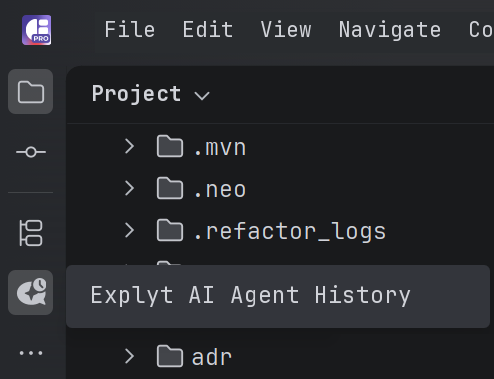
The history opens in a separate tool window — the Explyt history button is on the IDE tool window bar next to the chat button. A colored dot next to each chat shows its state, for example that the agent is still working or waiting for an answer.
- Clicking a chat opens it in an editor tab; a separate button in the row opens it in the chat window.
- The first row,
New chat in editor tab, creates a new chat in a tab. - You can rename a chat — the new name is stored locally in the plugin.
Delete permanentlydeletes the chat from the agent's history. If the agent does not support deleting and loading sessions, history and deletion are unavailable for it.Refresh sessionsreloads the list.
In a Git project, chats in the history are grouped by worktree — see Git worktree.
Chats in editor tabs
You can open a chat in an editor tab to keep several tasks side by side — one chat per task.
Move to Editor Tabin the chat window header moves the current chat to a tab, andMove to Tool Windowmoves it back.Tools | New Chat in Editor Tabopens a new chat in a tab.- A chat is shown in only one place: in the chat window or in one tab.
- If you close the tab, the agent keeps working and the chat stays in the history.
- After an IDE restart, open chat tabs are restored.
Export
In the chat window header menu:
Export Chat as JSONcopies the conversation to the clipboard or saves it to a file (Save to file);Export Debug Infobuilds an archive for support. Thebackends.jsonfile is not included. Before sending, check the archive as recommended in Contacting support.