Agent self-configuration
The Explyt agent configures itself. To connect an MCP server, add a rule or a skill, or change a setting, describe the task in the chat. You don't need to read the documentation or edit configuration files by hand.
This works with the Explyt agent. Claude Code, Codex and other agents use their own configuration, see Configuring Explyt.
How it works
The agent ships with documentation about its own configuration. When you ask for a configuration change, it reads the relevant section and then creates or edits files in the .explyt/ folder:
~/.explyt/                 for all projects
<project>/.explyt/         for this project only
If it isn't clear where to save a setting, for all projects or only for the current one, the agent asks.
Example: connect an MCP server
Write in the chat:
Connect the context7 MCP server in this project
The agent reads the MCP section of its documentation and writes the server to .explyt/mcp.json. The edit shows up in the Changes bar, where you can accept or reject it.
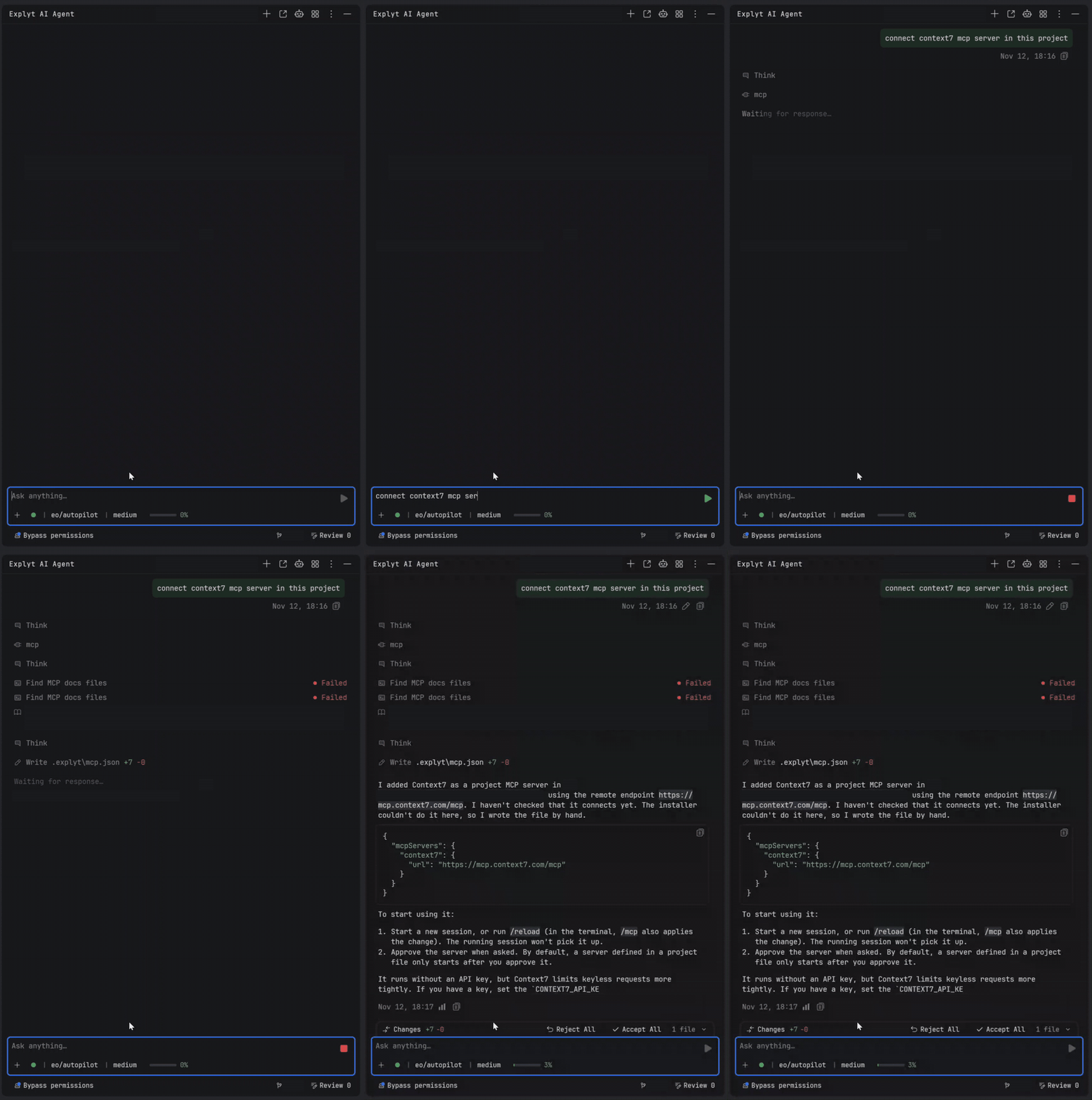
The server starts in a new chat. A server defined in the project file starts only after you approve it. You can check the result in the MCP tab of the Agent context panel, see MCP servers.
Example requests
| Request | What the agent does |
|---|---|
Connect the context7 MCP server | Adds the server to mcp.json |
Add a rule: this project uses Kotlin and JUnit 5 | Creates a rule file in .explyt/rules/ |
Make a skill that writes a PR description from the diff | Creates SKILL.md in .explyt/skills/<name>/ |
Create a model profile for a thorough review | Creates a profile in .explyt/models/ |
Check the result
Rules, skills and MCP servers are listed in the Agent context panel, on the Rules, Skills and MCP tabs. Settings changes apply in a new chat.
Manual configuration
If you prefer to edit the files yourself, see:
- Rules and AGENTS.md
- Skills
- MCP servers
- Agent settings: the format is shared by the plugin and Explyt CLI
Limits
The agent creates and changes configuration files the same way as any other files, so these edits follow the current permission mode.