The agent in the chat stopped answering with a single message a long time ago. It runs tests, builds the project, executes a command in the terminal, hands a separate investigation to a subagent, and all of that lives longer than the response itself. Each of these processes leaves its own card in the chat and drifts up the history while you ask the next questions. To find out what was still running, you had to scroll through the chat and check the cards one by one. And there was only one way to learn the result of a long task: come back to the IDE and look.
In 5.20, everything the agent does in the background is collected in one panel next to the chat input, and Explyt can report important events with a system notification even when you are in a browser or another IDE.
What this gives a developer. No more sitting in the chat and waiting. While the agent runs tests or analyzes the repository history, you work in another window, and the IDE tells you when the response is ready, the agent asked a question, or is waiting for confirmation. Before closing the IDE or switching branches, one look at the panel is enough to confirm that nothing important is still running.
What this gives a company. Long agent tasks such as a build, a test run, an analysis of a large project, or a review stop blocking the developer. They no longer switch between windows every few minutes to check the chat, and they do not lose track of processes that may change files in the repository. Less manual supervision of the agent, fewer forgotten background commands.
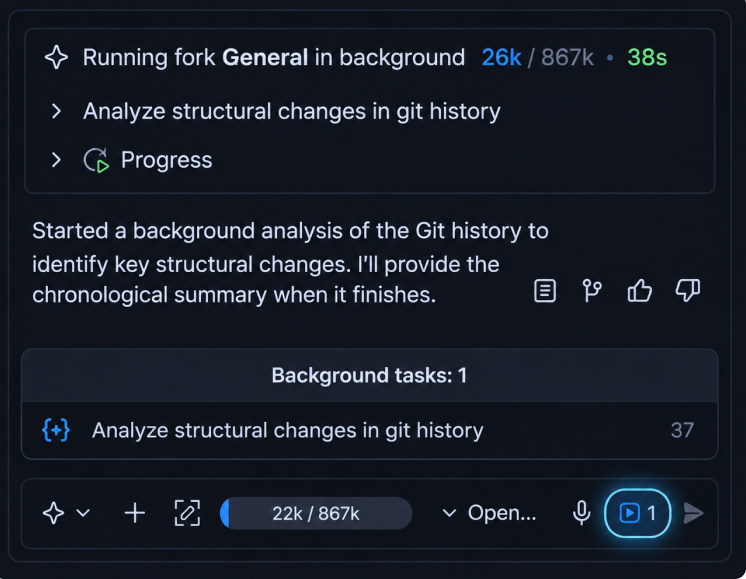
Here is what it looks like. On the right side of the chat input, next to the message queue, there is now an indicator with the number of active tasks. Click it and the Background tasks panel opens: it lists terminal commands, run configurations and tests, subagents and forks, each with its status and elapsed time. From the panel you can jump to the original card in the chat or stop a process you no longer need.
Who gets it. The background task panel appears for every user after updating the plugin to 5.20 and needs no separate setting. System notifications are off by default: enable them under Settings | Explyt | Notifications and allow notifications from the IDE in your operating system settings.
What this does not give. Stopping a task from the panel interrupts the selected process but does not roll back what it has already done: the command may have changed files or left a partial result. Check the output before running it again. Notifications mirror chat events and do not replace them: the response itself, the question, and the review report are still read in the IDE.
Beyond that, in 5.20 Memory Bank learned to free space for new entries in two stages, the inline code generation window receives focus right away, long subagent results are no longer clipped, and password-storage reads have left the IDE interface thread. Details below.
Background tasks in one panel
The indicator in the chat input shows work that continues independently of the agent's current response:
- terminal commands;
- run configurations and tests;
- subagents and forks.
The panel is most useful when the agent is running tests, building the project, and delegating a separate investigation to a subagent at the same time. Previously you had to scroll through the chat and find each card. Active work is now collected next to the input, so before closing the IDE or switching branches it is easier to confirm that nothing important is still running.
Stopping a background task interrupts only the selected process and does not undo the actions it has already completed. The panel, jumping to a card, and stopping processes are described on the Background tasks documentation page.
System notifications
Explyt can mirror important events through macOS, Windows, and Linux system notifications. A notification appears when the IDE is inactive and the agent:
- finished a response;
- asked a question;
- requested confirmation for an action;
- prepared a review report.
This fits a long build, an analysis of a large project, or a review during which you switch to a browser, a terminal, or another IDE. You no longer need to return every few minutes just to check the chat.
The feature is off by default. Enable it under Settings | Explyt | Notifications. Your operating system must also allow notifications from the IDE. If notifications do not appear, check both settings and the Do Not Disturb mode.
These notifications are unrelated to the Memory notifications setting in the Memory Bank section: that one shows the results of automatic memory extraction inside the IDE.
Memory Bank keeps saving knowledge when full
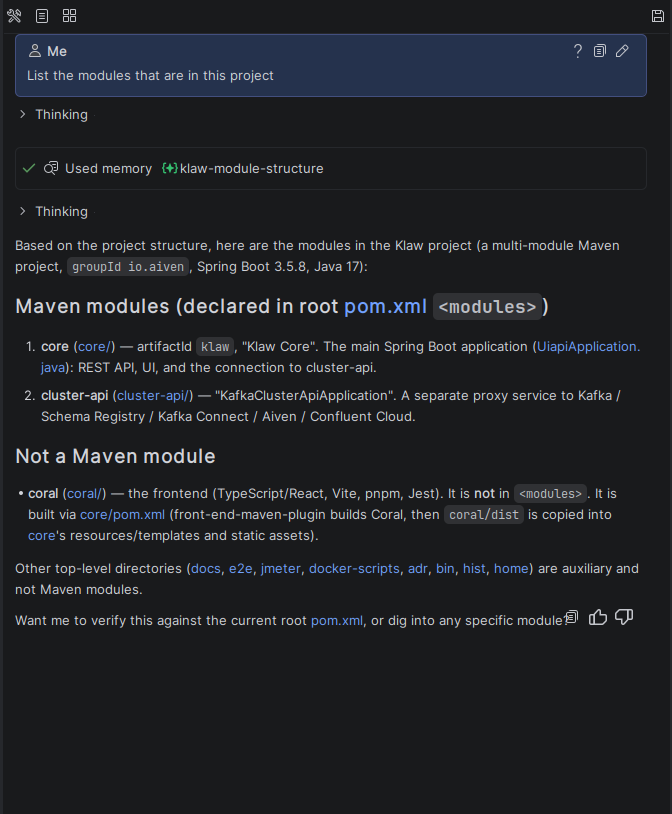
Memory Bank preserves knowledge across chats, but the number of entries is limited to 200. Previously, when the bank was full, automatic cleanup removed only entries that had not been used for more than 30 days. An active project might have no such entries, so new knowledge was rejected even though automatic cleanup was enabled.
Space is now freed in two stages. First, Explyt still removes entries that have not been used for more than 30 days. If that is not enough, Explyt may remove Project, Reference, and Feedback entries that have not been used for more than 7 days. User entries and the entry that was just saved are protected from automatic removal.
This helps long-lived projects where the agent regularly records decisions and the constraints it discovers. The bank no longer stops accepting new knowledge simply because every existing entry was used relatively recently.
The second stage has a downside: a useful entry can also be evicted after 7 days without use. Do not save temporary task state, file contents, or facts that are easy to recover from the repository: they take up limited space and cause more valuable entries to be removed sooner.
Inline code generation and subagent results
The request window in inline code generation (Explyt: Generate Code) now receives focus as soon as it opens. You can start typing the request without an extra mouse click. While focus stays in the request window, Undo reverts the text of the request itself; the latest change to the source file stays in place. The difference is most noticeable in a keyboard-only workflow: open generation, type an instruction, fix it, and submit without risking an accidental code rollback.
The rendering of long subagent results is fixed as well. Panels that have not received a height yet are now measured using the width of their parent panel. As a result, Markdown with tables and long lines is no longer clipped until the next window resize.
Performance and security
Provider availability checks and model selection no longer read PasswordSafe synchronously on the interface thread, and identical concurrent provider checks are combined into one. This reduces the chance of brief freezes when the IDE starts, a chat opens, or you switch models, especially when the system key store takes time to respond.
The internal analyzer extracts chat histories once per run and reuses the result across modes and open projects. Previously, the same set of files could be reread in full several times. In projects with a large chat history, this reduces repeated background work and leaves background threads available for user tasks.
The batch-processing service no longer includes vulnerable dependencies, its system and Java packages have been updated, and the container build no longer leaves obsolete JAR files behind. The change requires no plugin configuration, but it reduces the surface of known vulnerabilities in the server environment.
After updating from a previous version
Existing chats and settings keep working. For the new features:
- to receive notifications outside the IDE, enable them under Settings | Explyt | Notifications and allow notifications from the IDE in your operating system settings;
- before stopping a background command, open its card and check whether it has already changed any files;
- if Memory Bank often becomes full, remove temporary knowledge and keep only facts that cannot be recovered quickly from the project: Project, Reference, and Feedback entries unused for more than 7 days can now be removed automatically.
Update the Explyt plugin
Open Settings | Plugins | Installed, find the Explyt plugin, and click Update if an update is available. Restart the IDE after installation if prompted.
The full release description is on the What's new in Explyt page.
Get started with Explyt
Reproduce, inspect and fix inside JetBrains IDEs, with the debugger, run configurations and IDE facts as evidence.