The Changes window
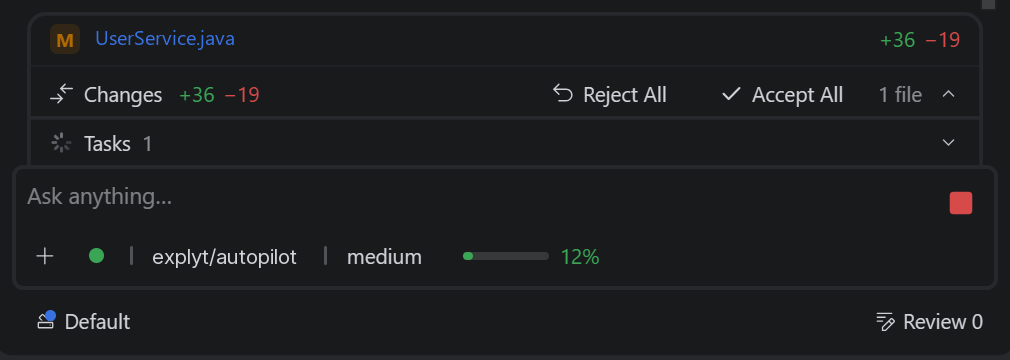
The Changes window opens from the panel above the prompt field and shows the files the agent changed in the current chat:
- the
Alabel means the file was created,Mmeans it was modified; - counters of added and removed lines (
+/−); - clicking a file opens it in the editor.
Accepting or rolling back edits
Accept Allaccepts all changes. The files stay as they are and the list is cleared.Reject Allrolls back all the agent's changes in the listed files.
You cannot accept or reject a single file or fragment from the window. To keep only part of the edits, use Git: review the diff in the IDE Commit window and roll back what you do not need, or ask the agent to revert a specific file.
Tip
Before a task that changes many files, make a commit. Then you can compare any agent edits with it and roll them back with Git, even if the chat is already closed.
To leave notes on the edits, use review comments.