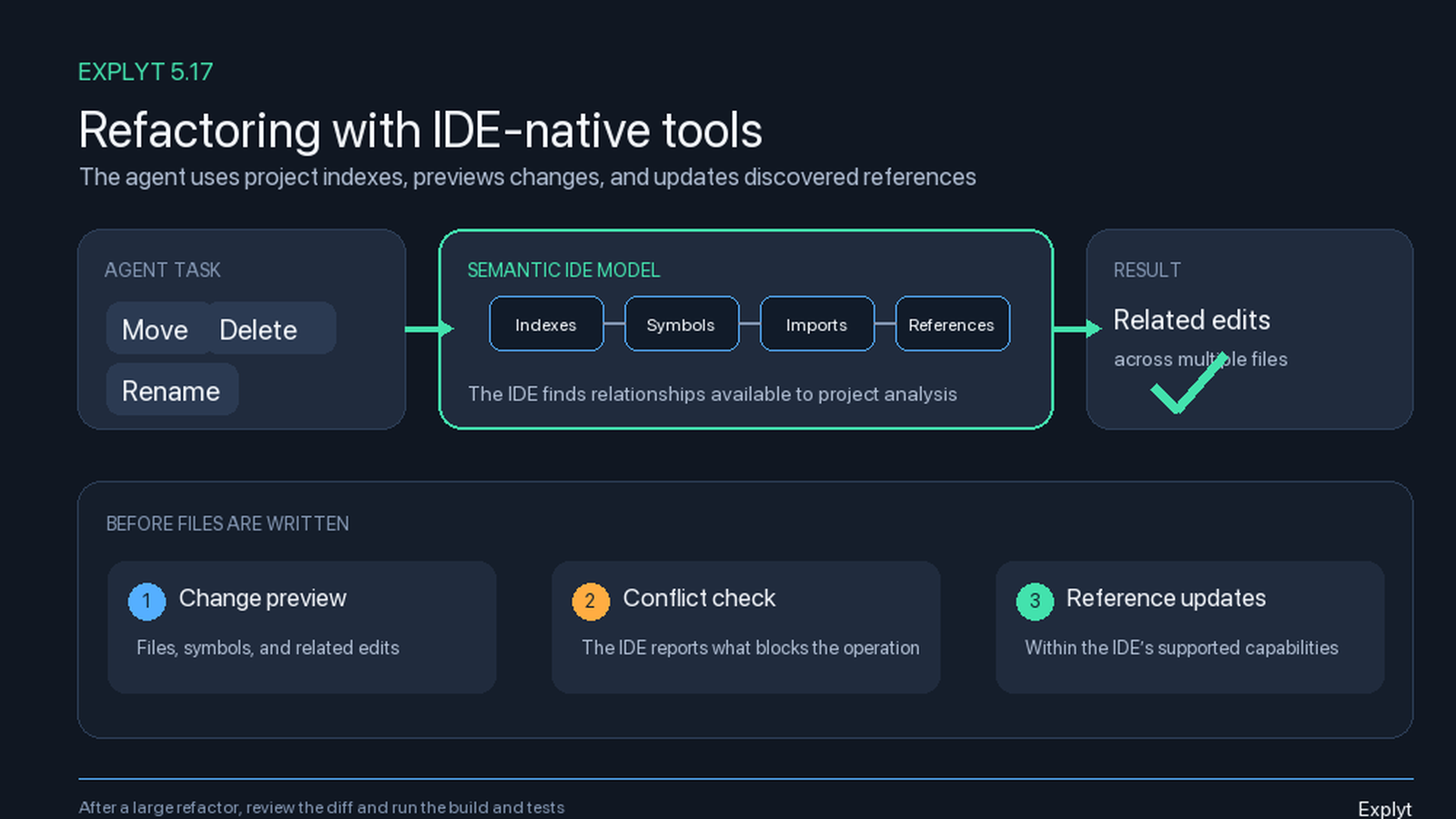
Refactoring affects relationships across files. Moving a class changes its package and imports, deleting an entity requires checking its usages, and renaming a symbol requires updating its references. JetBrains IDEs already know how to find these relationships and show conflicts before an operation is applied. In version 5.17, the Explyt agent can use these mechanisms to make related changes through the IDE rather than assembling them from separate file edits.
The Explyt agent previously supported Rename only. Move and Delete are now available as well. Before an operation, the agent receives the list of affected locations and conflicts from the IDE, then applies changes to related files within the limits of the available refactoring support.
The same IDE tools can now be connected to Claude Code, Codex, Cursor, OpenCode, and other MCP clients. Explyt's built-in MCP server exposes selected navigation, run, debugging, and refactoring tools without using Explyt inference. The external agent continues to use its own model. MCP mode is available for free without a subscription.
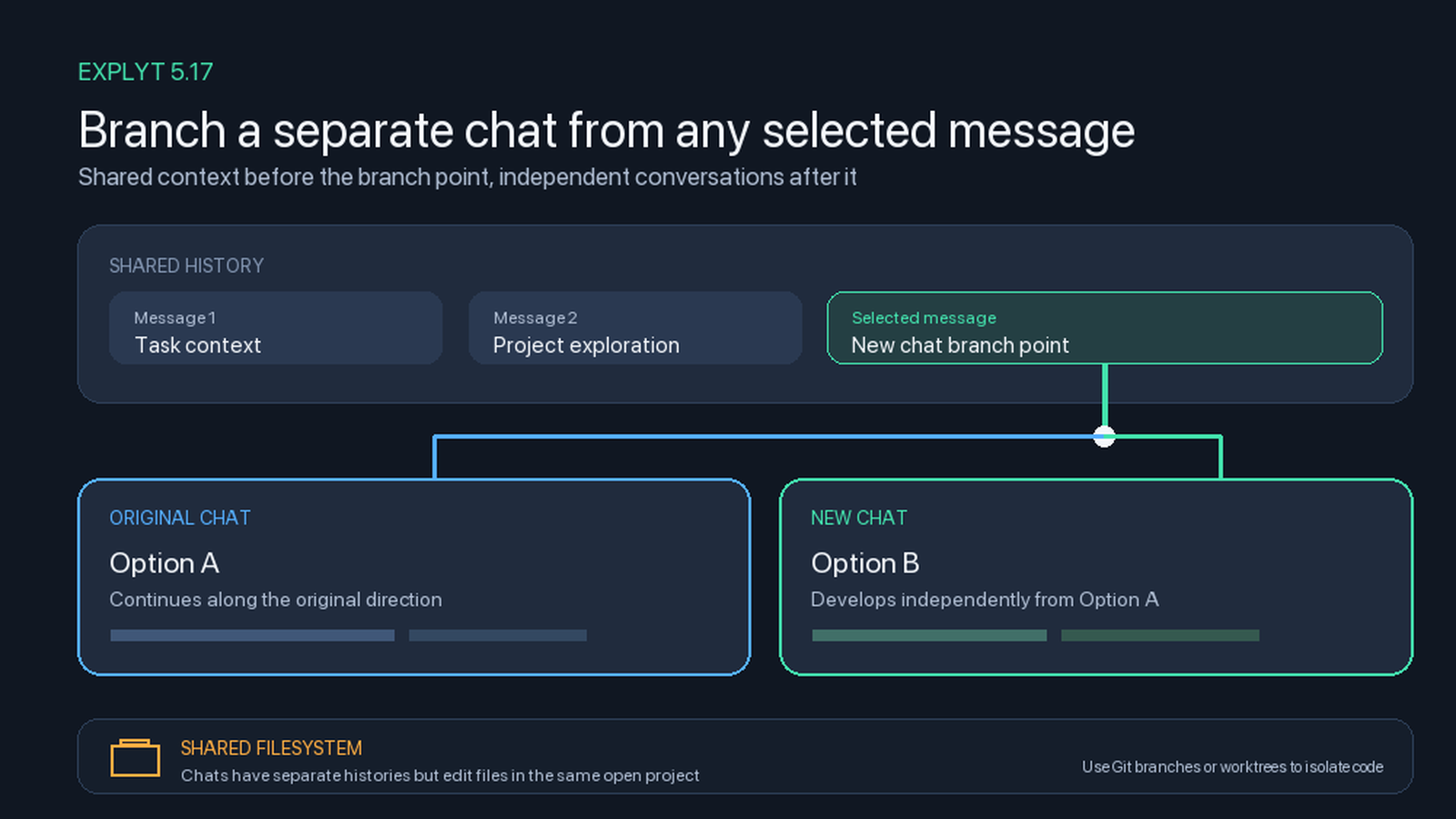
You can also create a new chat from a selected message and discuss tests, documentation, code review, or architecture options separately. The chat histories develop independently, while both chats continue to use the files of the same open project.
Refactoring through IDE mechanisms
Before version 5.17, the agent could already rename entities through Rename. Version 5.17 adds two operations:
- Move: moves files, folders, and supported code entities;
- Delete: deletes entities after checking their usages.
Rename remains available and takes related elements recognized by the IDE into account.
These operations use the native refactoring mechanisms of JetBrains IDEs. The IDE knows the project structure, resolves references, and uses indexes to find dependencies. The agent calls the corresponding operation, receives information about affected locations, and uses it in the next steps of the task.
Moving files and folders
Moving a file directly through the file system leaves its contents unchanged. Its package, imports, and references from other parts of the project may no longer match the new location.
When Explyt moves an item through the IDE, the refactoring mechanism performs the operation. The IDE updates imports and other references that it can find in the open project. This works, for example, when moving a class to another package or reorganizing files between project directories.
Review the proposed changes before applying the move. If the IDE cannot recognize a relationship in a particular language, configuration, or text resource, the refactoring may not include it.
Safely deleting entities
Before deletion, Explyt checks usages of the entity and reports the dependencies it finds to the agent. The agent can see where the code participates in the project and adjust the task plan before removing it.
This sequence helps find references from other files before the entity disappears. It does not mean the IDE will find every possible dependency. The result depends on language support, index state, and which relationships the IDE can analyze.
Renaming related entities
IDE-based Rename changes references to the selected code entity rather than every matching character sequence. This reduces the risk of changing documentation, an unrelated identifier, or part of another word.
The IDE may also offer to rename related elements. For example, changing a class name may also change the name of its file. The exact set of related changes depends on the language, entity type, and capabilities of the installed IDE.
Preview and conflicts
Before an operation is applied, Explyt shows:
- which elements will be moved, deleted, or renamed;
- which files and references will be included in the change;
- which conflicts prevent the refactoring;
- which related entities the IDE suggests changing with the selected entity.
The preview is useful for operations that affect several modules or packages. You can assess the scope before files are written, while the agent receives conflict data and can adjust its next actions.
Limits of semantic analysis
Refactoring uses the IDE's knowledge of the project, but it cannot guarantee that every dependency will be found. The result is affected by:
- language and framework support in the specific JetBrains IDE;
- whether project indexing completed successfully;
- dynamic references, reflection, and generated code;
- references from configuration files, templates, and external systems;
- text mentions that are not resolved symbol references.
After a large refactoring, review the diff, build the affected modules, and run the relevant tests. IDE tools reduce manual searching, but project verification remains part of the task.
MCP server for external agents
Explyt 5.17 can run an MCP server inside the IDE. The server gives an external MCP client access to selected groups of tools in the context of the open project.
This mode is intended for developers who use Claude Code, Codex, Cursor, OpenCode, or another MCP client and want to add IDE operations to it. The external agent uses its own model, while Explyt executes calls to the selected tools. MCP mode does not require Explyt inference.
The MCP server is available for free without a subscription. You can use it to try IDE navigation, run configurations, the debugger, and refactoring with your own agent. This integration is less tightly coupled than the built-in Explyt agent because the external client controls the model, context, and sequence of calls.
The MCP server does not expose every IDE capability to the client automatically. You select the available tool groups while configuring the server.
Connecting an MCP client
- Open the Explyt MCP Server window and create a server configuration for the current IDE.
- Select the tool groups the external agent is allowed to call.
- Start the server.
- Select a supported client detected by Explyt and connect it.
- If the required client is not available for automatic setup, copy the generated configuration into the MCP client's settings manually.
- Start the external agent and check that its first call appears in the Explyt call log.
The clients that Explyt can detect automatically depend on the local installation and client version. For other MCP-compatible applications, use the configuration shown by Explyt.
Tools and call log
The release interface includes tool groups for:
- project navigation;
- run configurations;
- debugger operations;
- IDE refactoring.
The right side of the server window contains the call log. For each request, you can inspect which tool the external agent requested, which arguments it passed, which response the tool returned, and at which step an error occurred.
For example, an external agent can set a breakpoint, run a configuration, stop on the required line, and query runtime state through the debugger. The log shows the tool calls, their arguments, and responses.
Version 5.17 handles large MCP server responses more reliably. Before sharing logs or configurations, check whether they contain paths, source code, or other project data that should remain in the working environment.
Create a separate chat from a selected message
In a long conversation, you can return to an earlier message and create a separate chat from it. The new conversation receives the history up to the selected point. The original chat remains unchanged.
This is useful when you need to:
- discuss tests in one chat and prepare documentation in another;
- review code already written in a separate conversation;
- examine several architecture options in detail;
- compare alternative implementation approaches;
- preserve useful history without continuing an unsuccessful direction.
After branching, the chats develop independently. Messages, responses, and later context from one conversation are not added to the other.
Shared file system
Branching a chat does not create a Git branch, a copy of the project, or a separate working directory. Both conversations use the files of the open project. If the agent changes a file in one chat, that change is in the same file system and is available when you work in the other chat.
Before working on conflicting alternatives in parallel, decide how to isolate the changes. Use separate Git branches or worktrees, or save and revert alternatives in sequence. Chat branching separates the conversation history, not the project state on disk.
Performance and fixes
Explyt refreshes the context panel less often and processes the project's internal data more efficiently. Growth of internal log files is now limited as well.
Explyt 5.17 also fixes errors in several workflows:
- background tools resume their work in chats more reliably;
- tool calls recover more correctly from incomplete arguments;
- absolute Windows paths are handled correctly;
- issues with enterprise models are fixed;
- large MCP server responses are handled more reliably.
These changes require no additional configuration after the update.
After updating from a previous version
Existing chats and settings remain available after the update. For the new features:
- Wait for project indexing to finish before the first refactoring.
- Review changes and conflicts before applying an operation.
- For an external agent, start the MCP server and enable only the required tool groups.
- Check the external agent's first call in the Explyt call log.
- When creating a separate chat, remember that both conversations use the same project files.
Update Explyt
Open Settings | Plugins | Installed, find Explyt, and click Update if an update is available. Restart the IDE after installation if prompted.
If Explyt is not installed yet, download the plugin from the Explyt download page and follow the installation instructions.
After updating, check the plugin version, open your project, and wait for indexing to finish before the first refactoring.
For the complete reference, see the Explyt 5.17 documentation.