The agent has already read dozens of files, traced symbol relationships, and started changing code. At that point, you need to clarify one detail. Stopping the task would waste the context it has assembled, while opening another chat would leave that context behind. At the same time, an important rule from the beginning of the task may now sit far above pages of searches, runs, and edits.
Explyt 5.16 addresses both problems. The agent can continue its main task while you ask a separate question using the context of the current conversation. The new /btw command handles that flow. The strictness setting keeps user rules closer to the current step of a long task, while a subagent backed by a vision-capable model can inspect an attached image and return a text result to the main agent.
The release also adds IntelliJ Platform 2026.2 support, notifications about compatible updates, and fixes for chats, files, model-routing profiles, and MCP servers.
Ask a quick question while the agent is busy
During a long task, the agent gradually builds project context. It reads files, finds symbols and usages, examines tests, changes code, and verifies the result. The further the work progresses, the more task-specific information is already available in the current conversation.
Consider a public API migration. The agent has found interface implementations, read calling code, and started changing signatures. You want to know why it introduced an adapter and which modules are already affected, but you need the answer before the entire migration finishes.
Previously, you had three options:
- Wait for the main task to finish.
- Open a new chat and reconstruct the relevant context.
- Send a message into the active conversation, where the agent might interpret it as a change to the main task.
Explyt 5.16 adds /btw for this kind of clarification.
How to ask a quick question
Enter the command and your question in the message field:
/btw What is this branch about, and what has already changed?
Explyt creates a separate one-step request from the current conversation context. The answer appears in a panel below the chat history while the main agent continues its original task.
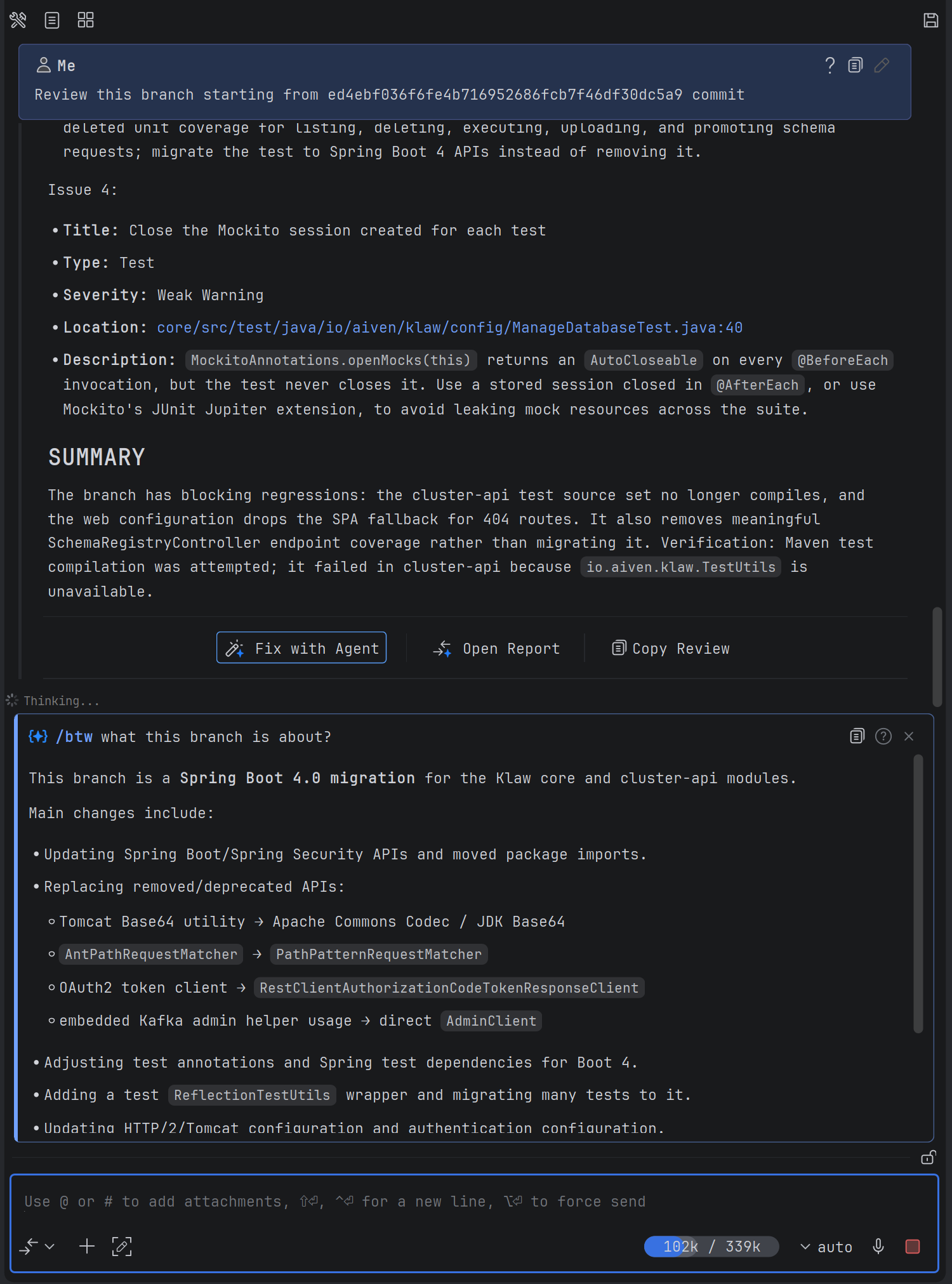
You can copy or close the answer. The quick question and its answer are not added to the main conversation history, so the agent continues without carrying this side discussion into later steps.
What happens after /btw
- You enter
/btwand one question. - Explyt sends the request to the model together with the current conversation context.
- The model prepares an answer without calling tools.
- Explyt displays the answer in a separate panel.
- The main agent continues with its existing history.
- The question and answer do not become part of the main conversation.
The mode reuses context the agent has already collected. You do not need to describe the branch, error, or decision again when the relevant information is present in the conversation.
Questions that work well with /btw
Use it for clarifications that can be answered from the current history:
/btw Why did the agent choose an adapter for this migration?
/btw What root cause have we found so far?
/btw Which modules does the current change affect?
/btw Why is the agent editing this file?
/btw Which testing approach did we agree on earlier?
Each answer relies on information already gathered during the main task.
Requests that belong in the main chat
Do not use /btw when the answer requires a new action in the project. For example:
Find every implementation of this interface and list incompatible signatures.
Run the module tests and explain the failure.
Read the attached screenshot and locate the corresponding error in the code.
These requests require search, file access, a run configuration, or attachment analysis. Send them to the main chat or create a separate task with tool access.
/btw limitations
The mode is designed for one short clarification:
- one question receives one answer;
- you cannot continue a separate conversation after the answer;
- the model cannot call tools;
- attachments are not supported;
- the question and answer are not saved in the main chat history;
- the answer depends on information already present in the conversation.
If the context does not contain enough information, /btw cannot read another file or perform a search on its own. Return that request to the main chat.
Why rules lose influence in a long conversation
User rules define persistent requirements for agent work. They can limit the edit scope, specify how results must be verified, define the response format, or require approval before implementation.
For example:
Run the related tests after changing production code.
Do not edit files outside the specified directory.
Describe the plan and wait for approval before implementation.
Before version 5.16, Explyt sent a rule once in the system message at the beginning of a conversation. That is often enough for a short task. In a long conversation, the distance between that rule and the current action grows as the context accumulates:
- new user messages;
- contents of files the agent has read;
- search and static-analysis results;
- test and run output;
- error details;
- intermediate decisions.
The rule remains in the history, but it is farther from the current step. The model must process the original instruction, the task goal, and fresh tool output together, and may give an older rule less attention.
The chance of missing a rule depends on the model and conversation length. A model that follows a requirement in a short task may still overlook it after many messages and tool results. The same behavior can occur with models deployed in local infrastructure.
Repeating an instruction near the current action makes compliance more likely. Repetition does not turn a rule into an enforced programmatic restriction, and it cannot guarantee identical behavior across models. Technical constraints such as write boundaries still require dedicated controls when your workflow provides them.
Configure strictness
Explyt 5.16 lets you choose when each rule file is repeated. Add the strictness field to the frontmatter at the beginning of the file. See the user rules documentation for the complete format and scope rules.

The field supports three values:
system;user-message;tool-call.
Each successive mode repeats the rule more often. Choose a mode based on when the model starts overlooking the instruction and how critical it is to restate it during the task.
system: send the rule once
Explyt adds the rule to the system message when a conversation starts and does not repeat it. This is the previous behavior and remains the default.
When strictness is absent, an existing rule file continues to work in system mode.
This mode fits two cases:
- the conversation stays short;
- the selected model follows the instruction reliably throughout the task.
Examples that may work well in system mode:
Reply in English.
List changed files in the final report.
The rule enters the context once, so this mode adds the least extra context.
user-message: repeat before each request
Explyt repeats the rule before every new user message. If you send three messages, the instruction appears three times, each time close to the latest request.
Use it for requirements the agent must consider before processing each request:
Describe the plan and wait for approval before implementation.
List affected modules when changing a public API.
Ask the user to choose when the requirements allow several solutions.
user-message brings the instruction back into the recent context but does not repeat it after every file read, search, or test run.
tool-call: repeat after every tool result
Explyt repeats the rule after every tool result. After the agent reads a file, receives search results, edits code, or finishes a test, the instruction appears again before the next step.
Use this mode for short requirements that must remain visible after every tool call:
Do not write files outside the allowed scope.
After changing code, run the related test and read its complete result.
Stop and request approval before changing a public contract.
tool-call has the highest repetition frequency. A task with dozens of tool actions may add the same rule to the context many times.
Start with the point where the selected model stops following the instruction. Keep system when a rule remains effective throughout the task. Use user-message when it gets lost between user requests. Use tool-call when it must be restated after each read, edit, search, or run.
You do not need to increase the frequency of every rule. Split requirements by purpose: keep response language in system, move plan approval to user-message, and apply tool-call only to a short write restriction.
How repeated rules affect usage
Every repetition adds the rule text to the model context again. The extra volume depends on the instruction length and repetition count:
rule length × number of repetitions
A short rule repeated with user-message adds little. A thousand-line file using tool-call is sent after every tool result. In a task with dozens of reads and edits, that text can consume a significant part of the context window.
Context tokens
More repetitions mean more input tokens. A large instruction also leaves less room for conversation history, file contents, and tool results.
Use tool-call for concise requirements that apply to every step. If the agent overlooks one instruction inside a large company policy, move that instruction to a small separate file and assign the higher frequency only to it.
Minute-based billing
Explyt bills managed-model usage in minutes. Additional input tokens do not translate into an equal proportional increase in billed minutes. Actual usage depends on the selected model, processing duration, and your plan.
Evaluate two factors separately:
- How much context space the rule occupies.
- How often the model processes that text again.
Do not resend a long document after every tool result to reinforce one requirement. Extract the requirement into its own file, assign only that file the needed frequency, and test it with the model and workflow where the instruction was previously missed.
Images in subagents
Your main model may work well with code and text without accepting images. In Explyt 5.16, the main agent can pass an attached file to a subagent whose routing profile uses a vision-capable model.
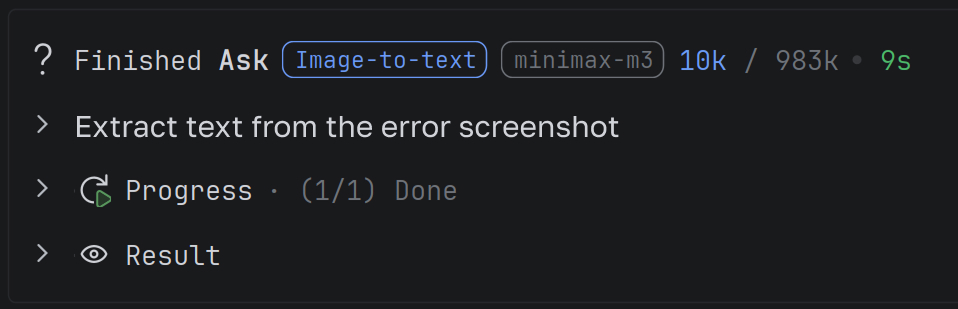
This lets you keep a text-focused model for the main task and invoke a visual model only for image analysis.
How image handoff works
- You attach an image to the message.
- The main agent receives the file path.
- It chooses a subagent profile based on the profile description.
- The subagent sends the image to a model with vision support.
- The model describes the image or extracts its text.
- The subagent returns a text result to the main agent.
- The main agent uses that result in the current task.
The main agent delegates visual analysis. Updating Explyt does not give a text-only model native image recognition.
Suitable tasks for a visual subagent
- read an error message from a screenshot;
- extract text from an image;
- compare an implementation with a UI design;
- describe screen elements;
- inspect visible UI state in an attached screenshot.
The result returns as text, which the main agent can use in the current context.
Configure the profile
Create a model-routing profile and select a model that supports image input. Describe a specific purpose for the profile, such as UI screenshot analysis, error reading, or text extraction.
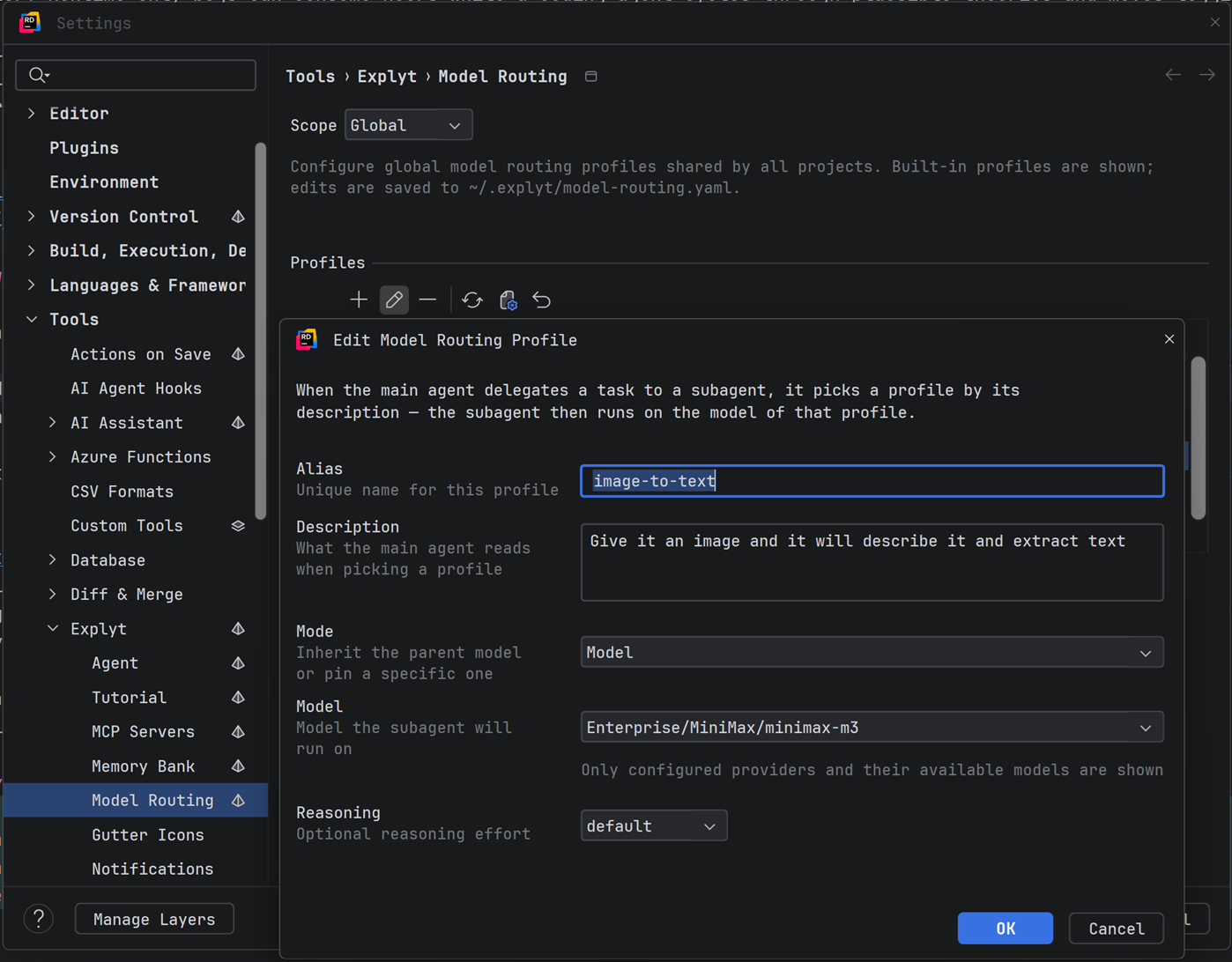
The main agent uses the description when choosing a profile. A precise description makes the intended routing clearer.
Example:
Analyze attached images: read text, describe interface elements, and return the result to the main agent.
Visual-analysis limitations
- you need a separate subagent profile;
- the model selected for that profile must support images;
- output quality depends on the visual model;
- routing accuracy depends on the profile description;
- the subagent returns text for the main agent to use in later work.
If the main model already supports images and can complete the task directly, a separate visual subagent is unnecessary.
Learn more in the subagents documentation.
IntelliJ Platform 2026.2 support
Explyt 5.16 works in IDEs based on IntelliJ Platform 2026.2. Support for platform versions 2025.1 through 2026.1 remains available.
After updating your IDE to a 2026.2 platform build, you can continue using Explyt 5.16 without installing a separate plugin build.
Update notifications
When a compatible plugin version becomes available, Explyt shows a notification. You can:
- start the update;
- postpone the reminder for seven days;
- skip the current version.
The plugin does not install an update without your approval.
To disable these reminders, open Settings → Tools → Explyt → Notifications.
More reliable chats, files, and integrations
Chats and interface
The selected model is now stored separately for each chat. Switching between conversations no longer changes the model selected in another chat.
The release also fixes:
- closing chats and the editor;
- cursor placement after removing an attachment;
- stopping background tasks when a chat closes;
- attaching binary files with drag and drop.
Files and updates
Explyt fixes several file-write errors. If a plugin update is interrupted by a temporary error, the plugin retries the operation.
Model-routing profiles
Provider context size is now calculated correctly for models selected through routing profiles. This fixes available-context calculations when a profile assigns the model.
MCP servers
The release resolves several MCP server integration issues.
After updating from an earlier version
Existing user rules continue working without changes. If strictness is absent, Explyt uses system and sends the rule once at the beginning of the conversation. You only need to add the setting to rules whose repetition frequency you want to change.
Test the rules the agent previously missed in a representative task. Configure a visual subagent profile when your main model cannot accept images and your workflow includes screenshots, diagrams, or designs.
Choose the right setting for each task
- Use
/btwfor a one-off question that the current conversation can already answer. - Use the main chat when the request needs tools, files, runs, or attachments.
- Keep a rule in
systemwhen the model follows it throughout the task. - Use
user-messagewhen the instruction must return before each new request. - Use
tool-callfor a short critical requirement that must follow every tool result. - Route images to a vision-capable subagent when the main model is text-only.
Update Explyt
Existing rules retain their previous behavior after the update. Increase repetition selectively and verify the result with your chosen model on a representative task.
Reproduce, inspect and fix inside JetBrains IDEs, with the debugger, run configurations and IDE facts as evidence.