What's New in Explyt 5.8
New Pricing for Personal Users
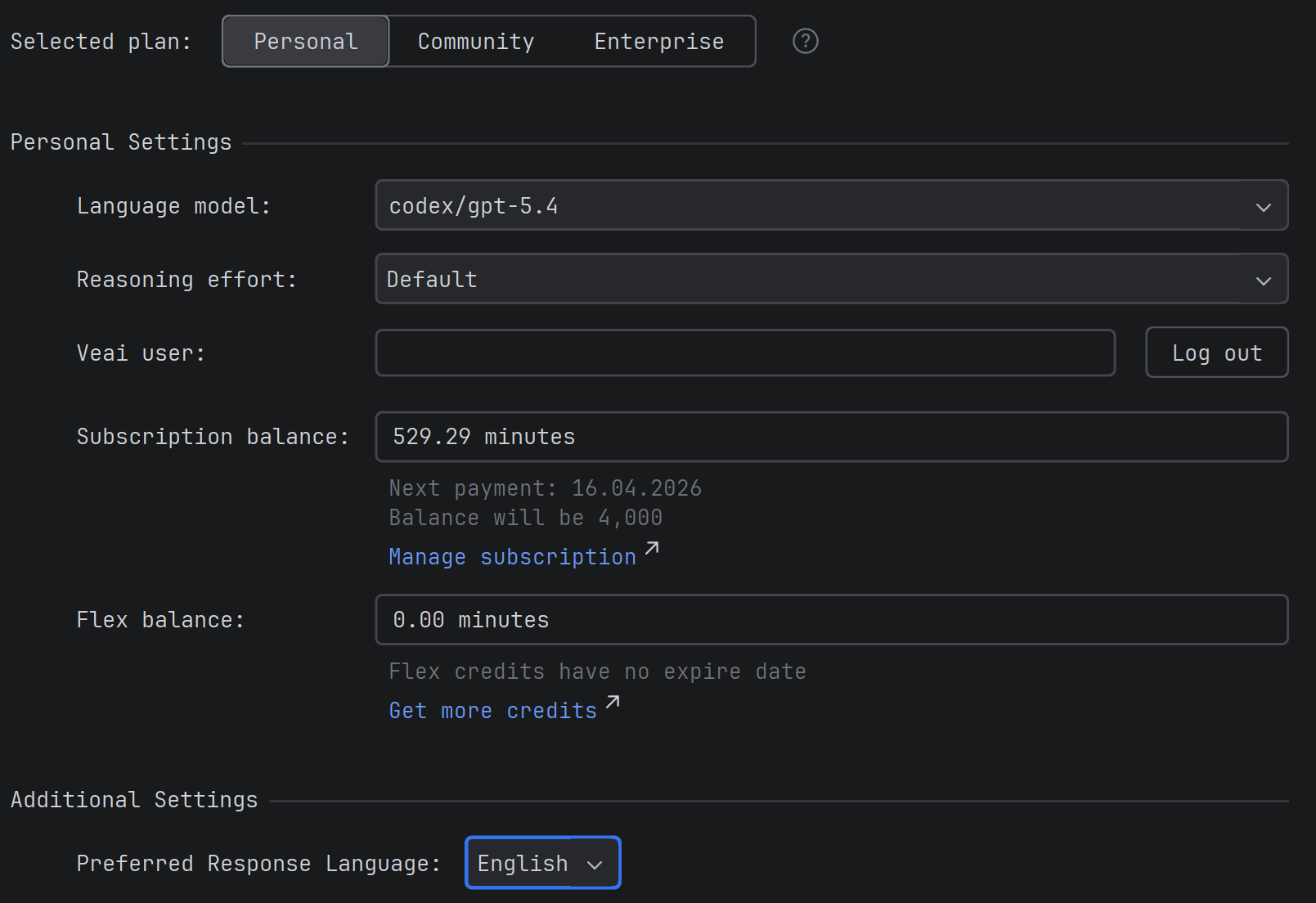
We're changing the pricing model for personal users: instead of abstract credits, we'll now use a clear per-minute billing based on the time the model spends processing the request.
This refers specifically to the time the model takes to process the request and return a response, not the time you spend working in the plugin or the duration of the entire session. Model processing time roughly correlates to your working time at a 1:16 ratio. That is, 5 minutes of model processing time is about 80 minutes of your work with agents in the IDE.
By our estimate, this per-minute pricing is about twice as cheap for you as subscribing directly to any single provider (e.g., Claude Code or Codex), and 10 times cheaper than buying these models via API (with an API key), while giving you access to all models from all providers at once, not just one, as with a direct subscription.
The personal subscription retains access to all top models — both proprietary models from OpenAI, Anthropic, and Google Gemini, and open source models like GLM, MiniMax, Qwen, and Kimi.
Debug Mode: Debugger Tools for the Agent
The agent can now control the IDE debugger — set breakpoints, run code with the debugger, and analyze variable state. This enables advanced debugging techniques: scientific debugging (step-by-step hypothesis checking), adding temporary logs with subsequent removal, running tests with debugging to analyze specific crash scenarios.
This is useful when you've encountered a complex bug that's difficult to diagnose from logs and code analysis alone, and you need to "look inside" program execution to understand what's happening.
IDE Run Configuration Tools
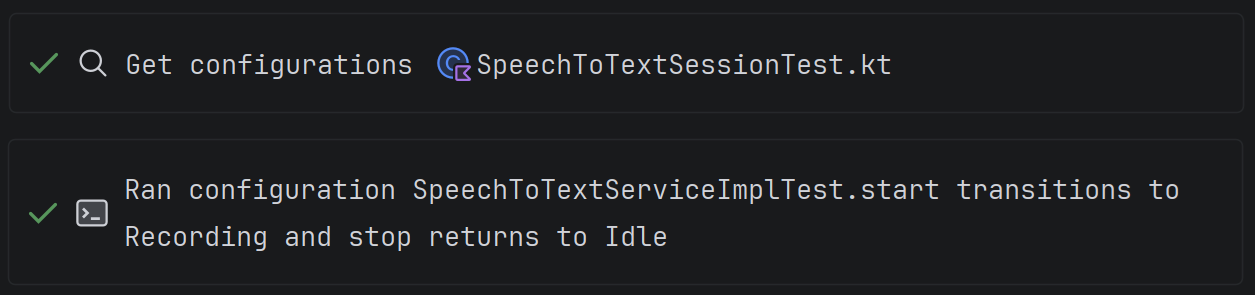
The agent can now find and run project configurations — tests, builds, applications — through the IDE.
The Get Configuration tool allows the agent to get a list of available configurations for a file, package, or the entire project (including Gradle/Maven tasks and custom configurations).
The Run Configuration tool runs the selected configuration and returns the result to the agent — console output, test results, compilation errors.
This is more efficient than building or running a project via the terminal, which is what all AI tools rely on, since it saves token consumption (the model receives a structured run result) and uses the SDK configured in the project.
Currently supported for Java-based IDEs (IDEA, Android Studio, etc.) and PyCharm, with other IDEs coming in upcoming releases.
This is useful when you ask the agent to write code and want it to run the tests itself to make sure everything works, or when you need to build the project and analyze build errors without switching to the terminal.
Agent Refactoring Tools: Symbol Rename
The agent now has a tool for renaming symbols — classes, methods, fields, variables, and parameters. The good old Shift-F6 that you've been using for refactoring is now available to the agent as well.
Unlike the ordinary text search and replace used by CLI agents, this tool uses the IDE's refactoring mechanism. Since other tools essentially rely on sed for refactoring, they will inevitably break code and then spend your tokens and time fixing it. Our refactoring tool correctly updates all declarations and usages of a symbol, including getters, setters, test classes, and imports, without breaking the code. Related symbols are automatically renamed as well — for example, when renaming a field, the agent will update the corresponding getters and setters.
This is useful when you ask the agent to perform a large-scale refactoring that includes renaming entities in the project, when you need to standardize method or variable names, and eliminate technical debt.
Message Queue in Chat
You can now send messages to a queue in the chat without waiting for the agent's previous response to fully complete. If during generation you have a new thought, clarification, or additional instruction, you can send it immediately, and it won't be lost: the agent will process such messages sequentially. Previously, in similar situations, you had to wait for the current response to finish or manually re-enter the input, making the conversation less natural.
While a message is being processed, a new message sent via the send button will be added to the queue. You can send a message directly to the chat, bypassing the queue, with Ctrl+Enter. The button to the left of the send button opens the queue. You can reorder items in the queue by dragging. Hovering over a queue item reveals controls: you can set the number of times to repeat the message, force-send it to the chat (stopping the current processing), and remove the message from the queue.
This is useful when you're conducting a long iterative dialogue with the agent, formulating clarifications as you read the response, or want to quickly add another step while the previous request is already being processed. Repeats are useful when working with a weak or "lazy" model: write "Keep going until you're confident in the result", set the repeat counter to 10, and go grab a coffee.
Model Context Size Setting
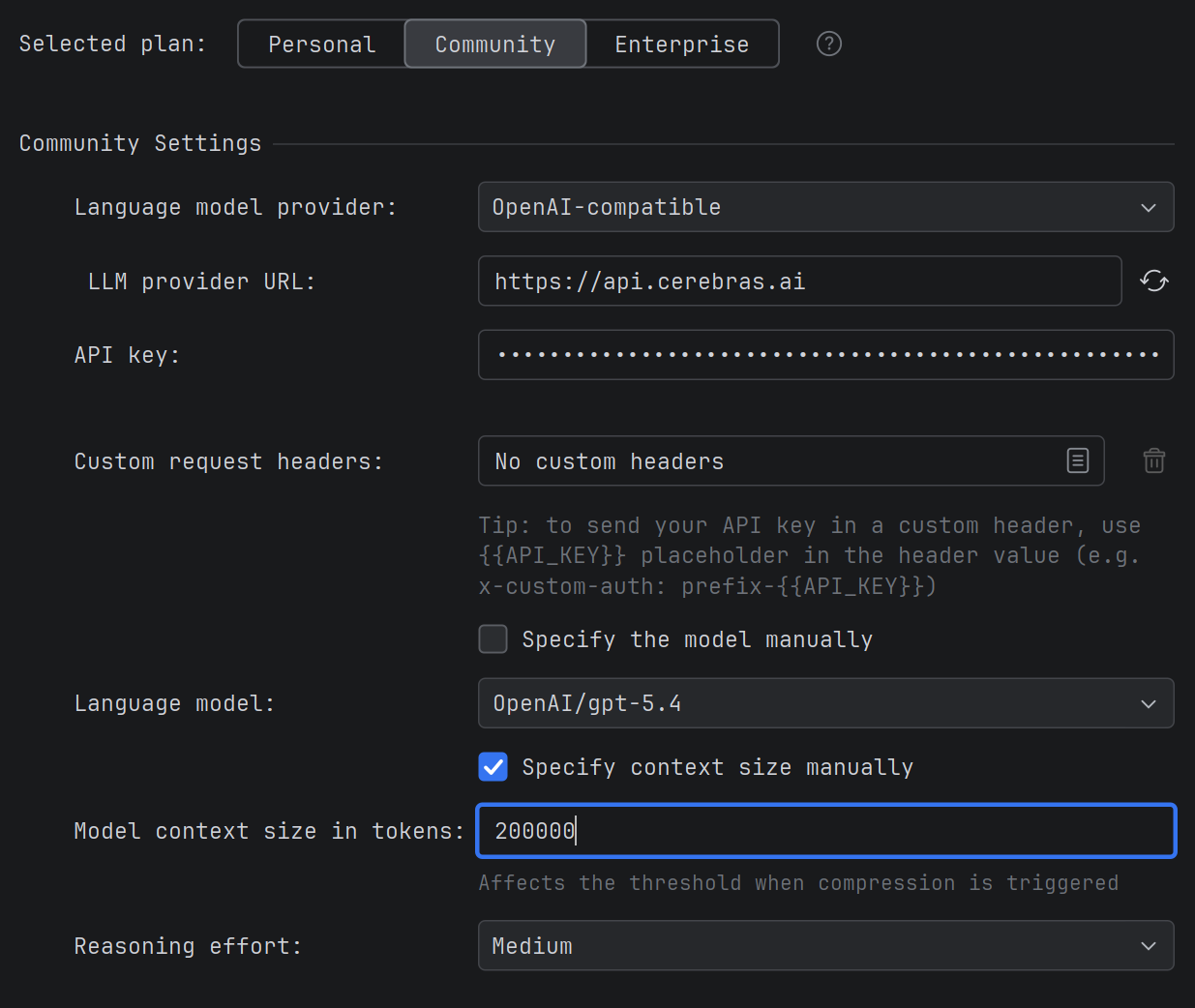
For models connected via OpenAI-compatible mode, a field has been added for manually specifying the context size. Previously, the plugin couldn't always correctly determine the context limit for such models, resulting in incorrect values displayed in the interface. You can now set the exact context size manually, and the plugin will correctly manage the size of requests sent.
This is useful when you use OpenAI-compatible models (e.g., Qwen, DeepSeek) with a non-standard context size and want the plugin to correctly calculate limits when sending requests and compressing the chat.
Rider .NET Class Search and Decompilation
The agent in Rider now has two new tools for working with .NET code.
Class Search — the agent can search for .NET types by name across your project, libraries, and NuGet packages. The search supports filtering by scope (project only, libraries only, or all) and namespace prefix.
Decompilation — if the source code of a class is not available (e.g., a type from a NuGet package or a system assembly), the agent can decompile it and read the contents directly from the IDE, without needing to find sources in a repository or download the package separately.
This is useful when you ask the agent to explore a third-party library, understand how a type from a NuGet package works, or find the right class in a large solution with many dependencies.
JetBrains IDE 2026.1 Support
The plugin has been updated for compatibility with the new JetBrains IDE 2026.1 versions. If you've already upgraded to the new IDE version, Explyt will continue to work without changes.
For feedback — support@explyt.com and chat with the team.