What’s new in Explyt 5.2
Explyt 5.2 introduces powerful updates for individual developers, including Anthropic, now available in the Personal plan, and official support for PhpStorm.
Anthropic in the Personal Plan
Anthropic is now included in the Personal subscription, giving individual users access to advanced AI capabilities directly in Explyt.
PhpStorm Support
Explyt Agent capabilities are now available in PhpStorm. Building and testing PHP applications is now easier and more efficient with Explyt seamlessly integrated into your development workflow.
Inline Code Generation in All Supported IDEs
You can select a piece of code and modify it directly in the editor: not only in IntelliJ IDEA as before, but across all supported IDEs.
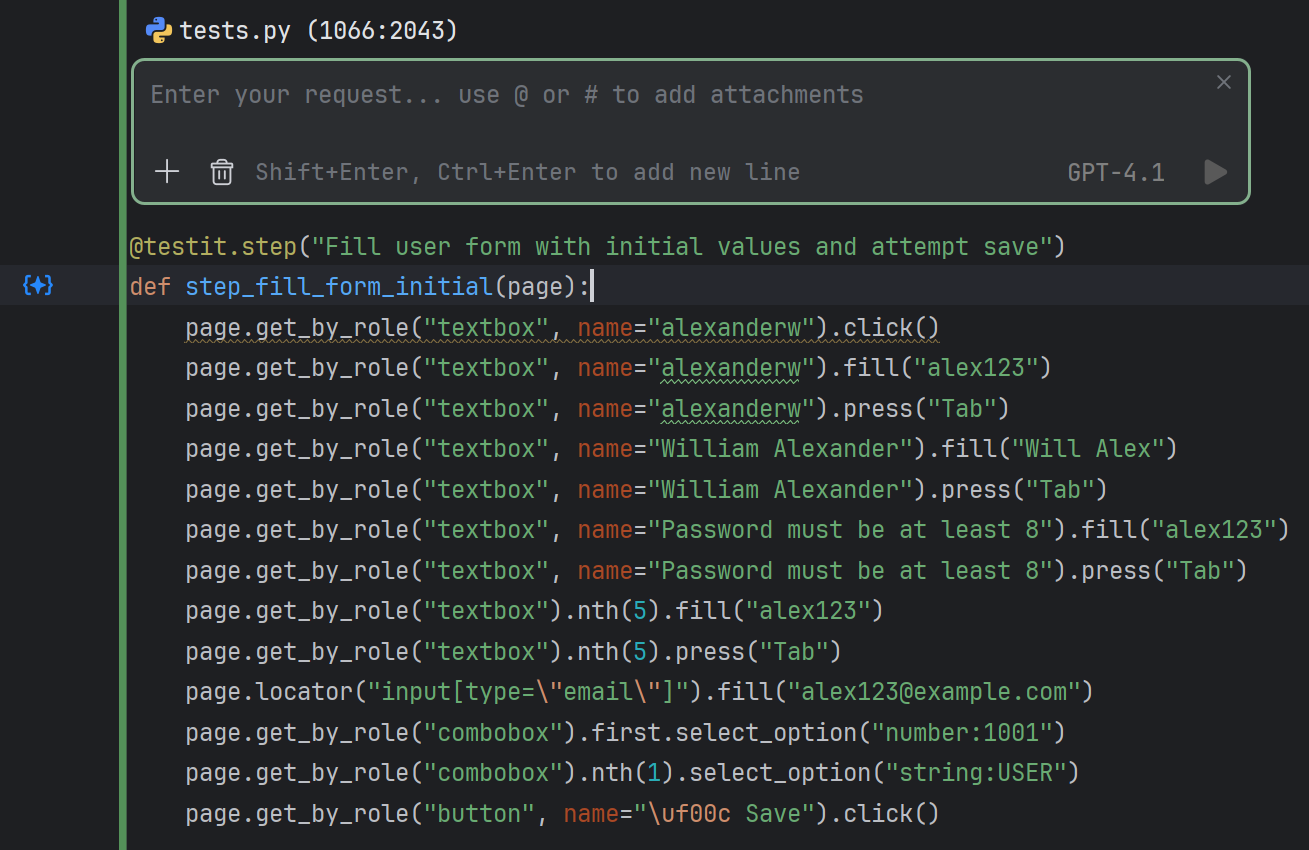
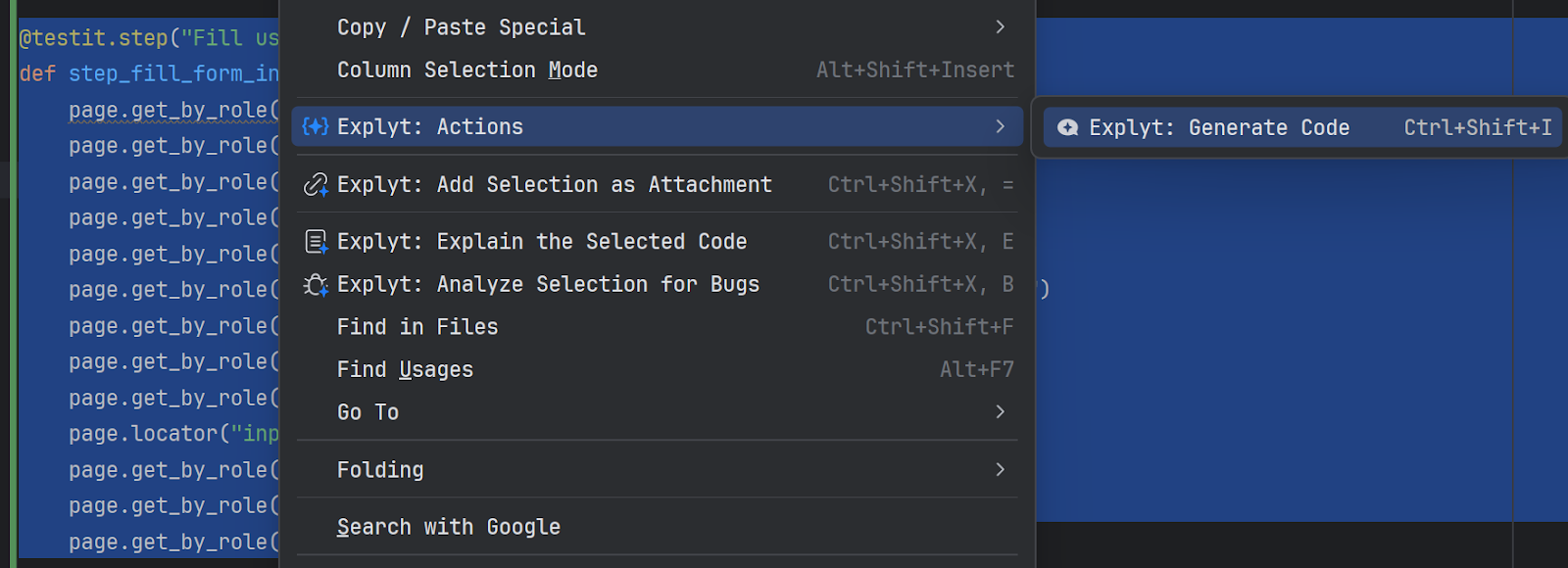
To do this, simply select the desired code, right-click on it, and choose “Generate Code” from the context menu.
Support for Allure TMS System
Every QA automation engineer can now authenticate in their TMS directly from the Explyt plugin.
Currently, support focuses on one of the most common and painful testing scenarios: fixing failed automated tests. Technically, this means the plugin can:
- recognize links to automated test runs
- extract relevant metadata from failed tests
- reproduce the failure
- fix the automated test or report that the issue is in the tested application
Instructions on how to configure the plugin for your TMS system are available here.
Plugin Quality and UI/UX Improvements
Over the past few months, we have focused heavily on improving the overall quality of the Explyt Agent. Some of these changes are not directly visible in the UI, but you will definitely notice them in practice: the agent has become smarter and more accurate when solving a wide range of tasks.
What’s new in the interface?
Custom OpenAI-Compatible Model Name
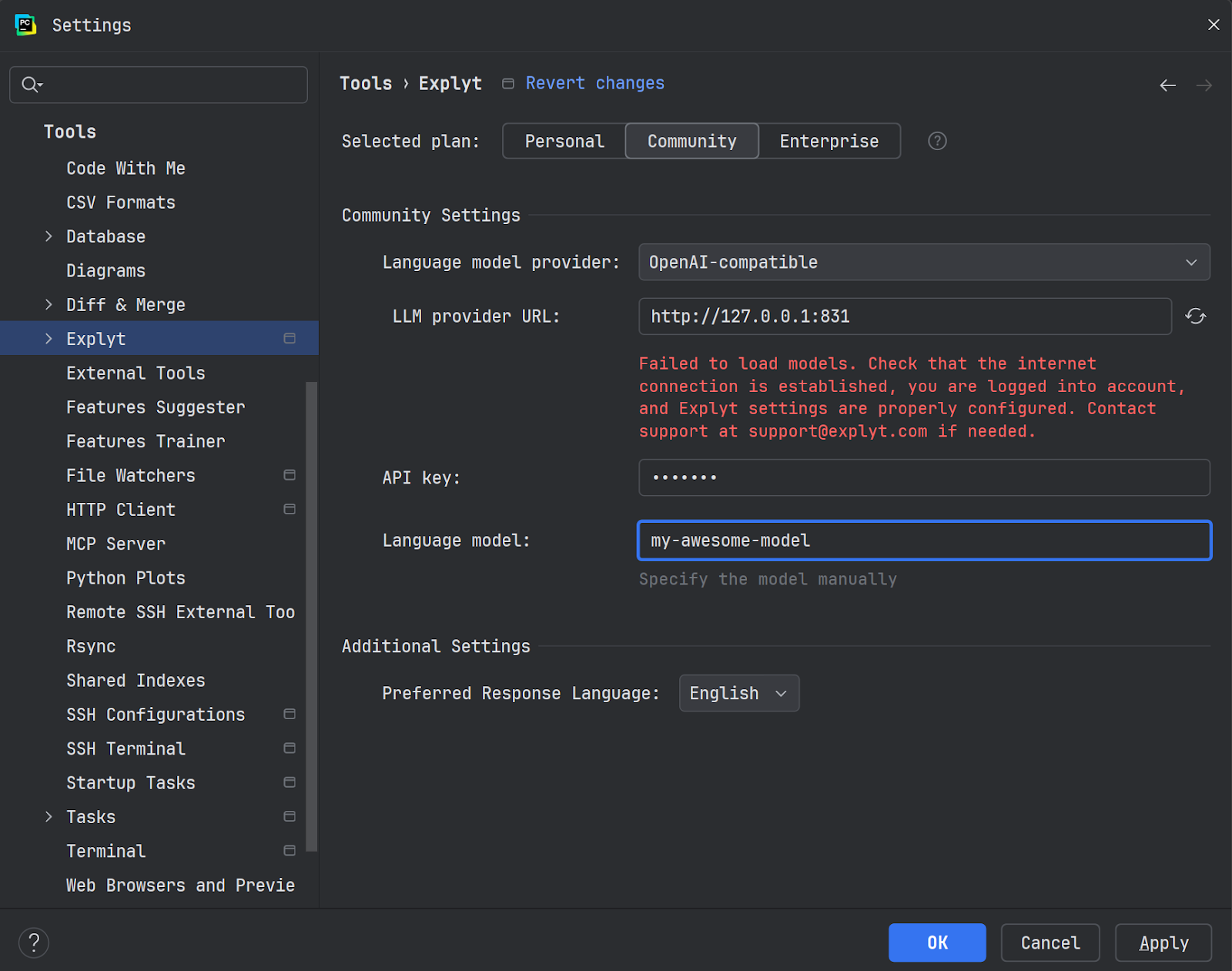
Some users work with model providers that are not fully OpenAI-compatible. These providers allow chatting with a model but do not expose a list of available models, which previously made them unusable in the plugin.
You can now manually specify the name of the OpenAI-compatible model you want to use instead of selecting it from a predefined list.
Displaying File Diffs Directly in Chat
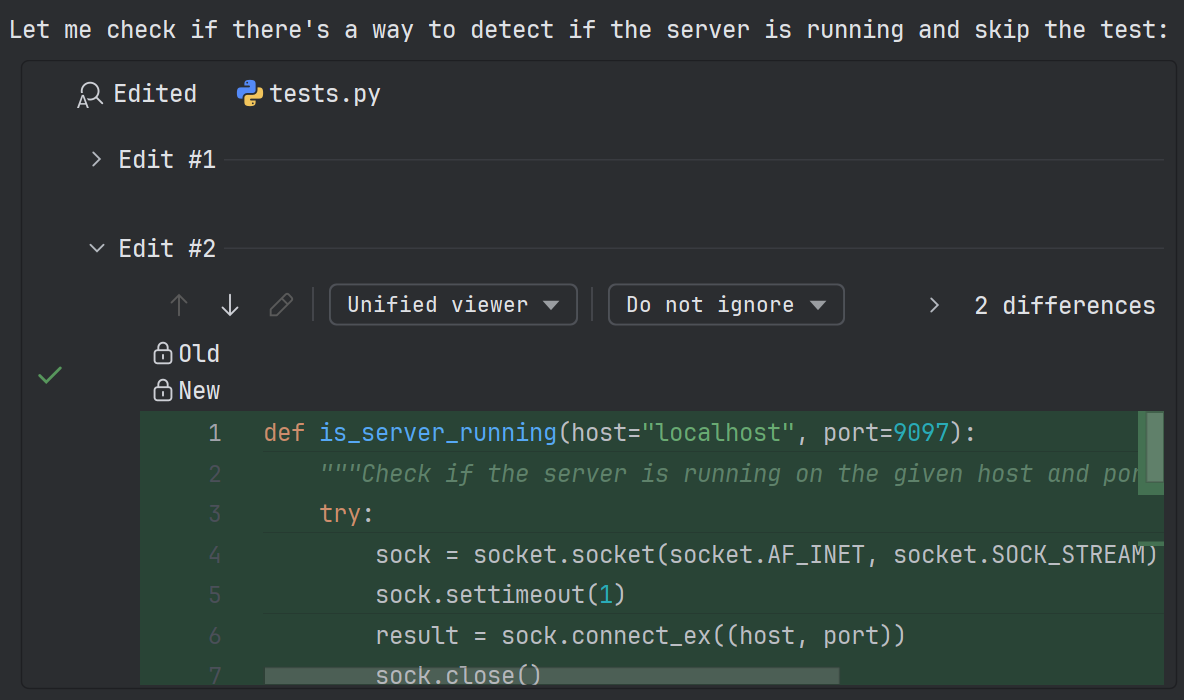
Most developers and testers are used to reviewing diffs in the main editor, which is why Explyt traditionally displayed them there. However, a new workflow is becoming increasingly popular – one that focuses on managing AI agents and reviewing their results directly in chat.
For users following this approach, reviewing code changes directly in the agent chat is more convenient. We’ve added this capability to the Explyt interface.
Model Context Window Visibility in Chat
The current model context usage is now displayed directly in the chat. This is important because modern models still perform worse as more context is loaded, and large prompts also consume more time and cost more.
You can monitor context usage directly in the chat, in the corner near the active model name.
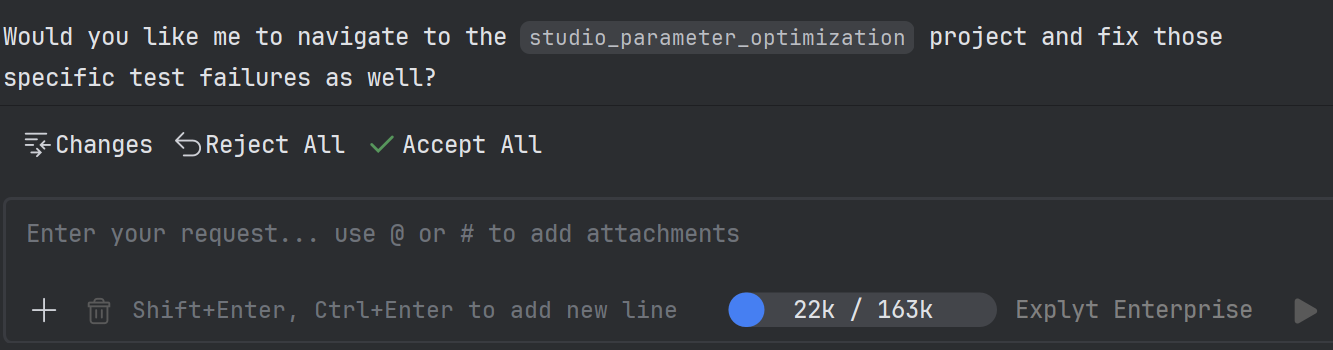
If you don’t see this element, just resize the agent window to the left.
Large Tool Outputs Are Saved to Files
In practice, many tools produce large outputs, for example, project compilation logs, full test runs, or fetching web pages. Additionally, many modern MCP servers are not optimized and return excessive data to the agent.
This quickly fills the model context, degrades response quality, and consumes tokens or credits faster. This is a problem that most AI tools do not address.
We solved this by saving large tool outputs to temporary files and passing only their structure to the model. This significantly reduces context usage, keeps the model context clean, and improves output quality while lowering costs.
In chat, it looks like this:

Install Explyt 5.2 now and see how Explyt transforms the way you build, test, and fix code.