The new Explyt 5.4 release focuses on practical improvements for everyday development. Personal users can now attach images directly in chat — especially useful for frontend work and UI testing. Requests to Anthropic models are now up to 70% cheaper thanks to improved caching, and large chats are automatically compressed without making additional LLM requests.
We also introduced new scenarios for automatic merge conflict resolution and generating UI autotests from manual test cases, along with flexible security controls — global restrictions on reading or editing files via .readignore and .writeignore.
The release is rounded out with UI improvements, including a unified diff view for multiple changes in chat, a resizable input field, copy/like/dislike buttons for agent responses, and clearer visual separation of user messages.
Ability to attach images in chat for personal users
You can attach an image to the chat. This will be especially useful for frontend development and UI testing.
To attach an image:
- Click the plus icon in the chat
- Select
Image(s)...from the menu - Choose the image file
- The image will be attached to your message
When you send the message, the agent will receive the image along with your text and will be able to see its contents.
Not all AI models support images in chat. If you use a model that doesn't support images, the agent won't be able to see the image content.
Improved caching for Anthropic requests
We’ve enhanced how the plugin works with Anthropic’s caching. In our benchmarks, requests to Anthropic models were up to 70% cheaper. Build more with your favorite Claude model.
Chat compression
If the chat with the agent becomes too large, there's a risk of hitting the context window limit: the model's performance decreases, while its cost and response time increase. We have implemented automatic chat compression that reduces the chat size automatically when it becomes too large. It's triggered automatically and doesn't make additional requests to LLM, so it doesn't waste your time and tokens.
You can configure when automatic compression should be triggered and manually initiate compression at any time directly from the chat interface, as shown in the video.
New scenarios
Many users asked us to add automatic merge conflict resolution and creation of UI tests based on manual test cases.
You can invoke them from the new chat menu by clicking Fix merge conflict (Automate manual test case to UI autotest), or invoke the corresponding Workflow by typing #workflow:merge-conflict.md (#workflow:automate-manual-test.md) in the chat.
Ability to globally prohibit reading or editing specified files in the project
For cybersecurity reasons, it may be useful to prevent the agent from reading or editing certain folders or files in the project. This can be done by creating .readignore and .writeignore files in the .explyt/tools/ folder in the project.
The syntax of the files is the same as .gitignore.
If you add a file or folder to the .writeignore file, the agent will be able to read it but won't be able to edit it. This can be useful, for example, if you want to change your code in a TDD style with the agent, but ensure that tests won't be adjusted to fit the implementation.
If you add a file or folder to the .readignore file, the agent won't be able to read or write to it. This can be useful if a file contains confidential data, such as your API keys for paid services that are required for the application's logic, but you don't want the agent to see them.
User interface improvements
We continue to work on the user interface to make our plugin more convenient for daily work.
Unified diff output for multiple changes
Some users prefer to view changes made by the agent directly in the chat window without opening modified files in the editor. This can be done by clicking the eye icon.
Changing the input window size
You can change the size of the input window by dragging its top edge. You can also enable automatic resizing of the input window by clicking the lock icon.
Copy, like, and dislike buttons for agent responses
You can copy an agent's message by clicking the corresponding icon below the message. You can also rate the agent's response by clicking the like or dislike button. Feel free to write your feedback and suggestions in the chat, we will definitely consider every issue.
User messages highlighted in the chat
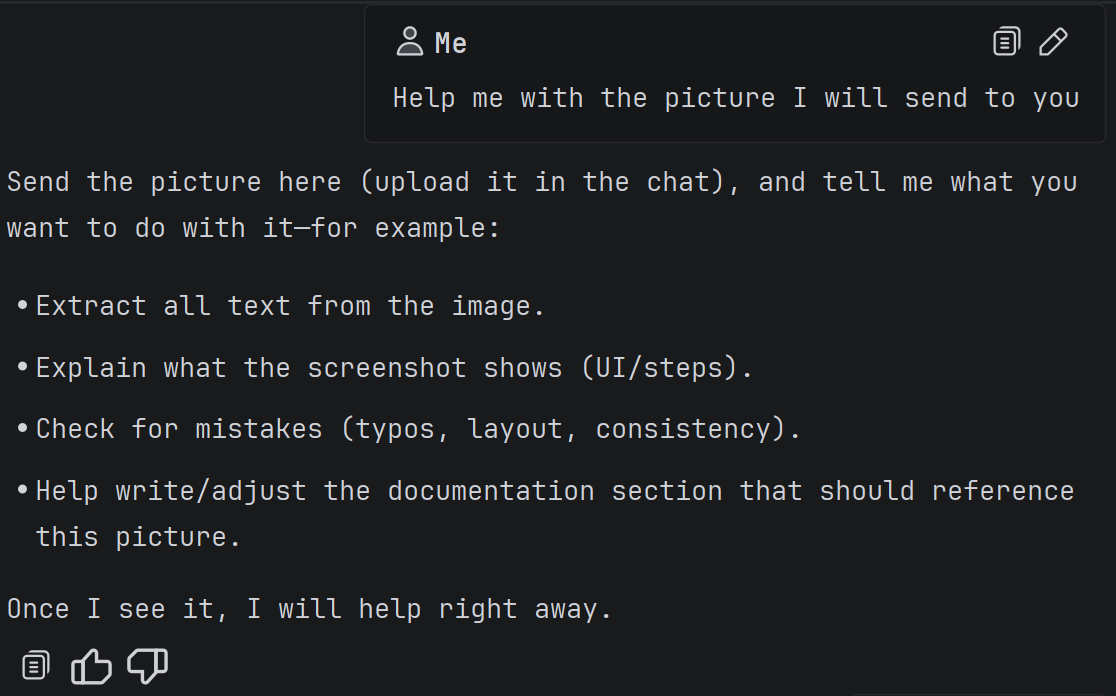
User messages are styled differently to stand out among agent messages.
Install the update now and see how Explyt transforms the way you build, test, and fix code.
Reproduce, inspect and fix inside JetBrains IDEs, with the debugger, run configurations and IDE facts as evidence.