Explyt 5.13 is mostly about everyday friction. The kind that does not look dramatic in a changelog, but still gets in the way: tests that are harder to start in WebStorm or PyCharm, files the agent cannot see because they sit outside the project, the same setup explanations in every new repository, and constant jumps between code and chat.
The update is especially useful for developers and QA engineers who use IntelliJ IDEA, PyCharm, WebStorm, Rider, GoLand, or PhpStorm and want the AI agent to work with more of the real project context.
Here is what changed.
Generate tests where your code is
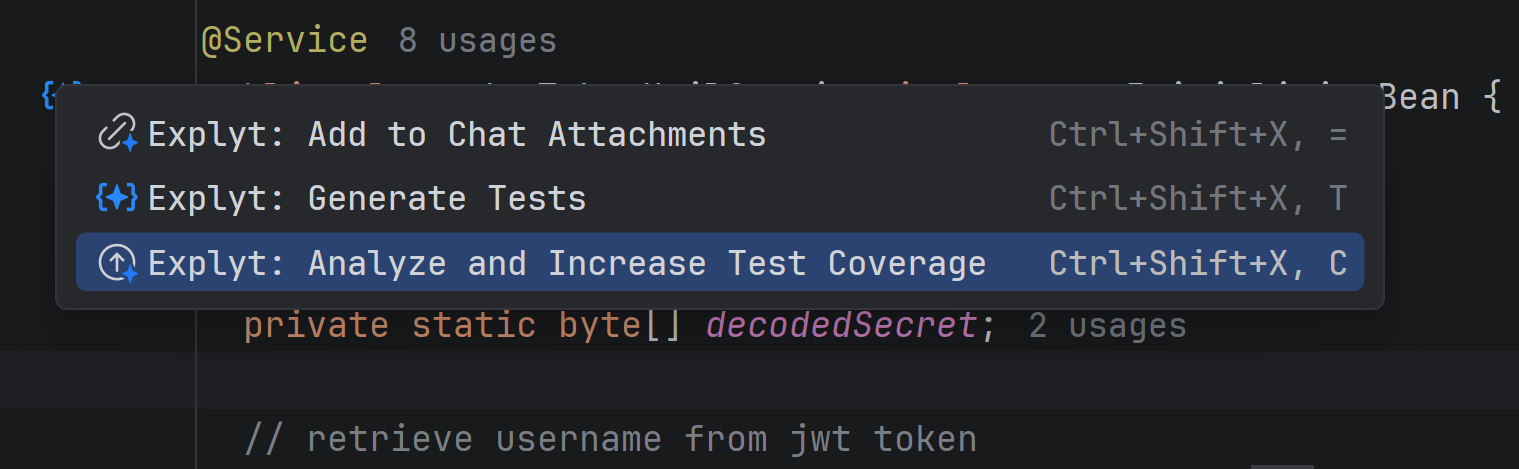
If you write JavaScript, TypeScript, or Python, getting the first test in place can still take more effort than it should. You need to point the agent at the right method, explain the file, maybe add a bit of project context, and only then get to the actual test.
In Explyt 5.13, test generation icons now appear next to methods in WebStorm and PyCharm. They used to work only for JVM projects in IntelliJ IDEA. Now they also work for JavaScript, TypeScript, and Python.
Click the icon next to a method, and Explyt will offer to generate tests for it. You can start from the method you are already looking at instead of writing a prompt that describes where the method lives.
Work with files outside the project root
Most real projects are not perfectly contained in one neat folder. A shared config may live next to the project. A data file may sit somewhere else. In a monorepo, the thing you need might be in a sibling service.
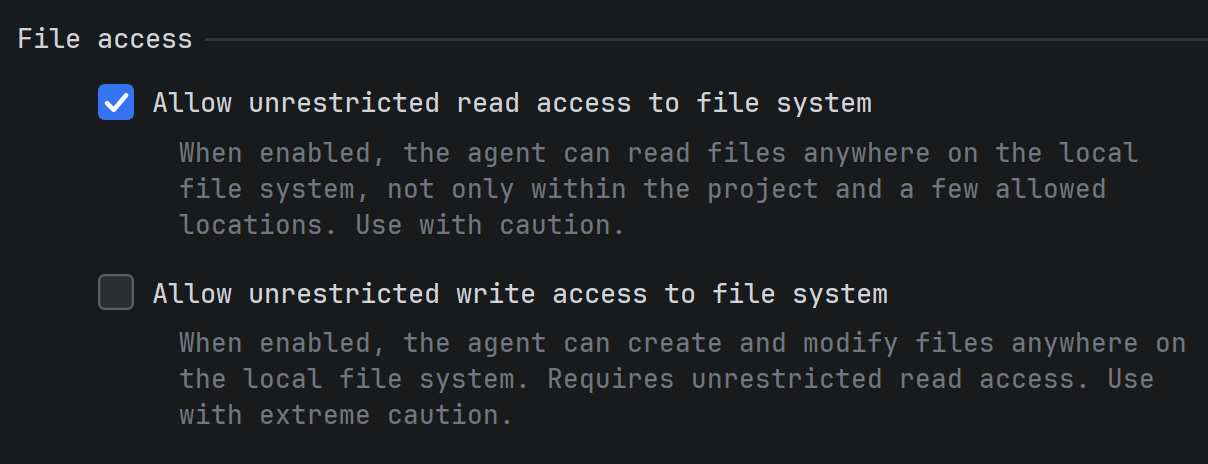
Explyt can now read and write files outside the project root. Before 5.13, the agent was limited to the project directory and a short list of allowed paths, so it could not read a shared config or edit a file in a neighboring repository.
You can manage access in Settings → Tools → Explyt → Agent → File Access.
This is useful when the agent needs the same context you would check manually: lint rules, build configs, API schemas, fixtures, or code in another service.
Set up the agent once for a project
A fresh AI chat usually starts with the same warm-up: what stack the project uses, how checks are run, which tools are safe, where the important files are. Doing that once is fine. Doing it for every new project gets old quickly.
Explyt 5.13 adds project onboarding. On first launch, or from an empty chat, Explyt asks a few questions and uses the answers to create project rules, skills, and MCP server connections.
For example, if you say the project uses Figma or Chrome for debugging, Explyt can suggest the matching MCP servers. The rules and skills are saved to the project's agent files, so later chats can start with that context already available.
Use onboarding when you open a new project and want Explyt to understand the basics before you ask it to change code.
Jump between code and chat faster
Ctrl+Shift+X, Tab moves focus to the Explyt chat. Press it again to return to the editor. Tab also works as a toggle.
This fits the normal AI coding loop: select code, ask something, read the answer, adjust the file, ask again. The hotkey saves a mouse reach each time. Not a huge feature, but the kind you notice after a day of using it.
Long chats should feel less heavy
Long conversations can start to feel slow, especially when a chat has hundreds of messages and every new response takes a little longer to render.
Explyt 5.13 reduces lag in long chats. Updates are faster, and messages use less memory.
Fewer UI annoyances
We fixed several chat and interface issues. The plugin window no longer closes when you close a tab. The selected model now appears correctly. Attachments no longer break when the original message is deleted. Popup notifications work again.
In Rider, the floating panel now shows the "add selection to chat" action, and the blank screen on IDE startup is gone.
More reliable agent behavior
The agent should be easier to rely on in day-to-day work. DeepSeek no longer crashes on tool calls, MCP tool results are no longer lost, and the agent can use the terminal alongside configuration tools.
We also fixed duplicate action registration and the empty chat that appeared when switching agents.
In Rider, file autocompletion at the solution root works correctly. We also fixed a UI freeze during highlighting, a problem with stopping operations, and the progress display for subagent work.
Reproduce, inspect and fix inside JetBrains IDEs, with the debugger, run configurations and IDE facts as evidence.